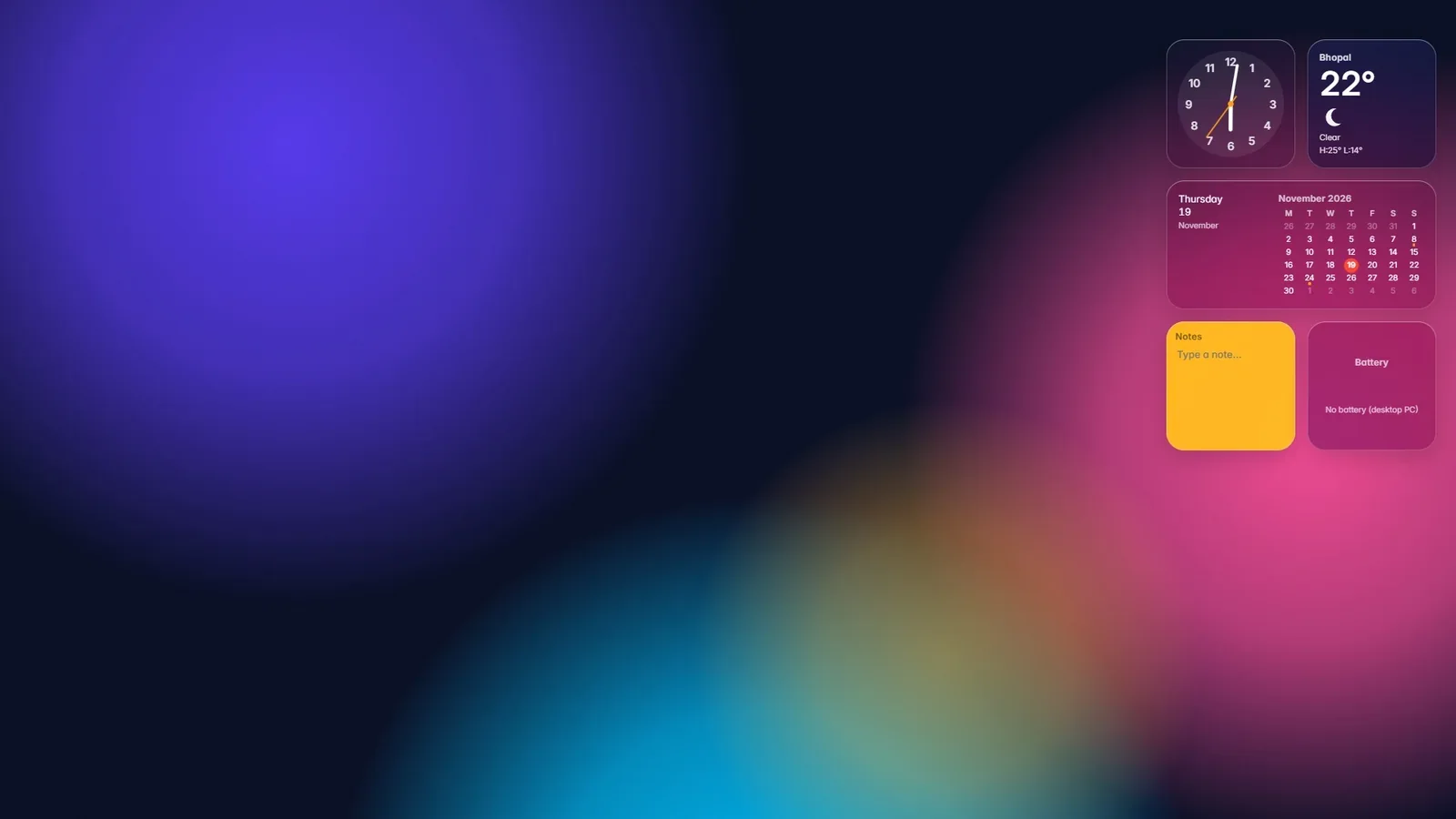
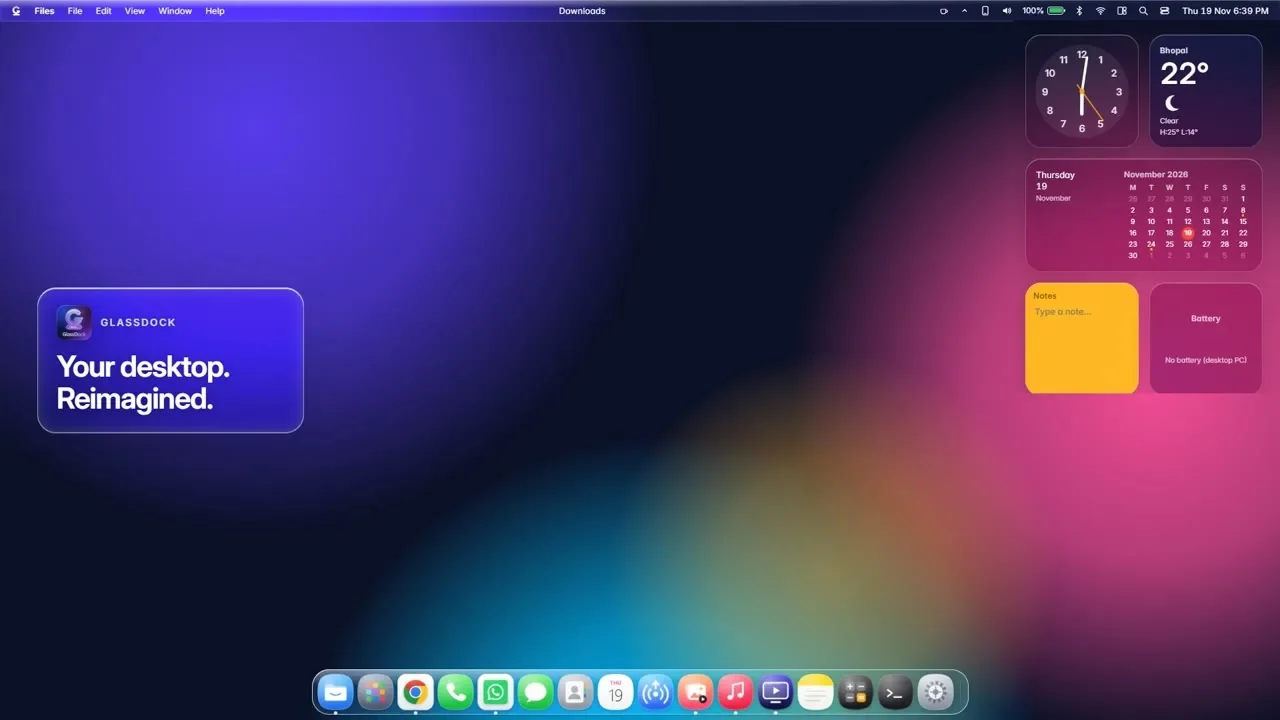
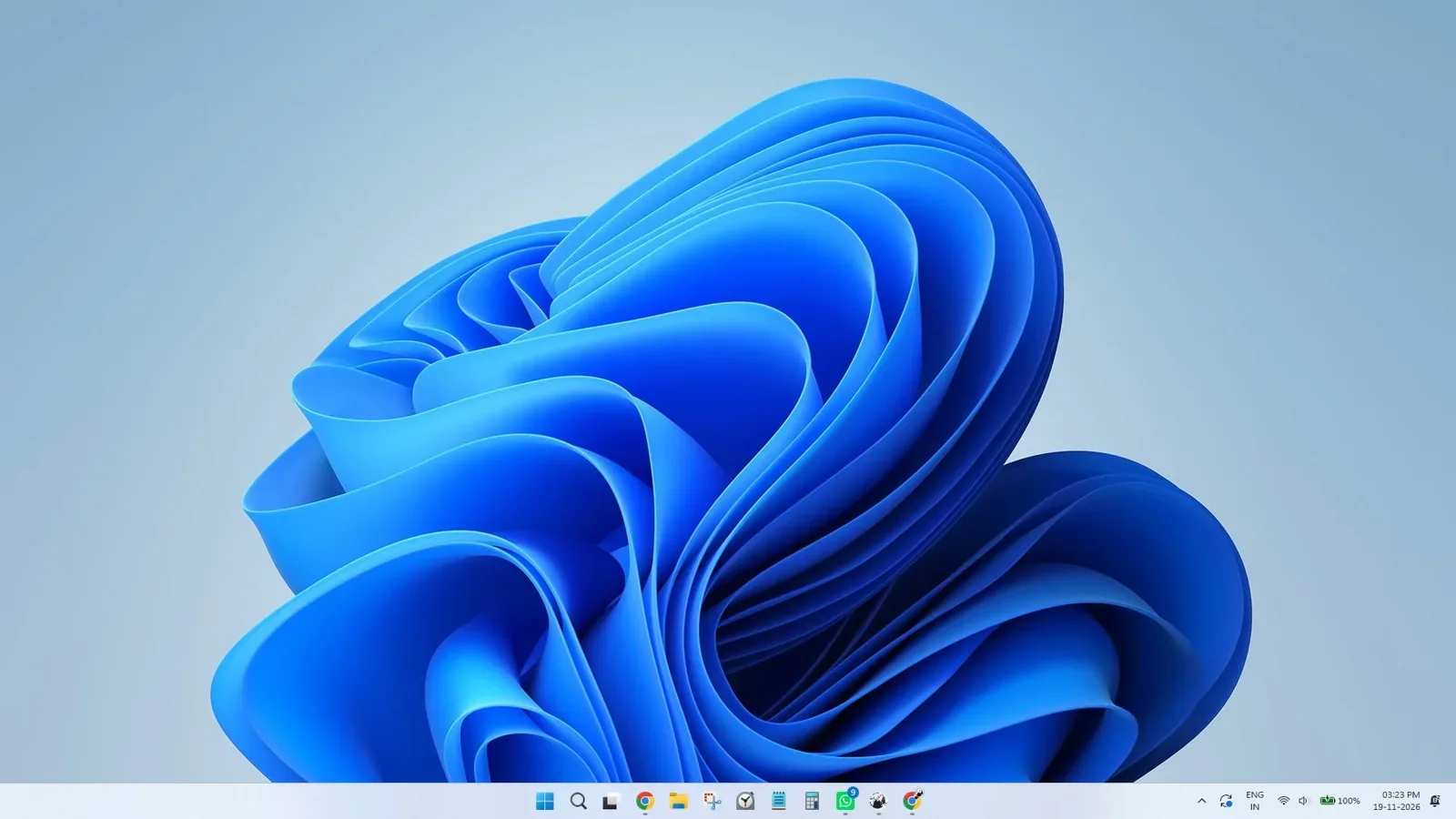
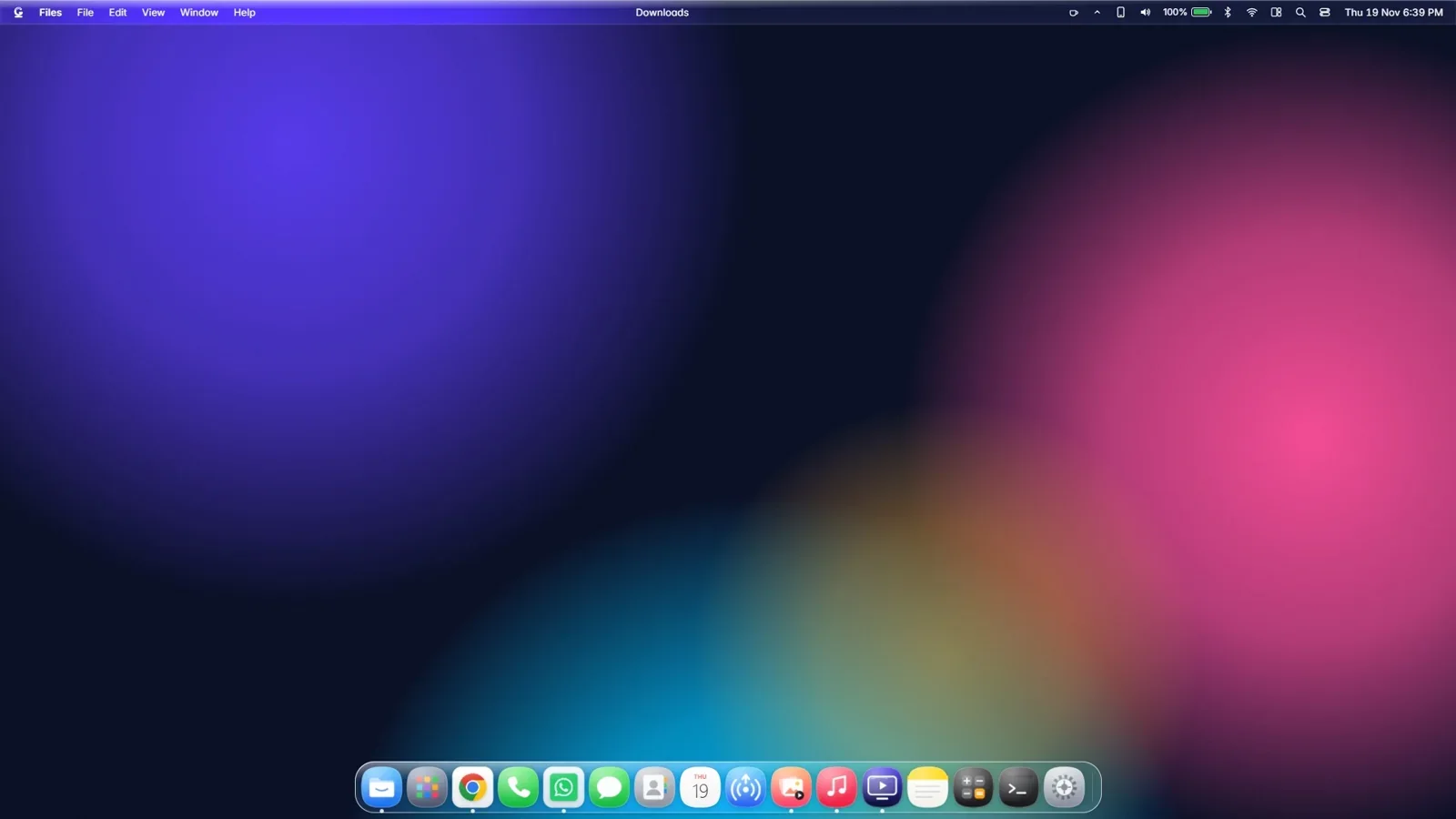
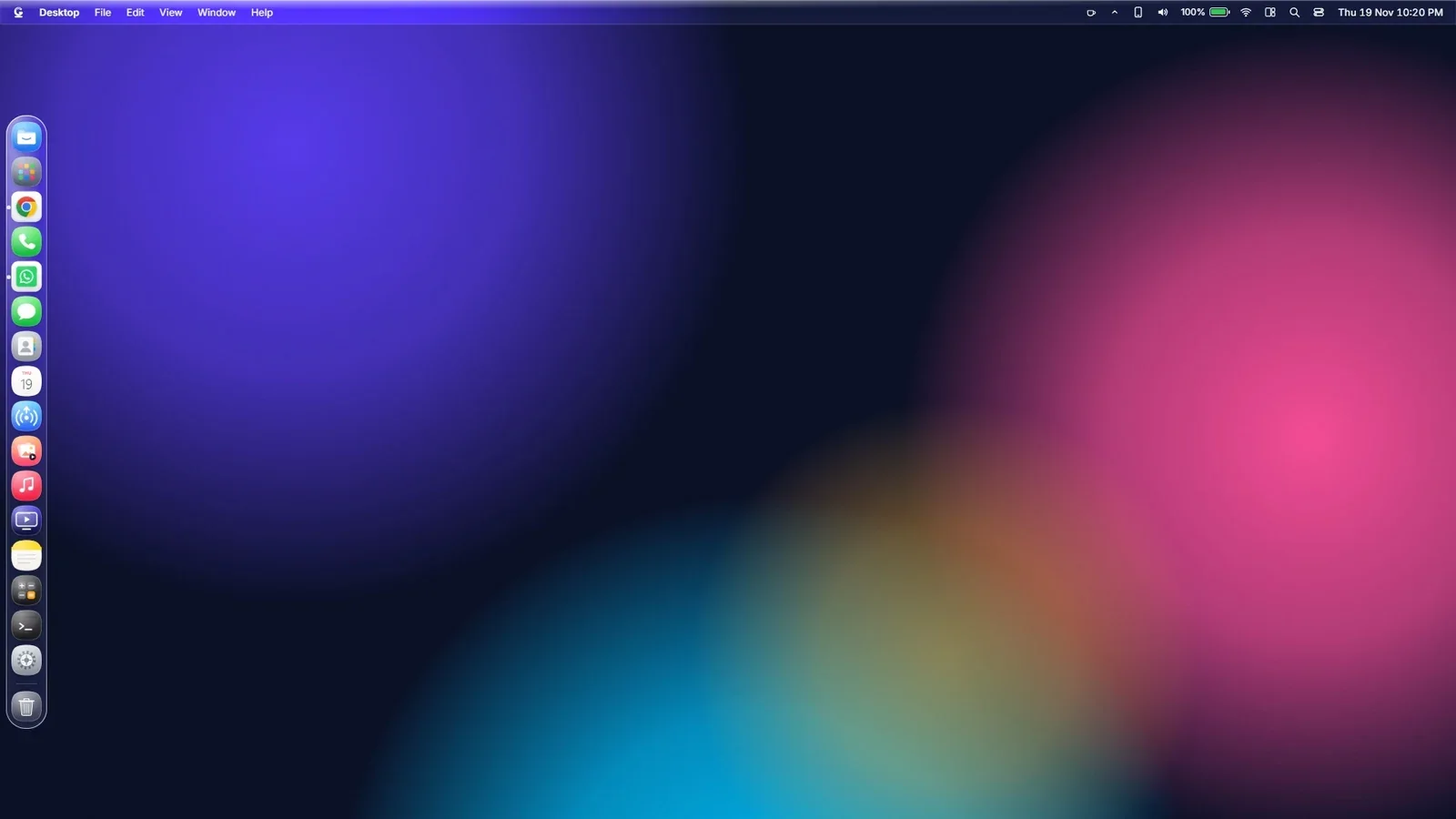
One dock for your apps. A glass menu bar on top. Widgets on the desktop, your phone's calls on your PC, and everything you need one click away. GlassDock sits on top of Windows, so your apps and files stay exactly where they are.
Pictures only tell half of it. The dock grows under your pointer, panels open like a drop of water, light bends at the edge of the glass. Watch the film once and you will know if this is for you.
GlassDock, the film
The GlassDock film, 1 minute 34 seconds. These are real screen recordings.
Windows 11 to GlassDockMenu bar and right-clickWidgets, light and darkApp Grid, Quick Search, Spacebar PreviewPhotos, Music, LoungeCalendar, calls, messagesFiles, Drop, Settings
In plain words
What is GlassDock?
GlassDock is an app for Windows 11 that adds a dock, a glass menu bar, widgets, Control Center, App Grid and Quick Search on top of Windows. Your apps, files and settings work as before, and the normal taskbar comes back when you quit. You install it from the Microsoft Store on a Windows 11 PC.
It is not a new operating system and it does not replace anything inside Windows. Think of it as a new front for the same PC. Windows still runs your apps, your printer, your games and your updates. GlassDock changes how you reach them: a dock instead of a crowded taskbar, a tidy bar on top for Wi-Fi, sound, battery and the clock, and glass panels that open where your hand already is.
Sits on top of Windows.
Nothing inside Windows is replaced.
Leaves cleanly.
Quit GlassDock and your taskbar, wallpaper and pointer return as they were.
On the Microsoft Store.
Checked by Microsoft, installed and removed like any Store app.
A dock for Windows 11 that feels alive under your hand
Monday morning, nine tabs of work waiting. You glide the pointer along the bottom of the screen and the icons rise to meet it. Your favourite apps sit on the left, anything that is open gets a small dot, and the app you want is always in the same place it was yesterday.
1
Magnify
Icons grow as you pass over them, then settle. You choose the size and how much they grow.
2
Peek
Rest on an open app and small live previews of its windows appear. Click the one you want. Close one with the ×.
3
Move
Bottom, left, right or top. Or let the dock hide and come back when your pointer touches the edge.
Drag to reorder. Drag an icon off the dock to remove it.
Drag an app from App Grid onto the dock to keep it.
Everything you check ten times a day, in one thin bar
Wi-Fi. Battery. Sound. The time. On most desktops these hide in a corner behind small arrows. GlassDock lines them up along the top of the screen, with the name of the app you are using on the left and its File, Edit and View menus beside it.
Click the Wi-Fi icon and the network list opens straight away. Click Bluetooth and your devices are there, battery levels included. Click the two-slider icon and Control Center opens: brightness, volume, dark mode, Focus and the song that is playing, in one panel. Add the controls you use. Remove the ones you never touch.
A coffee-cup icon keeps the PC awake during a long download.
An orange dot shows when the microphone is in use by an app, a green dot for the camera.
Pin your own shortcuts to the middle of the bar: an app, a folder, a file or a website.
Control Center: Wi-Fi, sound, brightness and more in one panel.
On the desktop
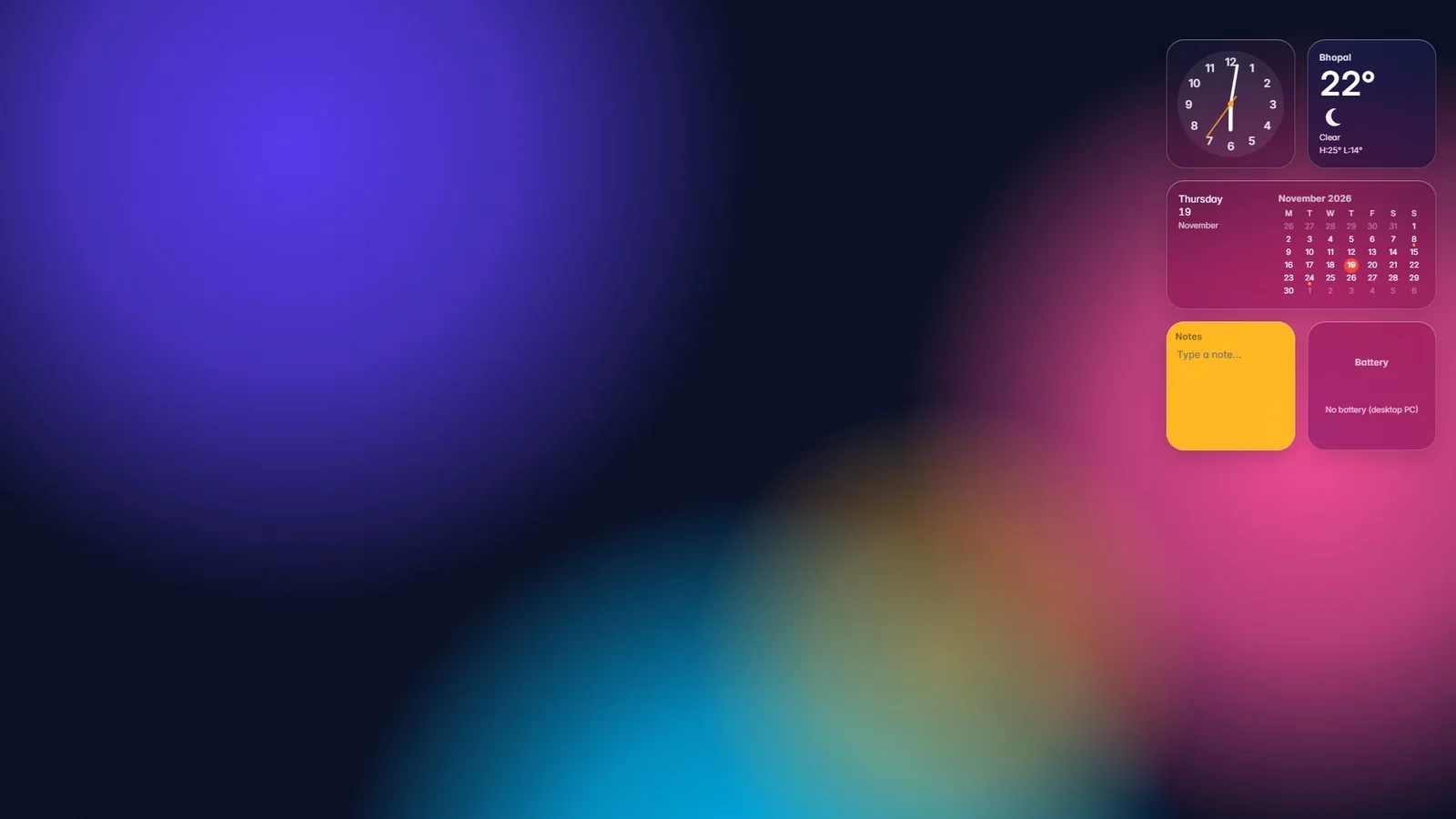
22 widgets that earn their place
A clock you can read from across the room. Today's weather before you decide about the umbrella. A to-do list that stares back at you until it is done. Put widgets anywhere on the desktop, pick small, medium or large, and they stay where you left them.
Bhopal
24°
Clear sky · sample
H 29° L 17°
Today
1
To-do
Send the invoice Call Riya at 5 Back up photos
ClockWeatherCalendarTo-doNotesBatteryWorld clockTimerPhoto frameCountdownAir qualityNow playingand 10 more
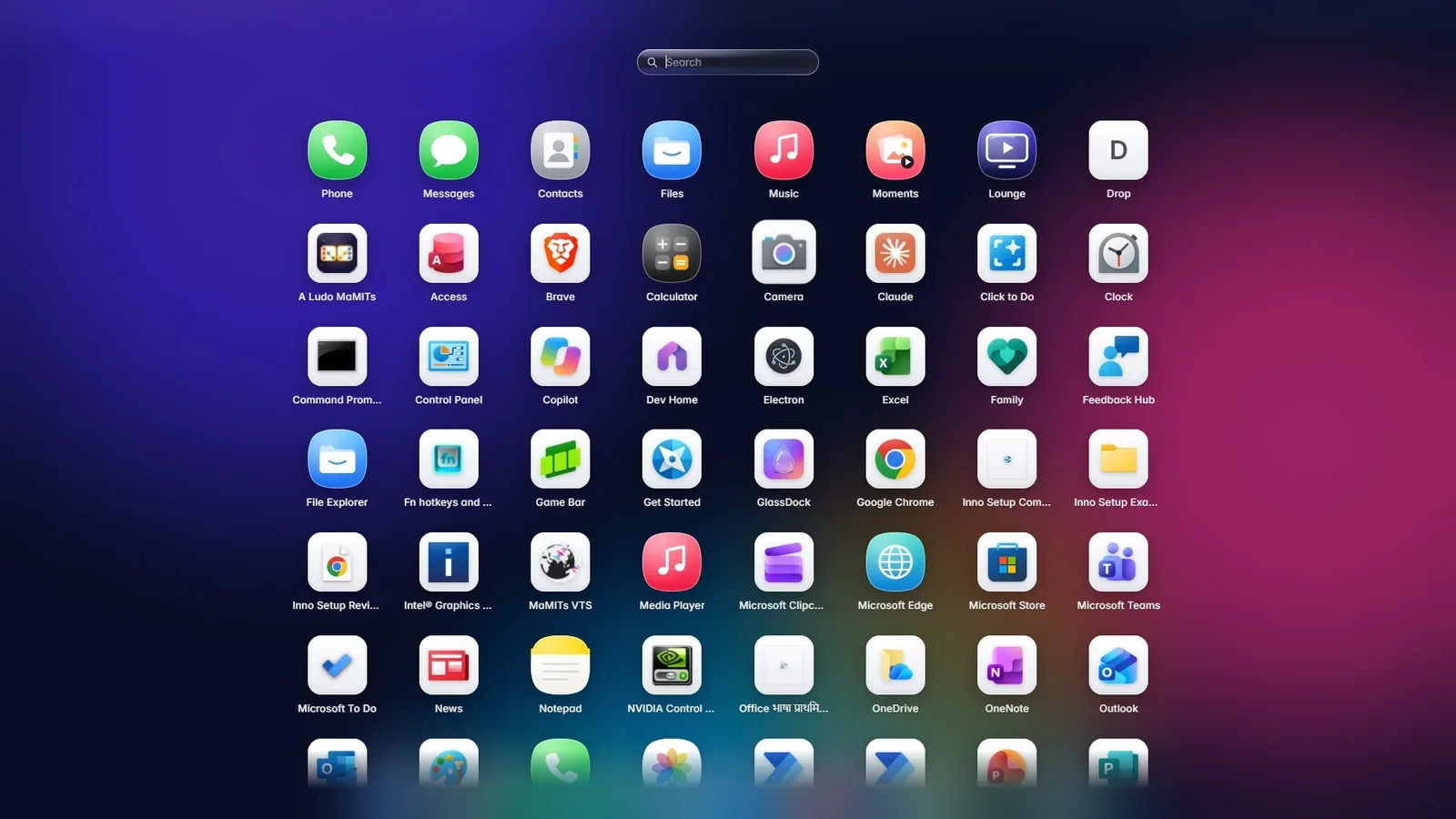
Tap the Windows key and every app on the PC appears in a clean grid. Type two letters to narrow it down.
Quick Search
Alt + Space opens a search bar in the middle of the screen. It finds apps, files and settings, does sums, and converts units and currency while you type.
Spacebar Preview
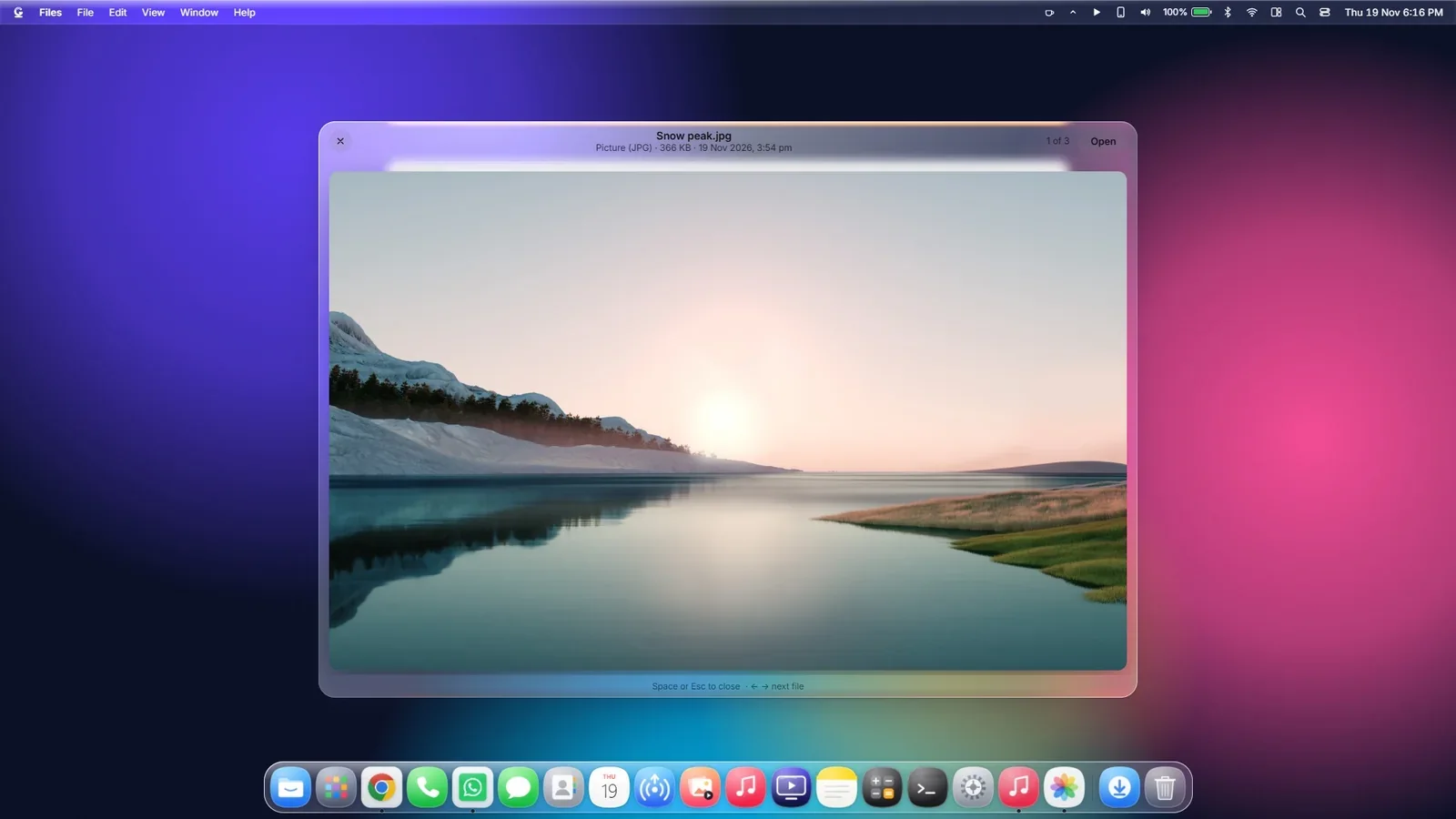
Forty photos named IMG_4032 to IMG_4071, and you need the one with the whiteboard. Select a file, press Space, and it opens in a preview. Arrow keys move to the next one. Works for photos, videos, music, PDF, text and code.
You are halfway through a spreadsheet, the phone is charging across the room, and it starts to ring. With GlassDock the call shows up on your screen. Answer it with a click and talk through your PC's speakers and microphone, or your headset.
GlassDock connects to your Android phone or iPhone over Bluetooth. There is nothing to install on the phone. Pair it once, allow contacts and messages when the phone asks, and you are done.
Answer, decline and make calls. Keypad, mute, and move the call back to the phone.
Read and send text messages from your PC on Android.
Your contacts and recent calls, searchable.
Play your phone's music through the PC speakers, with a visualiser.
What works depends on the phone. iPhone and Android share different things over Bluetooth. The Phone page lists it plainly.
Every photo and video on your PC in one gallery, sorted by year and month. The built-in player handles MKV, MP4, MOV and WebM, switches audio language, shows subtitles and remembers where you stopped. Open a photo or video from GlassDock Files and it lands here.
Music
Your own songs in a library with albums and artists. YouTube Music, Spotify, Apple Music and Amazon Music in tabs beside it. One window, one set of play and pause keys. Open a song from GlassDock Files and it plays here.
Lounge
Netflix, Prime Video, Apple TV, JioHotstar and YouTube in one window, with a home screen that shows what is popular in your country. You sign in with your own accounts.
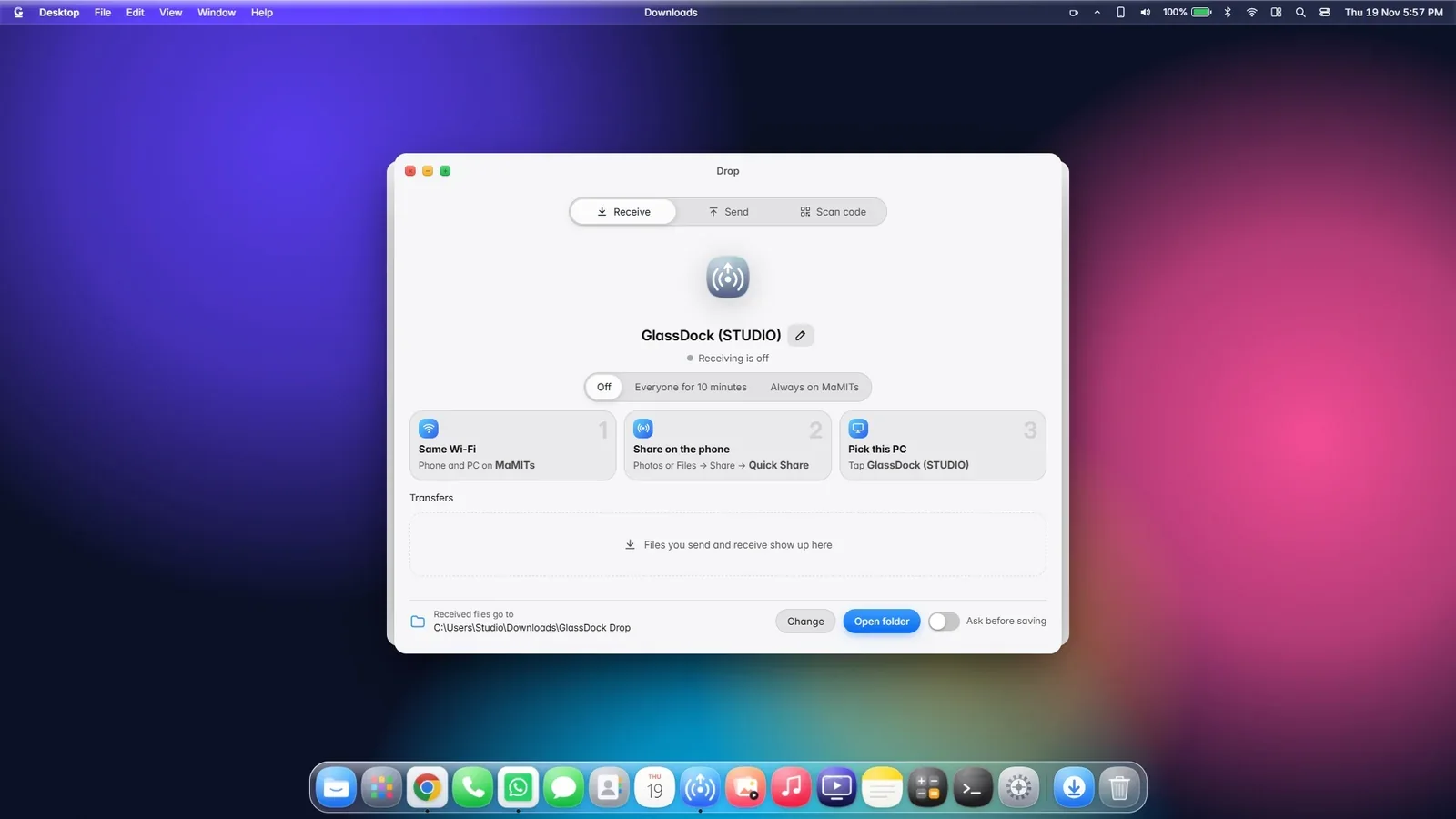
A photo of a signed form. A video from the weekend. A PDF someone sent you on WhatsApp. Drop moves files between your phone and your PC over your own Wi-Fi. Android phones with Quick Share see your PC as a nearby device. Any other phone scans a QR code and uses a simple page in its browser. Your PC asks before it accepts anything.
Some people want glass you can almost see through. Others want it calm and solid so text is easy on the eyes at midnight. A single slider sets how clear the glass is. Light and dark mode switch the whole desktop in one click. Choose from drawn wallpapers, live wallpapers that move gently, or your own picture.
We know the worry. You change something on the desktop, something breaks, and you spend Sunday fixing it. So GlassDock was built to leave without a trace on the desktop. The first time you open it, a short setup asks what it may change, one item at a time, and nothing changes until you press Finish. Before it changes anything, it notes how your taskbar, wallpaper and pointer were set. Quit GlassDock and they come back. There is also a "Restore Windows" shortcut in the Start menu, just in case.
Quit and Windows is back.
Taskbar, wallpaper, pointer and folders return as they were.
Mic only for calls you take.
GlassDock never asks for either. The only time your microphone is used is during a phone call you take on the PC.
No ads. No tracking in the app.
Your settings and files stay on your PC.
From the Microsoft Store.
Installed, updated and removed like any other Store app.
GlassDock is designed and built by MaMITs, a software company in Bhopal, India. We have been building software, websites and apps for over ten years, for 195+ clients. You can write to us from the Support page or visit www.mamits.com.
GlassDock is an app for Windows 11 that adds a dock, a glass menu bar, widgets, Control Center, App Grid and Quick Search on top of Windows. Your apps and files work as before. Quit GlassDock and the normal Windows taskbar comes back.
Will GlassDock change or damage my Windows?
No. GlassDock runs on top of Windows and keeps a note of your original taskbar, wallpaper and pointer settings. When you quit, or if you uninstall, those are put back. A "Restore Windows" shortcut is included as a safety net.
Does it work on Windows 10?
No. GlassDock is made for Windows 11, 64-bit. It is not offered for Windows 10.
Will it slow my PC down?
GlassDock is made to stay light. It has a Light mode for PCs with about 4 GB of memory, which swaps live wallpapers for still ones. If your PC runs Windows 11 comfortably, it should run GlassDock.
Do my apps and games still work?
Yes. Windows still runs every app and game. When an app or game goes full screen, GlassDock gets out of the way.
Does GlassDock listen through my microphone?
No. GlassDock has no voice assistant and no speech recognition, and it refuses microphone and camera requests in its own windows. Your microphone is used only while you are on a phone call that you answered on the PC.
Can I take phone calls on my PC with it?
Yes. Pair your phone over Bluetooth and calls ring on your PC. You can answer, decline, dial and mute. No app is needed on the phone. What else works (messages, contacts, music) depends on the phone, and the Phone page explains it.
Do I need to install anything on my phone?
No. Calls, contacts and messages work over standard Bluetooth. Drop works with Quick Share, which is already on most Android phones, or through a web page that opens when you scan a QR code.
How do I get my normal taskbar back?
Quit GlassDock from the logo menu at the top left. The Windows taskbar returns at once. You can start GlassDock again whenever you like.
Windows 11 ko customize karne ke liye GlassDock kaise use kare?
Open the Microsoft Store on your Windows 11 laptop, search "GlassDock", and install it. The dock and menu bar appear on their own. Open Settings from the logo menu to choose wallpaper, widgets and the glass look.
Who makes GlassDock?
MaMITs, a software company based in Bhopal, India, with more than ten years in business. Support is through the form on the Support page.