The photo is on your phone. You need it on your PC. Somewhere in a drawer there is a cable, probably. Drop sends files between your phone and your Windows 11 PC over the Wi-Fi you are already on. Pick the file, pick your PC, press Accept.
How do I send files from my phone to my PC without a cable?
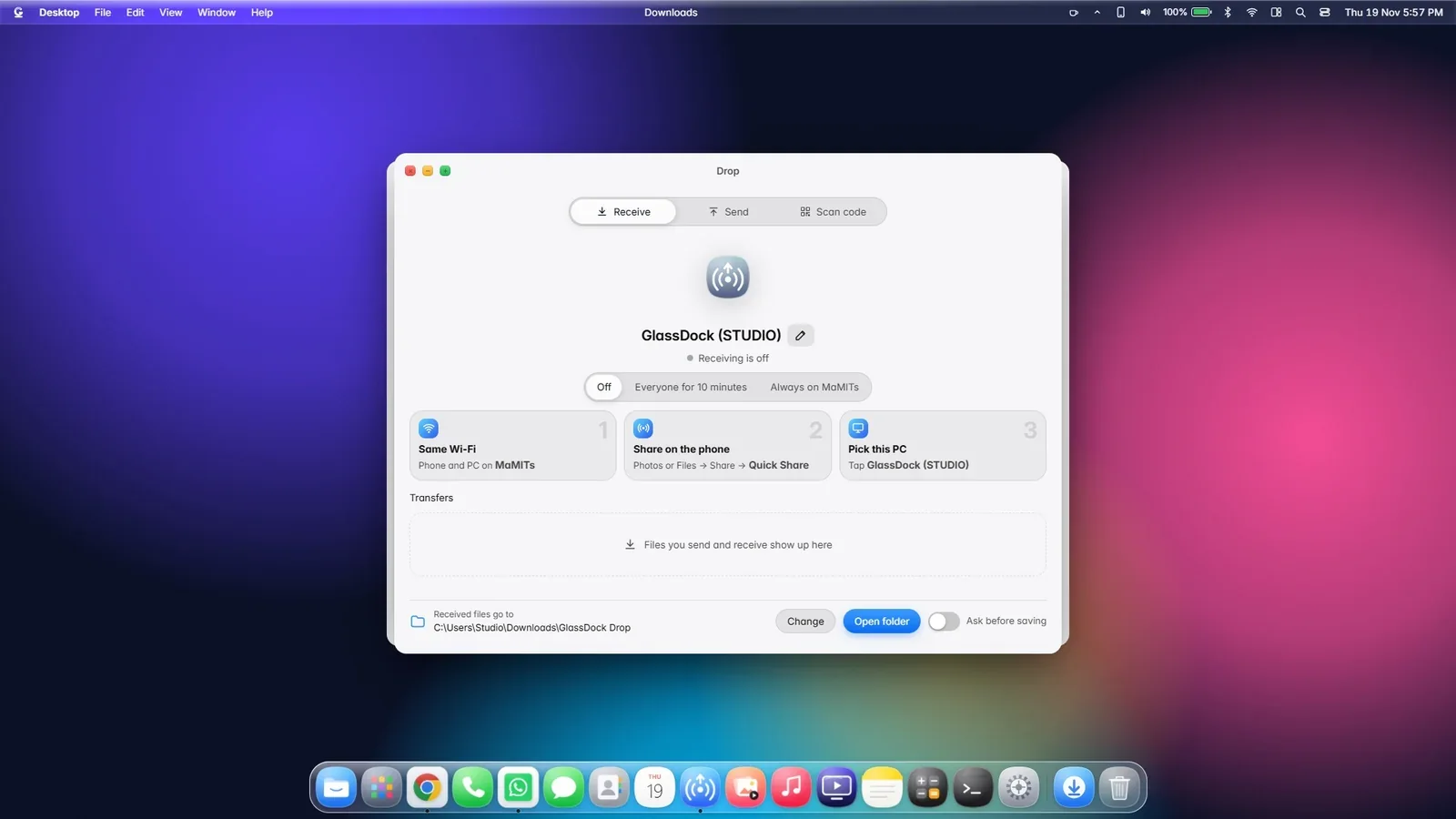
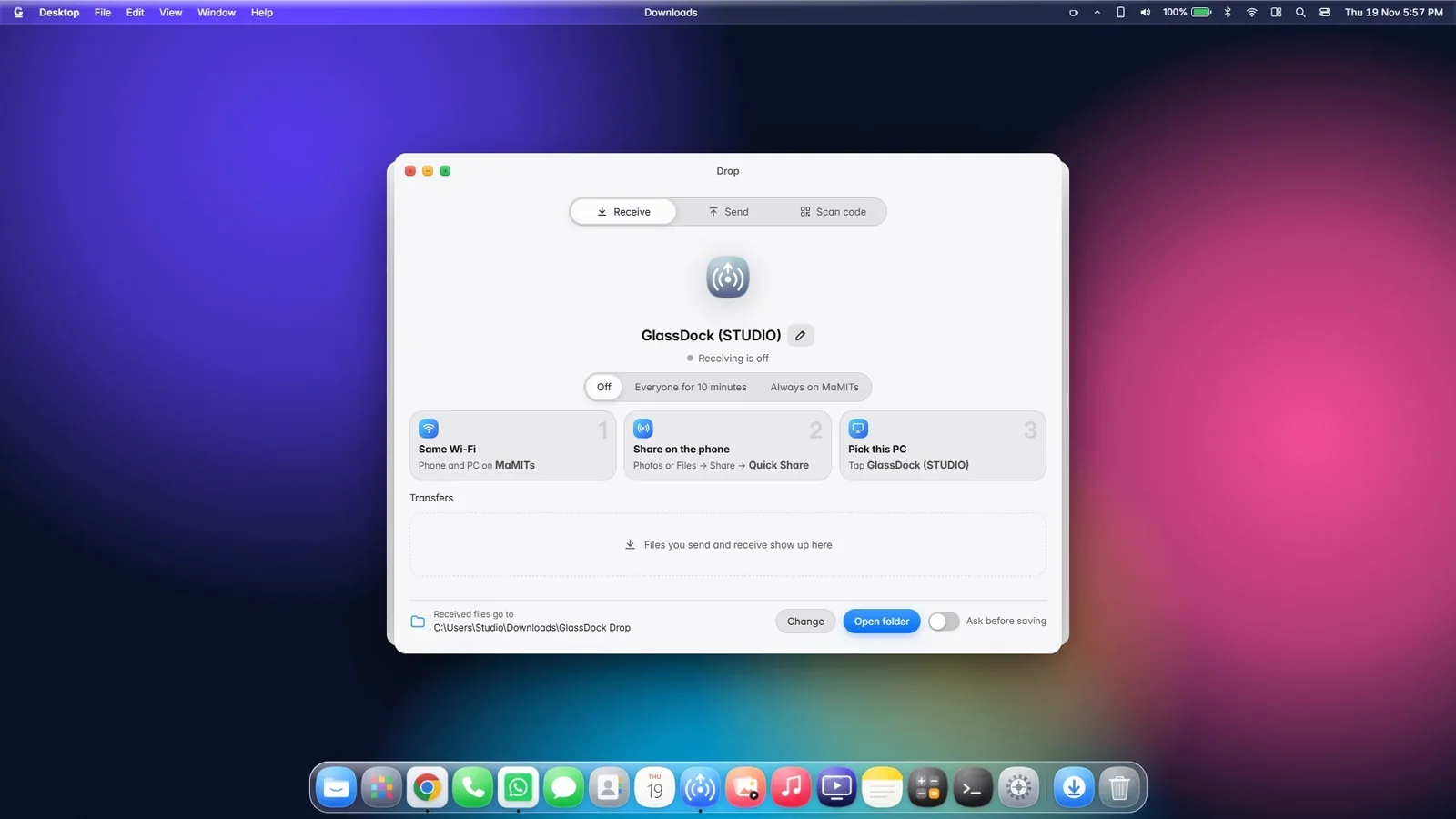
With GlassDock, open Drop on your PC and make it visible. On an Android phone, share the file with Quick Share and choose your PC. On any other phone, open the Scan code tab in Drop, scan the QR code with the phone's camera and pick the files on the page that opens. Both devices must be on the same Wi-Fi.
One window, three tabs
Receive, Send, or Scan code
Receive
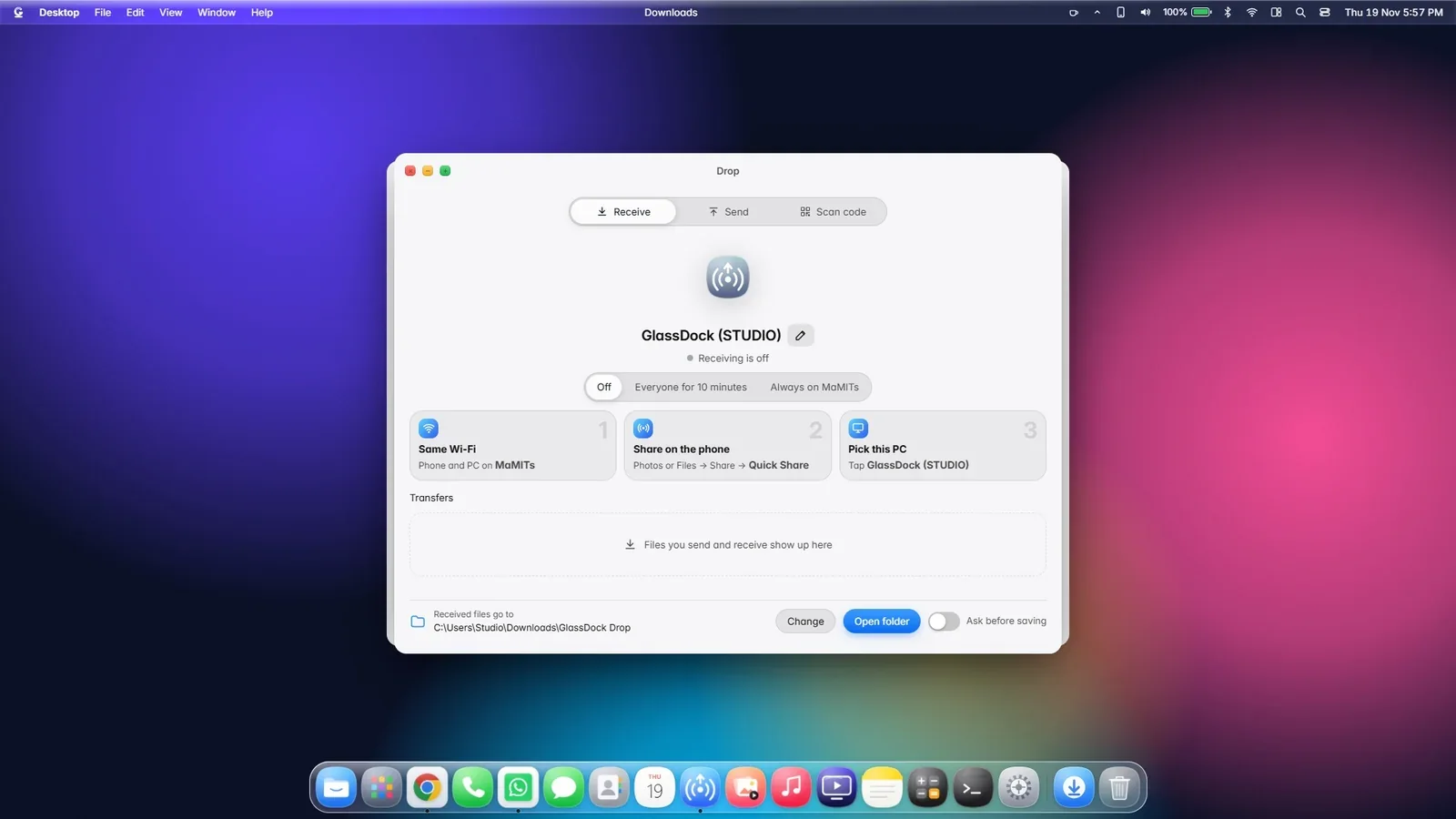
Switch Drop to visible, for ten minutes or always. Your PC now appears as a nearby device to Android phones using Quick Share. When someone sends a file, a card appears on your PC with the sender's name and a short code that matches the one on the phone. Click Accept and the file arrives in your Downloads folder, in a folder called GlassDock Drop. A progress bar shows how far along it is, and "Show in Files" takes you to it.
Send
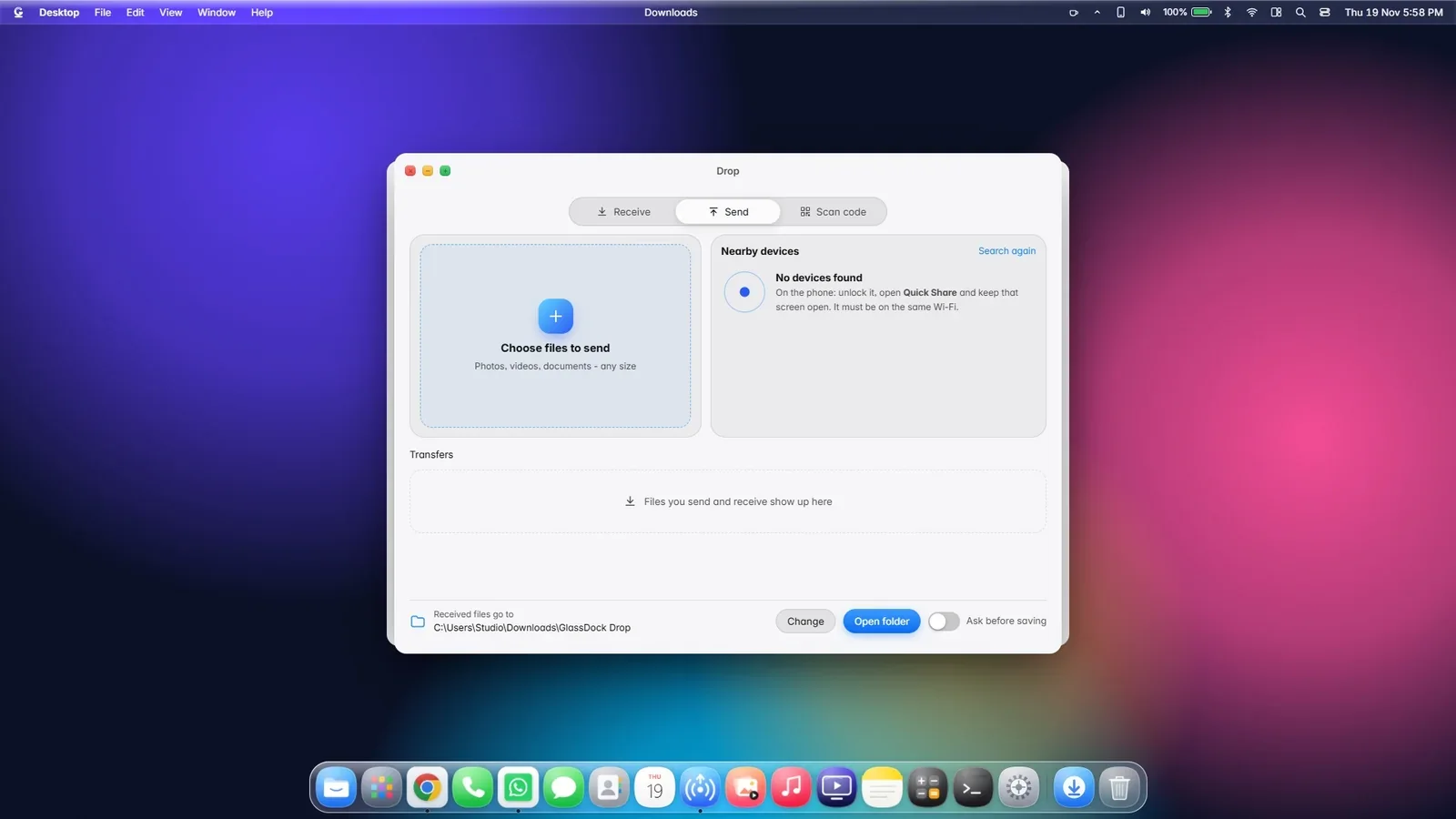
Going the other way. Choose files on the PC, and Drop looks for nearby phones. Click the phone's name. The phone asks its owner to accept, and the files go across.
Scan code
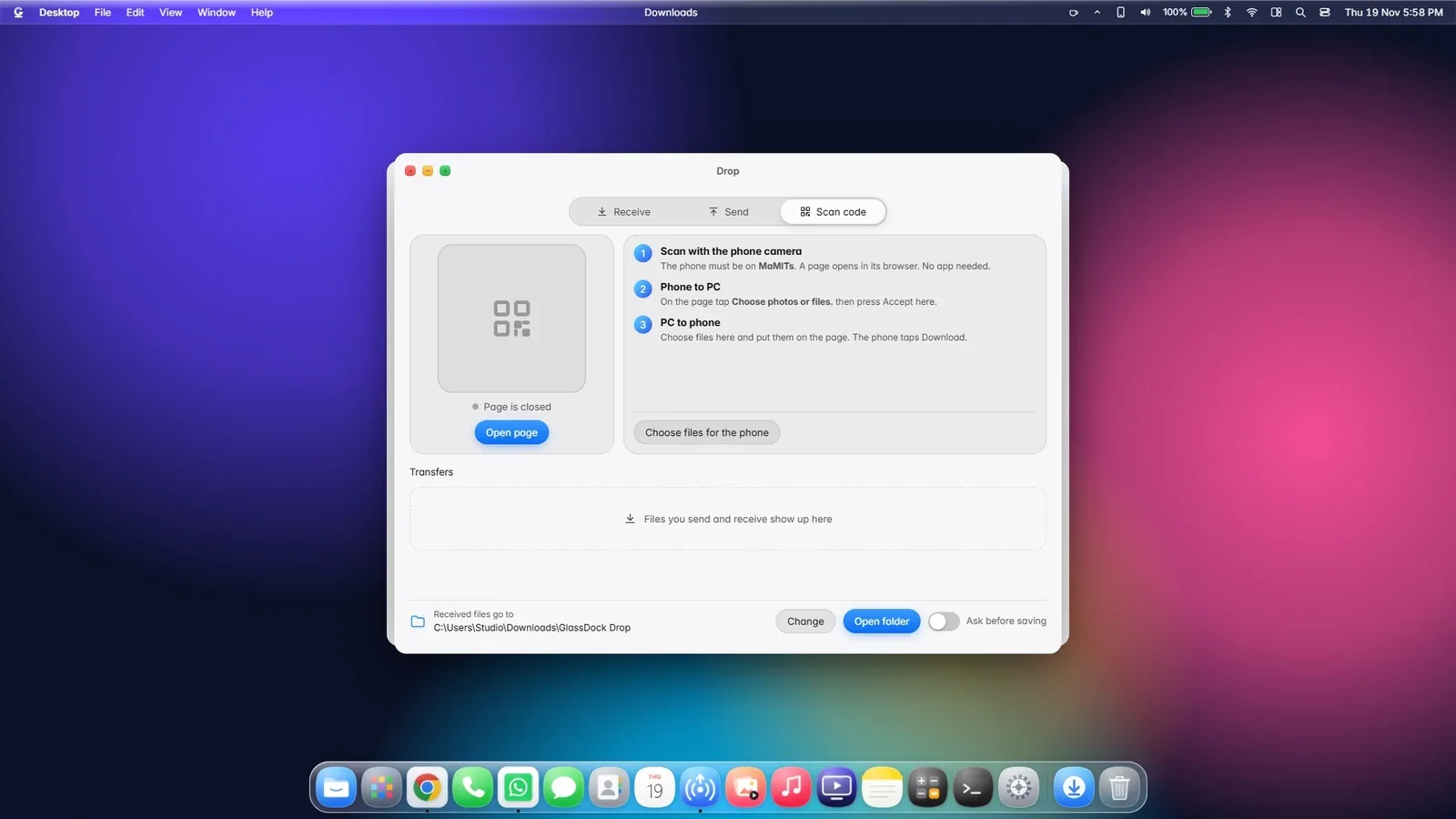
For an iPhone, or any phone without Quick Share. Drop shows a QR code. Point the phone's camera at it and a simple page opens in the phone's browser. From that page you can send files to the PC, or download files the PC has put there for you. No app, no sign-up.
Android
How to send a file from an Android phone to your PC
On the PC, open Drop from the dock or the menu bar and set it to visible.
On the phone, open the file (a photo in Gallery, a PDF in Files) and tap Share.
Tap Quick Share. Your PC appears in the list of nearby devices, under the name shown in Drop.
Tap your PC. A code appears on the phone.
On the PC, check the code and click Accept.
Done. The file is in Downloads, inside GlassDock Drop.
Both devices need to be on the same Wi-Fi network, and Bluetooth on the phone helps it find the PC.
iPhone and others
How to send a file from an iPhone to your Windows PC
On the PC, open Drop and go to the Scan code tab. Switch the page on.
On the iPhone, open the Camera and point it at the QR code. Tap the link.
A page opens in the browser. Tap to choose photos or files and send.
On the PC, click Accept.
The files arrive in Downloads, inside GlassDock Drop. To send from the PC to the phone, add files to the page from the Scan code tab, then download them on the phone.
Who can send me things?
Your PC decides what comes in
A sharing feature is only useful if it is not a doorway for strangers. So Drop is careful by default.
You choose when the PC is visible. Off, ten minutes, or always.
Only on Wi-Fi networks you trust. Drop works on the networks you allow, such as home and office, and stays quiet on others.
Nothing arrives without Accept. Every transfer shows a card with the sender and a code, and waits for your click. Ignore it and it times out.
The QR page is temporary. Its link changes each time you switch the page on, and the page turns itself off after 15 minutes without use.
Files stay local. Transfers go directly between the phone and the PC on your network. Nothing passes through a MaMITs server.
Quick Share transfers are private between the two devices. The Scan code page is a simple local page on your own Wi-Fi, so use it on networks you trust, not on public Wi-Fi.
Safe
Check the code, then accept.
Drop, cable, cloud or chat app?
Way
Good for
Catch
Drop over Wi-Fi
Photos, videos and documents between your own phone and PC at home or work
Both must be on the same Wi-Fi
USB cable
Very large batches, or no Wi-Fi
Needs the cable, and the right mode on the phone
Cloud drive
Files you want everywhere, later
Upload, then download. Uses data and storage
Sending to yourself on a chat app
One quick photo
Photos and videos are often compressed
Bluetooth file transfer
No Wi-Fi at all
Slow for anything bigger than a few photos
Questions
Drop questions
Does Drop need the internet?
No. Drop needs both devices on the same Wi-Fi network, but the files travel directly between them. They do not go out to the internet, so nothing counts against your data plan.
Does Drop work with iPhone?
Yes, through the Scan code tab. Drop shows a QR code, you scan it with the iPhone's camera, and a page opens in the browser where you can send files to the PC or download files from it. No app is installed.
Does Drop work with Quick Share?
Yes. Drop is compatible with Quick Share on Android. When Drop is visible, your PC appears in the phone's Quick Share list, and Drop can also find nearby phones to send files to.
Where do received files go?
Into a folder called GlassDock Drop inside your Downloads folder. You can choose a different folder in Settings. Each finished transfer has a "Show in Files" button.
Can a stranger send files to my PC?
Not without your click. Your PC is only visible when you switch it on, only on Wi-Fi networks you allow, and every incoming transfer waits for you to press Accept.
Why can my phone not see my PC?
Check three things: both are on the same Wi-Fi, Drop is set to visible, and Bluetooth and Wi-Fi are on in the phone. On some office and guest networks, devices are blocked from seeing each other. In that case use a home network or a hotspot.
Mobile se laptop me file kaise bheje bina cable ke?
Laptop par GlassDock me Drop kholiye aur usse visible kijiye. Android phone me file par Share dabaiye, Quick Share chuniye aur apna laptop select kijiye. Laptop par Accept dabaiye. iPhone ho to Drop ke Scan code tab ka QR code camera se scan kijiye.