















 Dock
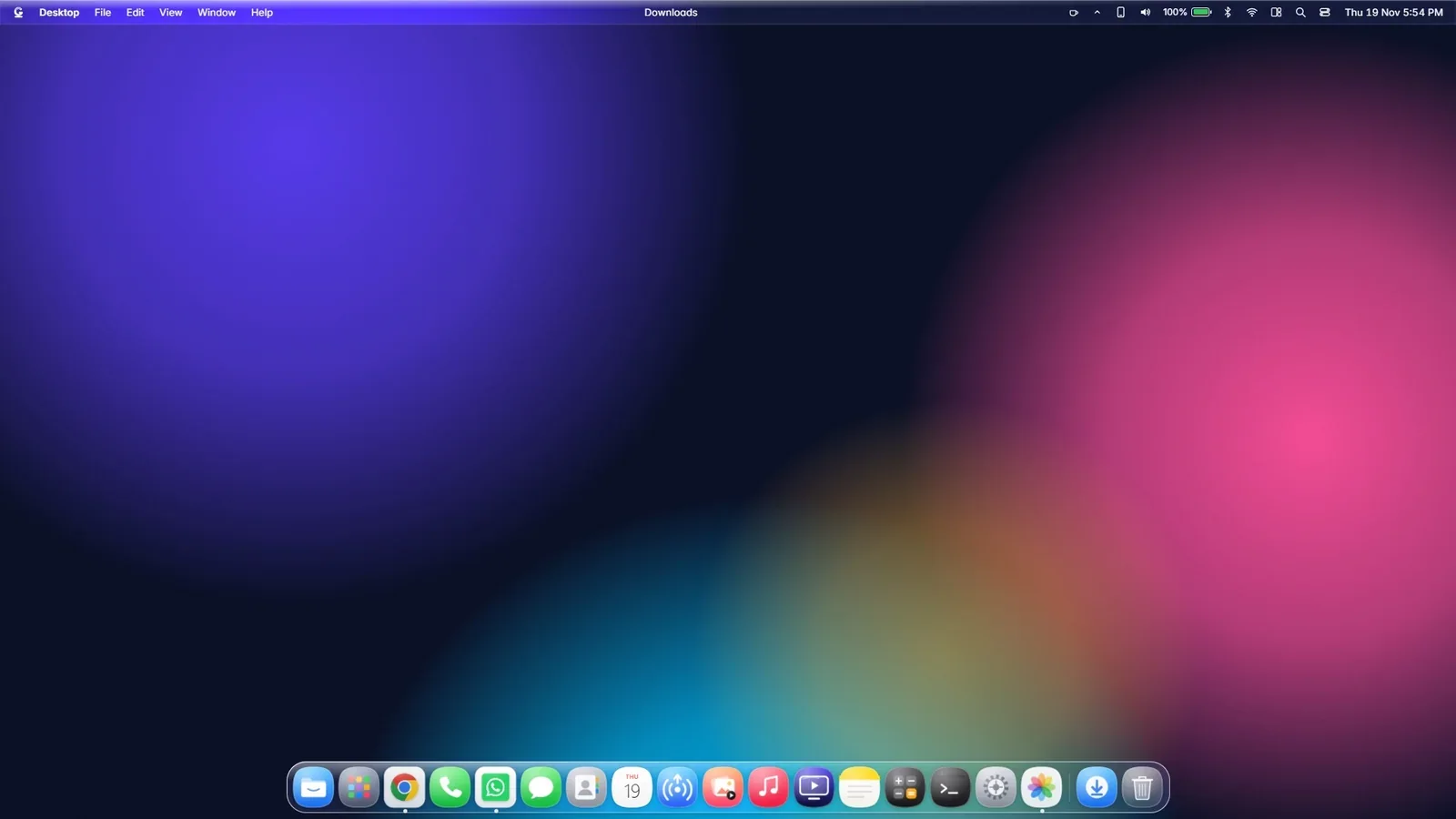
Type “dock for Windows 11” into a search box and you get a strange mix. Half the results are apps last updated when Windows 7 was new. The rest are videos with loud thumbnails. It is hard to tell what still works, what is safe, and whether you need a dock at all.
We make a dock ourselves, so we are not neutral. To keep this fair, the article starts with the option already on your PC, gives you a checklist that works for any dock, and tells you where ours falls short. Decide from there.
Short answer
The best dock for Windows 11 depends on what you want. If you only want pinned apps in one row, the built-in taskbar already does that. If you want magnifying icons, a dock on the side or top, live window previews and a matching menu bar and widgets, look at a dedicated dock app such as GlassDock, and check that it is still updated and easy to remove.
First question: do you need a dock at all?
A dock is a row of app icons on one edge of the screen. It shows your favourite apps, marks the ones that are open, and lets you switch with one click.
If that sounds familiar, it should. The Windows 11 taskbar does the same job. So be honest with yourself about why you want something else. The common reasons are good ones:
- You want the bar on the left or right. On a wide monitor, height is precious and width is not. Windows 11 removed the option to move the taskbar to the side.
- You want bigger, clearer targets. Small fixed icons are easy to miss on a high-resolution screen.
- You want a calmer desktop. A floating dock and a clean wallpaper feel less like an office tool.
- You simply like how it looks. That is a fine reason. You look at this screen for hours.
If none of those apply, stay with the taskbar and spend five minutes tuning it. Here is how.
Option 1: The Windows 11 taskbar, tuned (built in)
Before installing anything, try this:
- Open Settings > Personalisation > Taskbar.
- Under Taskbar items, switch off Search, Task view and Widgets if you do not use them.
- Open Taskbar behaviours. Choose Left or Centre alignment. Tick Automatically hide the taskbar if you want more room.
- Unpin everything you do not use weekly. Right-click, Unpin.
- Pin what you do use, and drag the icons into an order that matches your day.
Good: built in, reliable, works on every monitor you plug in.
Limits: bottom of the screen only. Icons do not grow. The look is fixed.
For many people this is enough. Truly.
Option 2: Classic dock apps
There are dock apps that have been around for many years. You will see names such as RocketDock and Winstep Nexus in most lists. They add a classic icon dock with zoom effects and skins.
Good: simple. Some have large collections of community-made skins and icon packs.
Things to check before you install:
- When was it last updated? Some of these were written for much older versions of Windows and have not changed in a long time. They may still run, but nobody is fixing problems on Windows 11.
- Where are you downloading it from? Old software gets re-uploaded on third-party download sites, sometimes bundled with extras you did not ask for. Use the maker’s own website only.
- Does it handle modern screens? Check that icons look sharp on a high-resolution or scaled display.
- Does it replace the taskbar or sit beside it? Many classic docks run alongside the taskbar, so you end up with both.
We are not going to list version numbers or other details for other people’s products here, because they change and we would rather not get them wrong. Check each maker’s site for the current state.
Option 3: Desktop customisation suites
A few companies make desktop customisation tools for Windows, some as single apps and some as bundles. Stardock’s ObjectDock is a long-standing example. These tools generally get more regular updates and proper support.
Good: maintained, supported, usually polished.
Things to check:
- Single app or bundle? Some tools stand alone, some only make sense as part of a larger set. Know which one you are getting.
- Can you go back easily? How a desktop tool feels under your own hand matters more than any feature list, so make sure you can quit or remove it without trouble.
- What else does it change? Some tools install several background components. Know what you are adding.
Option 4: GlassDock (ours)
GlassDock is the app we make at MaMITs. It is a dock, but it is also the rest of the desktop around it. Here is what it does, then what it does not.
What it does
- A dock with magnification. Icons grow under the pointer. You set the size and the amount.
- Live window previews. Rest on an open app and small live pictures of its windows appear. Click one to switch, or close it from the preview.
- Any edge. Bottom, left, right or top, with auto hide if you want it.
- Drag and drop. Reorder icons, drag one off to remove it, drag an app in from the app grid to keep it.
- A menu bar to match. Wi-Fi, Bluetooth, sound, battery and the clock in a glass bar across the top, with a Control Center panel for brightness, volume and dark mode.
- More than the dock. Desktop widgets, a quick search on Alt + Space, file preview on the spacebar, one-click window layouts.
What it does not do, and what to know
- It runs on Windows 11 only. Not Windows 10.
- The dock and menu bar appear on your main screen. Other monitors keep the Windows taskbar.
- It cannot restyle other apps. Their windows keep the normal Windows look.
- It is more than a dock. If you want only a row of icons and nothing else, a simpler tool may suit you better, though you can switch off the parts of GlassDock you do not want.
Why we think it is worth a look: it comes from the Microsoft Store, it sits on top of Windows without patching system files, and when you quit, the normal taskbar comes straight back.
Mid-article card: See the dock in motion: magnification, live previews and four positions → /windows-11-dock/
Side by side
| Tuned taskbar | Classic dock apps | Customisation suites | GlassDock | |
|---|---|---|---|---|
| Position | Bottom | Usually any edge | Usually any edge | Bottom, left, right, top |
| Magnifying icons | No | Usually yes | Usually yes | Yes |
| Live window previews | Yes | Varies | Varies | Yes, with close buttons |
| Matching menu bar and widgets | No | No | Depends on the product or bundle | Yes |
| Regular updates | With Windows | Check the maker’s site | Usually | Yes, through the Microsoft Store |
| Removal | n/a | Uninstall | Uninstall | Quit to restore the taskbar, uninstall like any Store app |
“Varies” and “usually” are there on purpose. Check the current details for any tool before you choose it.
A checklist for choosing any dock
Print this, or keep it in your head. It applies to every option above, ours included.
- Updated recently? Look for a release in the last year.
- Official source? The Microsoft Store or the maker’s own site. Nowhere else.
- Clean exit? Quit the app. Does your normal taskbar come back without a restart?
- Light enough? Use your PC normally for an hour with the dock running. If fans spin up or things stutter, move on.
- Does it suit your screens? Test with your real monitor setup.
So which is the best dock for Windows 11?
- You want simple and built in: tune the taskbar. Honestly, start here.
- You want a classic icon dock and do not mind older software: try one from its official site, with the checks above.
- You want the whole desktop to change, kept up to date, with a way back: install GlassDock, use it for a working day, then quit it and see whether you miss it. That is the real test.
Closing CTA
Heading: The fair test is a day of real use
Body: Install GlassDock this evening and work with it tomorrow. Quit any time and the taskbar is back.
Button: Get it on Microsoft Store
Editor notes:
– Before publishing, check that RocketDock, Winstep Nexus and Stardock ObjectDock are still available and that the general statements about them remain fair. Do not add version numbers or claims about them unless verified on their official sites on the day of publishing. If you cannot verify, remove the names and keep the categories.
– Add a real screenshot of the Windows taskbar settings page and of the GlassDock dock.
– Review this post every six months. Comparison posts go stale quickly.
Frequently asked questions
Does Windows 11 have a built-in dock?
Not as a separate feature. The Windows 11 taskbar plays that role: it holds pinned and open apps at the bottom of the screen. It cannot be moved to the sides or top, and its icons do not magnify.
Are there other dock apps for Windows 11?
Yes. Several dock apps exist, some of them many years old. Before installing one, check when it was last updated, download it only from the maker’s own website, and confirm it looks right on your screen.
Can I move the Windows 11 taskbar to the left side of the screen?
No. Windows 11 lets you align the icons to the left or centre, but the bar itself stays at the bottom. To have your apps along the left or right edge, you need a dock app.
Will a dock slow down my PC?
A well-made dock uses little while idle. Effects such as magnification and live previews use some graphics power. If your PC is modest, look for options to reduce effects, and test for an hour before deciding.
Is GlassDock a taskbar replacement?
While GlassDock is running, it hides the Windows taskbar and shows its dock and menu bar instead. The taskbar is not removed. Quit GlassDock and it returns at once.
Laptop me dock kaise lagaye?
Sabse pehle taskbar ko Settings > Personalisation > Taskbar se set karke dekhiye. Agar alag dock chahiye to Microsoft Store se GlassDock jaisa dock app install kijiye. Wo Windows 11 par chalta hai, aur Quit karte hi normal taskbar wapas aa jata hai.

 Send link to my PC