GlassDock is one app, but it covers most of what you do on a PC in a day: opening apps, finding files, checking the battery, answering a call, playing a song. This page lists all of it. Pick what matters to you and follow the link for the detail.
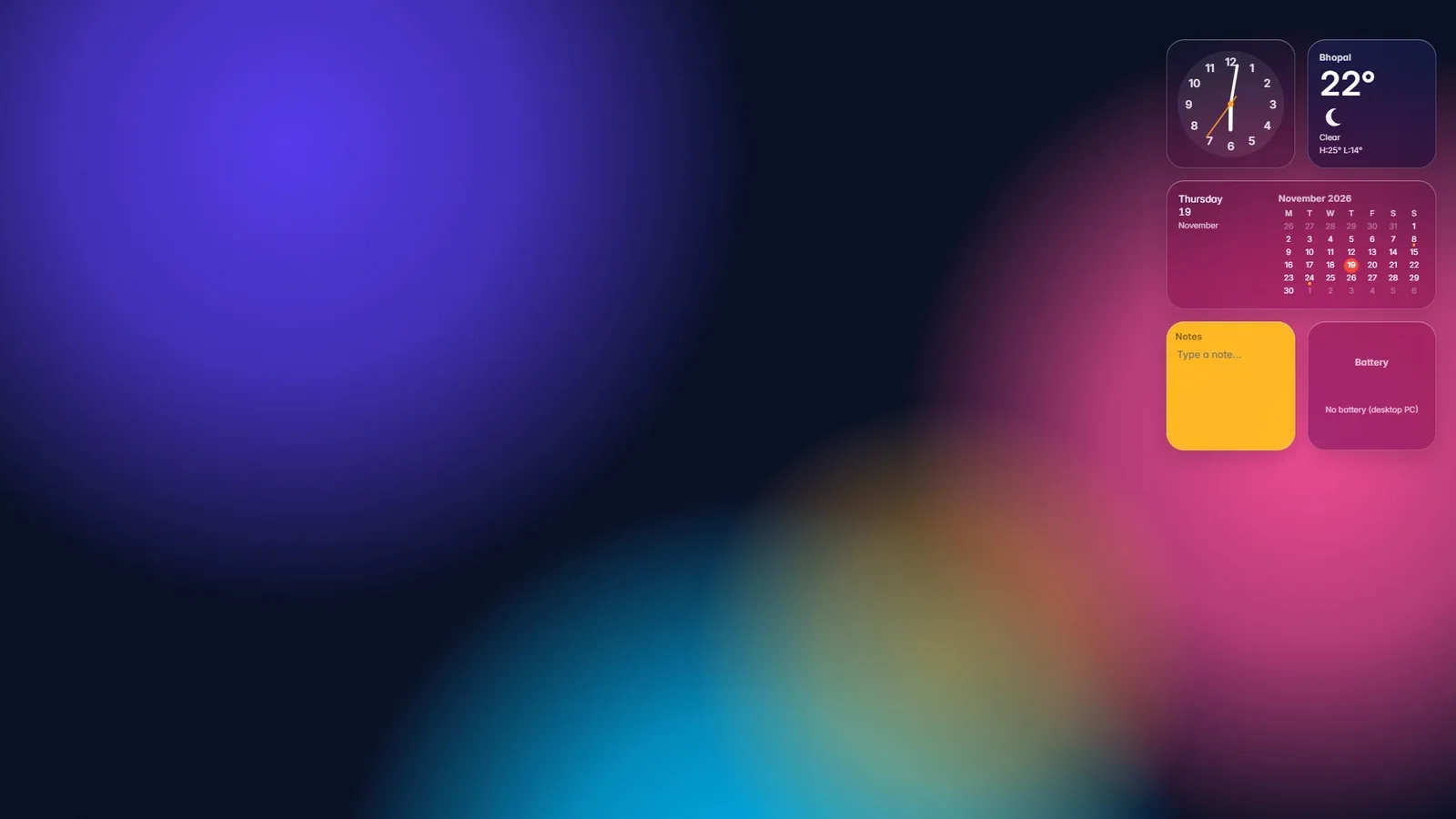
GlassDock adds a dock with live window previews, a glass menu bar, Control Center, Notification Center with a calendar, 22 desktop widgets, App Grid, Quick Search, Spacebar Preview, one-click app layouts, its own Files, Moments, Music and Lounge apps, phone calls and messages over Bluetooth, and Drop for sharing files with phones over Wi-Fi.
The desktop
Dock, menu bar and panels
The parts you see all day. A dock for your apps, a thin bar on top for status, and glass panels that open from it.
Feature
What it does
Dock
Favourite and open apps in one row, with magnification, live window previews, drag to reorder, any screen edge, auto hide
Menu bar
App name and menus on the left, your own shortcuts in the middle, Wi-Fi, Bluetooth, sound, battery, search and clock on the right
Control Center
Wi-Fi, Bluetooth, brightness, volume, dark mode, Focus, now playing. Add, remove and reorder the controls
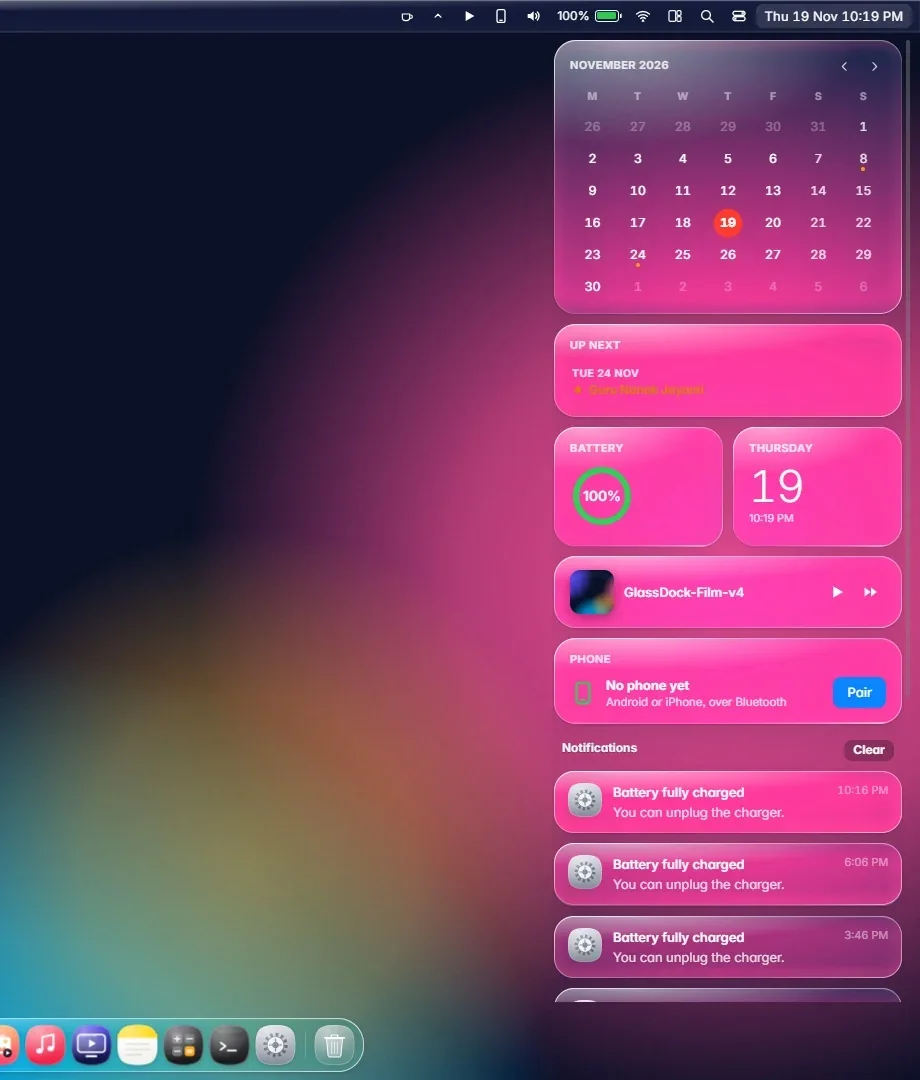
Notification Center
Your notifications, a month calendar, what is up next, and the song that is playing. Click a notification to open its app
Card view
Win + Tab shows every open window as a live rounded card, with your virtual desktops along the top
App switcher
Alt + Tab in glass
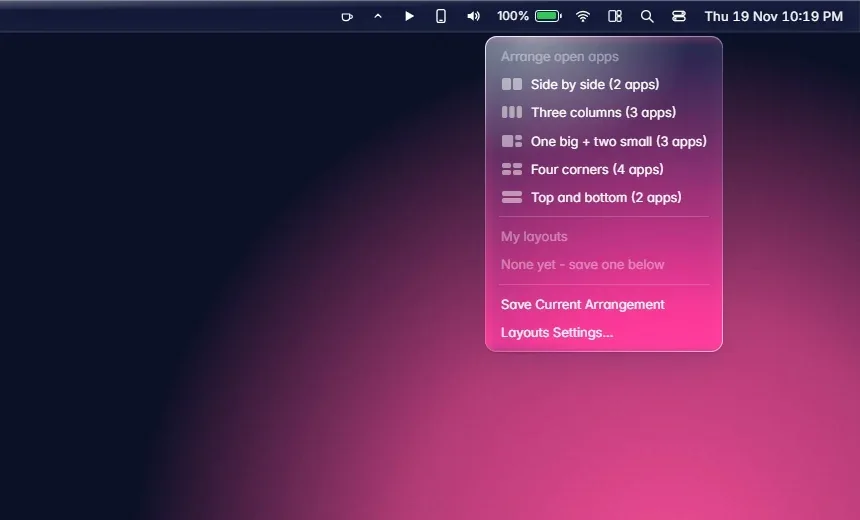
Hot corners
Give each screen corner a job: card view, show desktop, App Grid, search, lock and more
Window snapping
Drag a window to an edge or corner for halves and quarters, with a glass preview
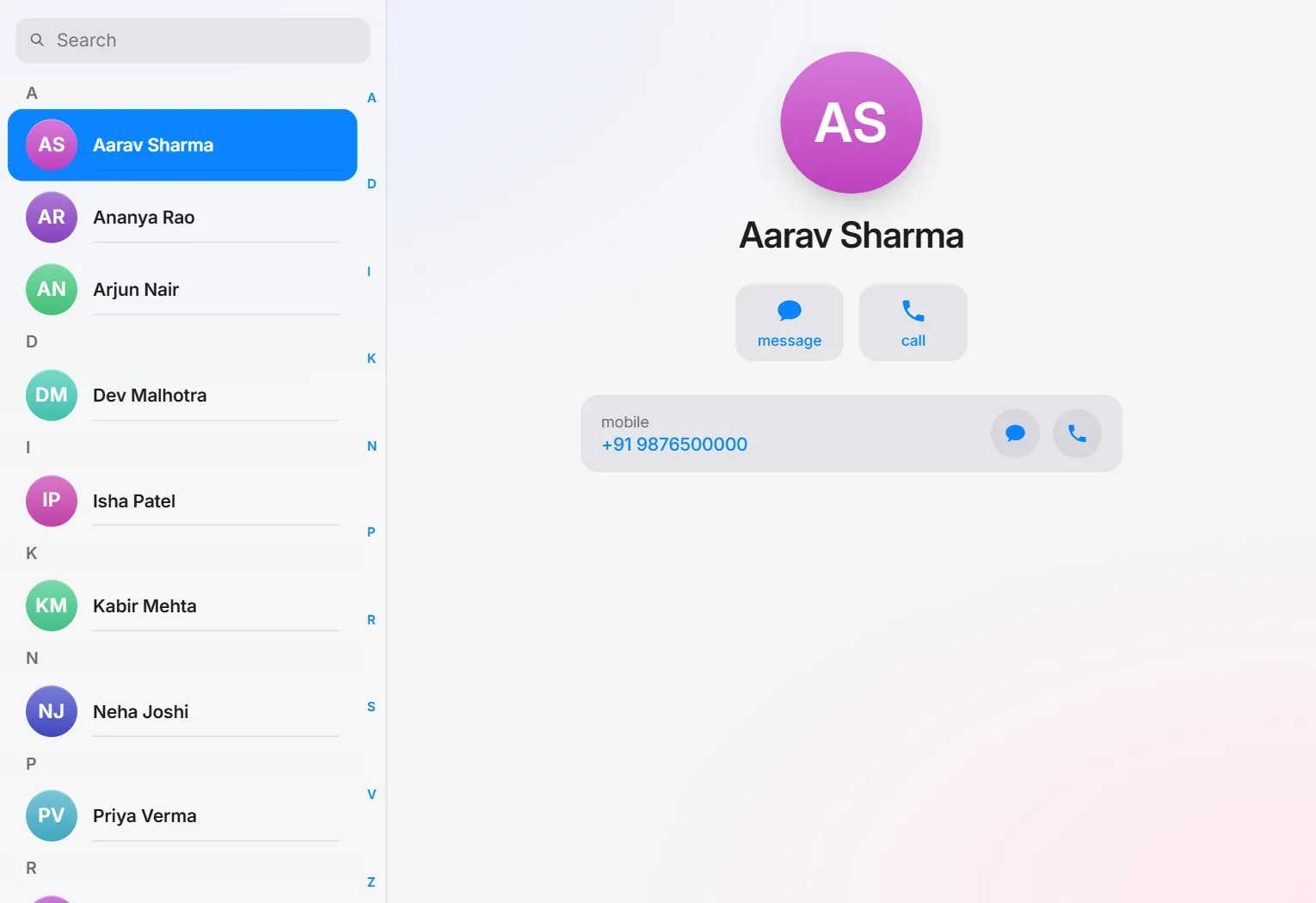
Contacts come from your phone over Bluetooth. (Demo names shown.)
Media
Moments, Music, Lounge
Feature
What it does
Moments
Photos and videos by year and month, albums, favourites, Memories slideshows. Tabs for This PC, OneDrive, iCloud Photos and Google Photos, with an optional PIN lock
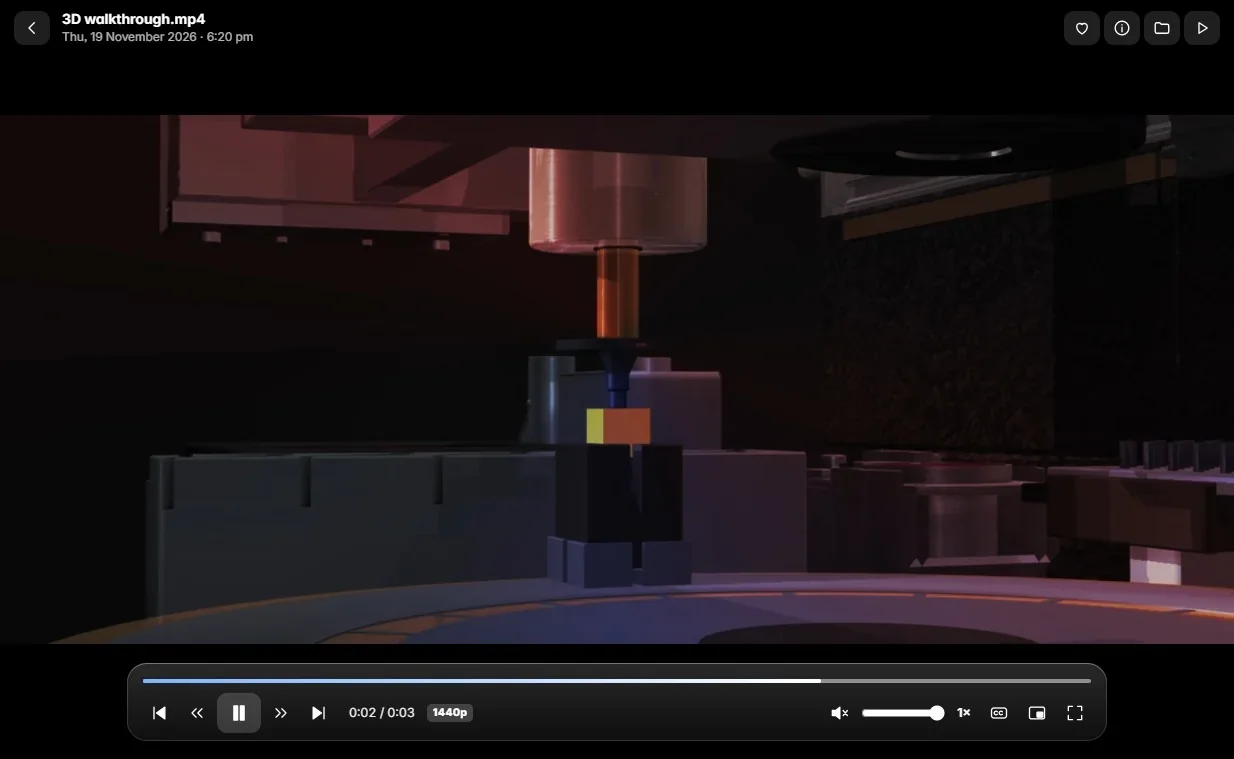
Video player
MKV, MP4, MOV, WebM and more. Audio language switch, subtitles, speed, picture in picture, resume
Music
Your own library plus YouTube Music, Spotify, Apple Music and Amazon Music in tabs
Lounge
Netflix, Prime Video, Apple TV, JioHotstar and YouTube in one window, with a home screen of what is popular in your country
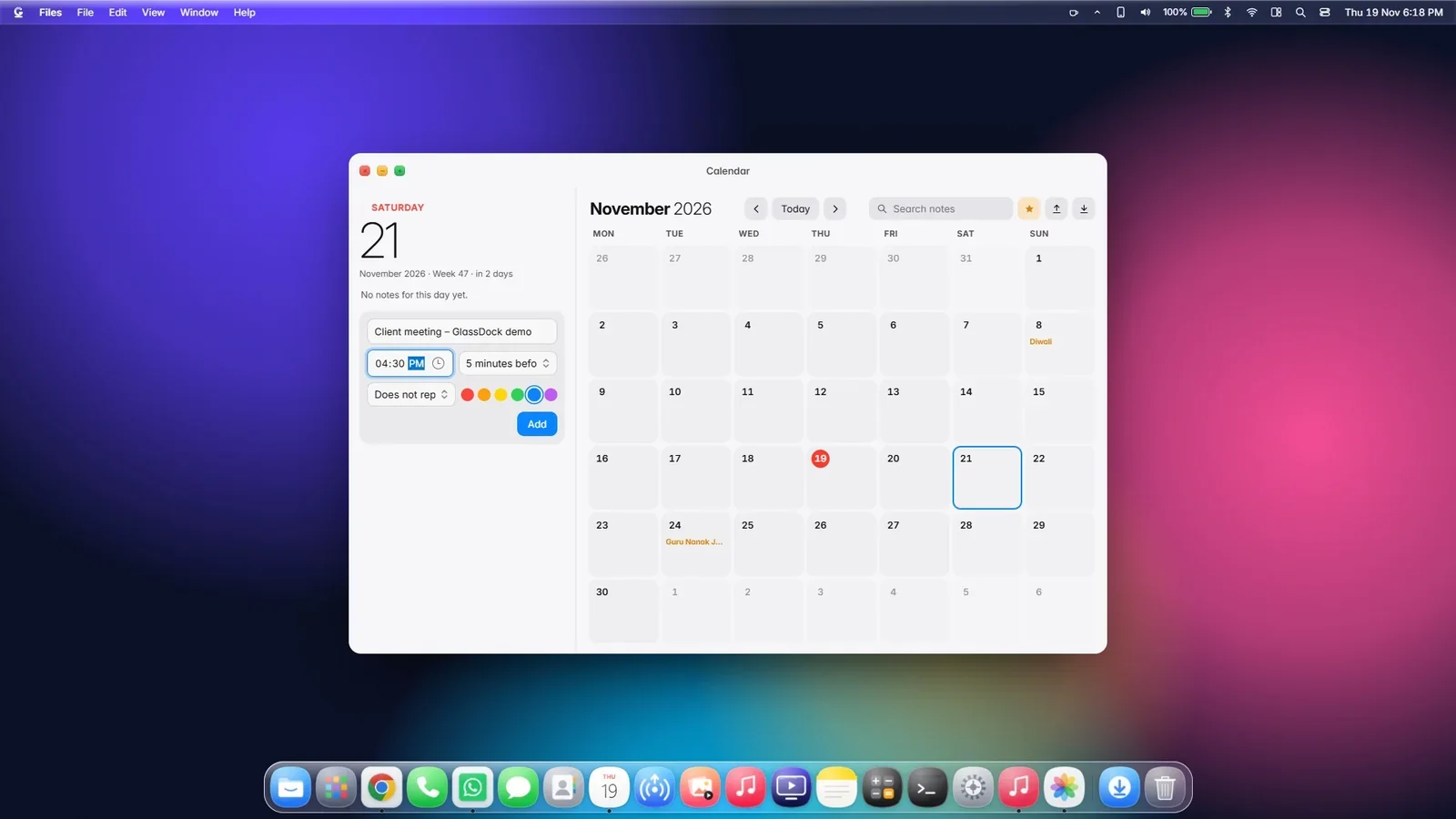
Click a day, type "Dentist 4 pm", press Enter. That is the whole job. The GlassDock calendar keeps notes and reminders, repeats the ones that happen every week, and shows Indian holidays. A reminder pops up as a small card with Snooze and Done. You can import and export standard calendar files (.ics) if you want to move things in or out.
Month view with week numbers
Notes with a time, a colour and a repeat
Reminders with snooze
Indian holidays
"Up next" in Notification Center and as a widget
Calendar
Add a meeting in a few seconds.
Daily
The small things that save a minute each
None of these would win you over on their own. Together they are why people keep it.
Pen drives. Plug one in and a card offers Open or Eject. An eject icon sits in the menu bar while it is connected.
Printing. A printer icon appears in the dock while a job is in the queue.
Projectors and second screens. Duplicate or extend from Control Center.
Keep Awake. A cup in the menu bar stops the PC sleeping for as long as you choose.
Battery alerts. A nudge before the battery runs low.
Screen Time. See how long you have used the PC today.
Force Quit. A glass window lists your apps and marks any that have stopped responding.
About This PC. Processor, memory, storage and Windows version in one tidy window.
Shortcut sheet. Hold the Windows key for a second and every shortcut appears.
One Settings window for all of it
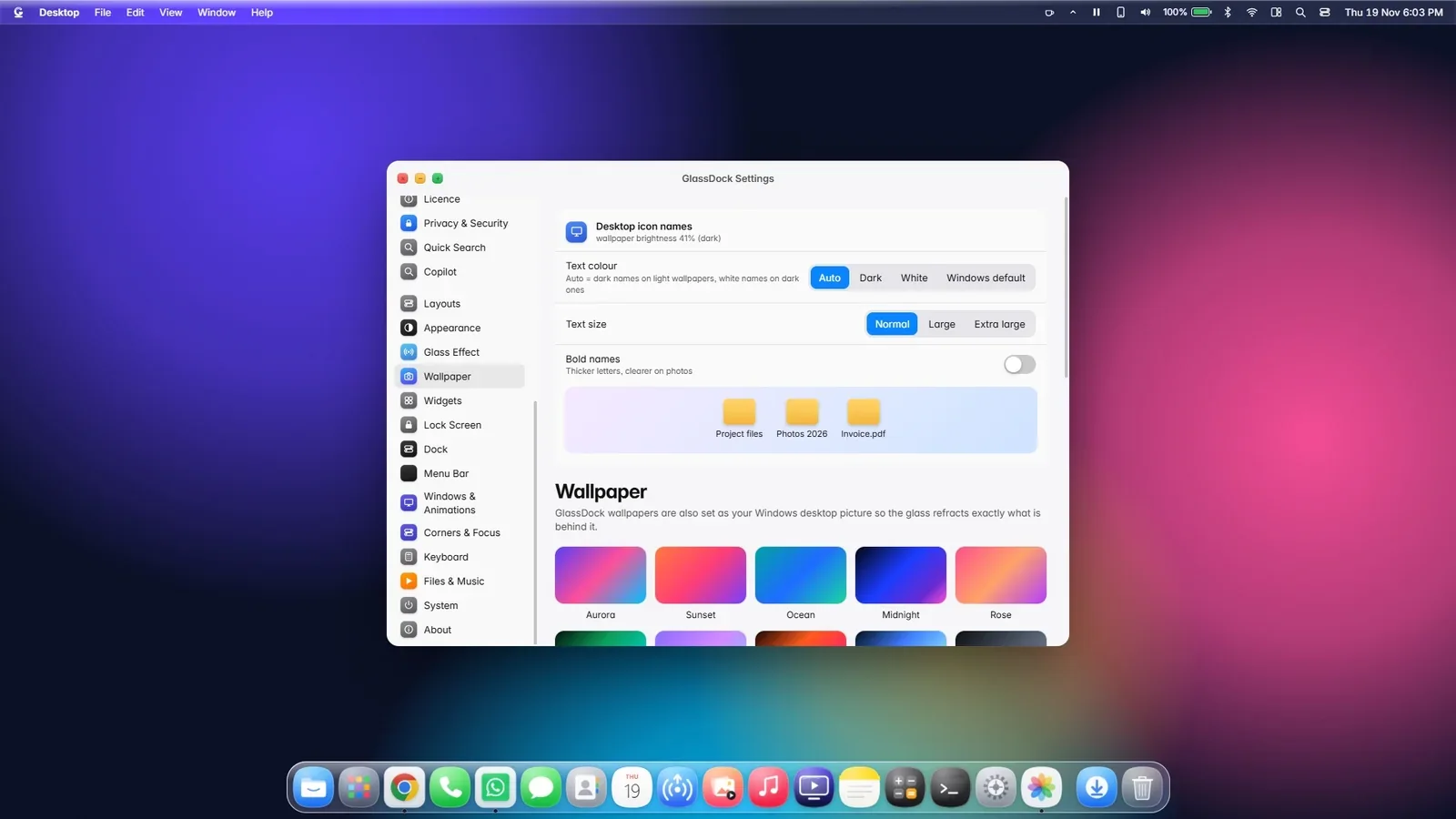
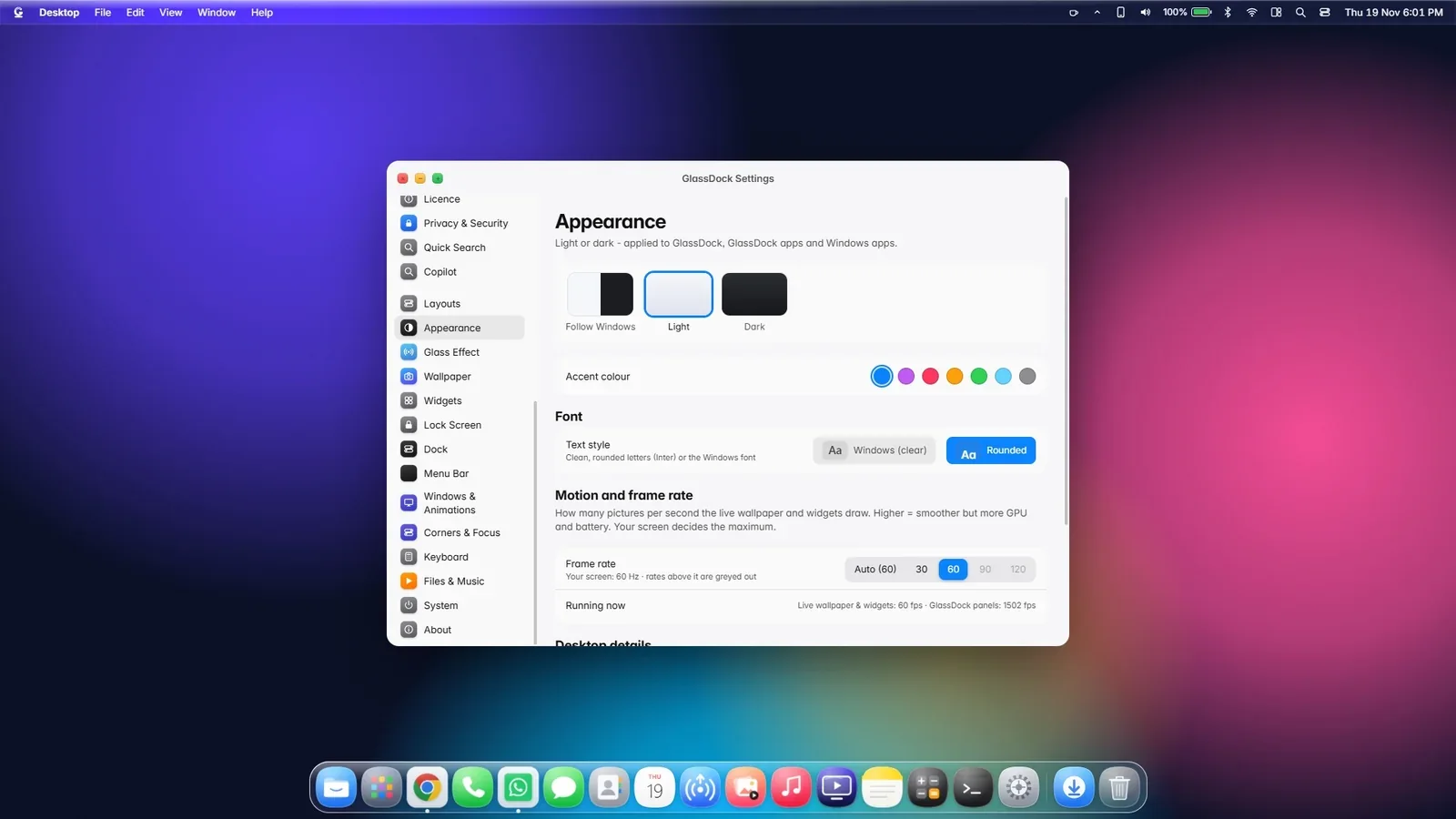
Everything above has a switch. GlassDock Settings is a single window with a list on the left: Wi-Fi, Bluetooth, Phone, Sound, Displays, Battery, Privacy, Appearance, Glass Effect, Wallpaper, Widgets, Lock Screen, Dock, Menu Bar, Layouts, Keyboard and more. If you do not like a feature, turn it off. If you want Windows' own File Explorer back for folders, that is one switch too.
Settings
Every feature can be adjusted or switched off.
Honest list
What GlassDock cannot do
GlassDock cannot restyle the inside of other apps, so their title bars, menus and dialogs keep the Windows look. It runs on Windows 11 only. The dock and menu bar sit on your main screen. And over Bluetooth, an Android phone shares sound but not the song's name.
We would rather tell you now than have you find out later. Windows does not let one app redraw another app's window, and we do not use hacks to get around that. There is an optional setting that draws GlassDock's own window buttons over an app's buttons. It is off by default and asks your permission first.
Questions
Feature questions
Can I switch off the features I do not want?
Yes. Every part of GlassDock has a switch in Settings. You can run only the dock and menu bar, or turn off widgets, live wallpapers, the Files replacement, hot corners and snapping one by one.
Does GlassDock replace File Explorer?
By default, folders open in GlassDock Files. Windows' own File Explorer is still installed and still handles things like Control Panel. You can switch the replacement off in Settings and folders will open in File Explorer again.
Does GlassDock have a calendar?
Yes. It has a month calendar with notes, reminders, repeating events and Indian holidays. Reminders appear as small cards with Snooze and Done. It can import and export .ics files.
Does Win + Tab still work?
Yes, and it looks different. Win + Tab opens card view, where every open window is a live rounded card and your virtual desktops run along the top. Arrow keys, Enter and the mouse all work.
Does GlassDock work with two monitors?
The dock and menu bar appear on your main screen. Other screens keep the normal Windows taskbar. You can duplicate or extend your display from Control Center.
Is there a voice assistant?
No. GlassDock has no voice assistant and never uses the microphone for commands. The Copilot panel is text only and uses your own Microsoft Copilot sign-in.