Connect your Android or iPhone to your PC.No app on the phone.
Your phone rings while you are typing. Instead of reaching for it, you click Answer on your screen and keep going. GlassDock links your phone to your Windows 11 PC over Bluetooth, the same way a car does. Pair once. Nothing to install on the phone, no account to create.
Can I take phone calls on my Windows PC without installing an app on my phone?
Yes. GlassDock connects to your phone over standard Bluetooth, the way a car does for calls. Once paired, calls ring on your PC and you can answer, decline, dial and mute. On Android you can also read and send text messages. Your contacts and recent calls appear too. Nothing is installed on the phone.
Day to day
Three windows: Phone, Messages, Contacts
Phone
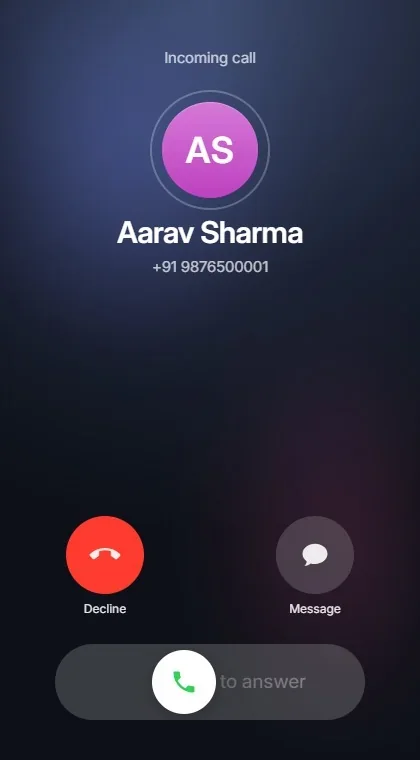
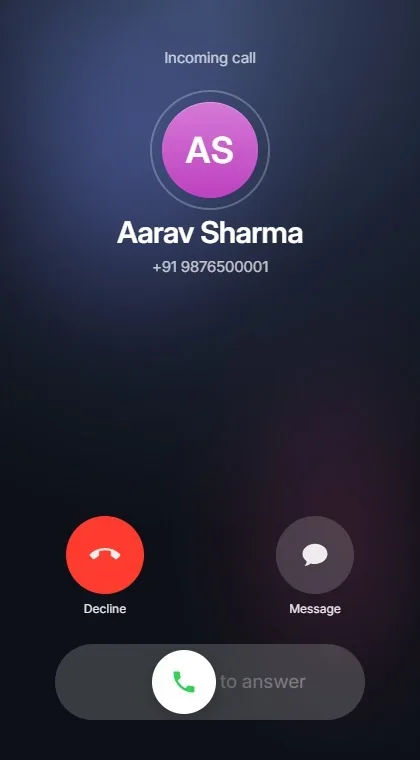
A call comes in and a card appears on your screen with the caller's name. Slide to answer. Your voice goes through the PC's microphone or your headset, and you hear the caller through the PC. During the call you can mute, open the keypad for "press 1 for English", or send the call back to the phone if you need to walk away. To make a call, type a number, or pick a name from Recents or Contacts.
Messages
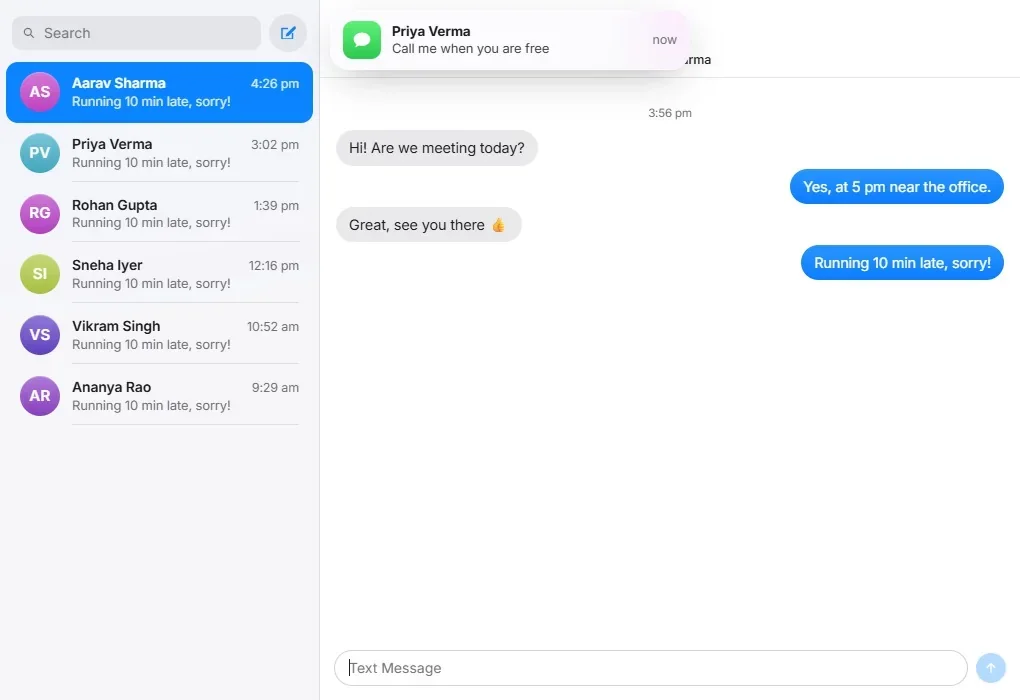
On Android, your text messages appear in a conversation view with a full keyboard under your fingers. A new message shows up on the PC as it arrives. This is the one people end up using most: the bank code that arrives while you are filling a form is right there on the screen, no phone needed.
Contacts
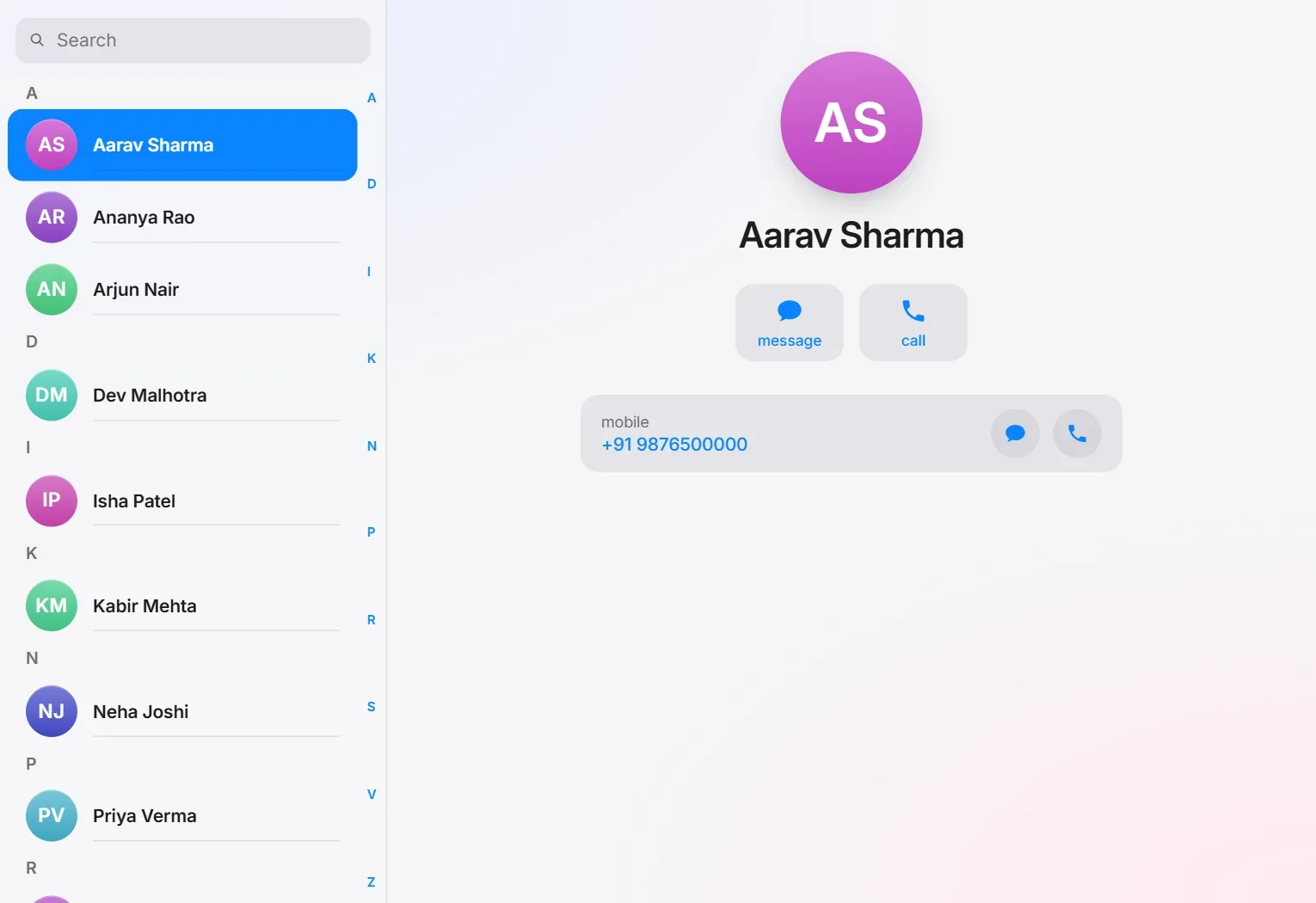
Every contact from your phone, in an A to Z list with search. Open a card to call or message. Contacts also show up in Quick Search, so Alt + Space, three letters of a name and Enter starts a call.
The honest table
What works on Android and what works on iPhone
Phones decide what they share over Bluetooth, and Android and iPhone made different choices. Here is where things stand.
Android
iPhone
Calls: answer, decline, dial, mute, keypad
Yes
Yes
Contacts and recent calls
Yes
Yes
Read text messages (SMS)
Yes
Limited by the iPhone. Please check with your own iPhone
Send text messages (SMS)
Yes
Limited by the iPhone. Please check with your own iPhone
New message appears on the PC at once
Yes
See above
Phone notifications shown on the PC
No
Yes
Play phone music through PC speakers
Yes
Yes
Song name and play, pause, next from the PC
No. Android does not share this over Bluetooth without a phone app
Yes
App needed on the phone
No
No
GlassDock works with one phone at a time. If you have two phones paired, pick the active one in Settings and switch when you like. Messages here means SMS text messages. WhatsApp and other chat apps are not part of this.
Two minutes
How to connect your phone to GlassDock
Turn on Bluetooth on the PC and on the phone.
Open GlassDock Settings and choose Bluetooth. Click the button to add a device. Your phone appears in the list.
Pair. A code shows on both screens. Check that they match and confirm on both.
Allow sharing on the phone. The phone asks whether to share contacts and messages. Say yes. (On an iPhone this is under the device's Bluetooth settings: Sync Contacts and Show Notifications.)
Choose what the phone may do. GlassDock asks two things: use this phone for calls and messages, and allow its music on this PC. Tick what you want.
Done. Open Phone from the dock. Your recent calls and contacts load in the background.
The first sync of a large contact list can take a little while. After that GlassDock remembers it, so the list opens instantly.
Bigger speakers
Play your phone's music through your PC
Your phone has the playlist. Your PC has the better speakers. Once you allow it, the PC shows up on your phone as a Bluetooth speaker. Press play on the phone and the sound comes out of the PC.
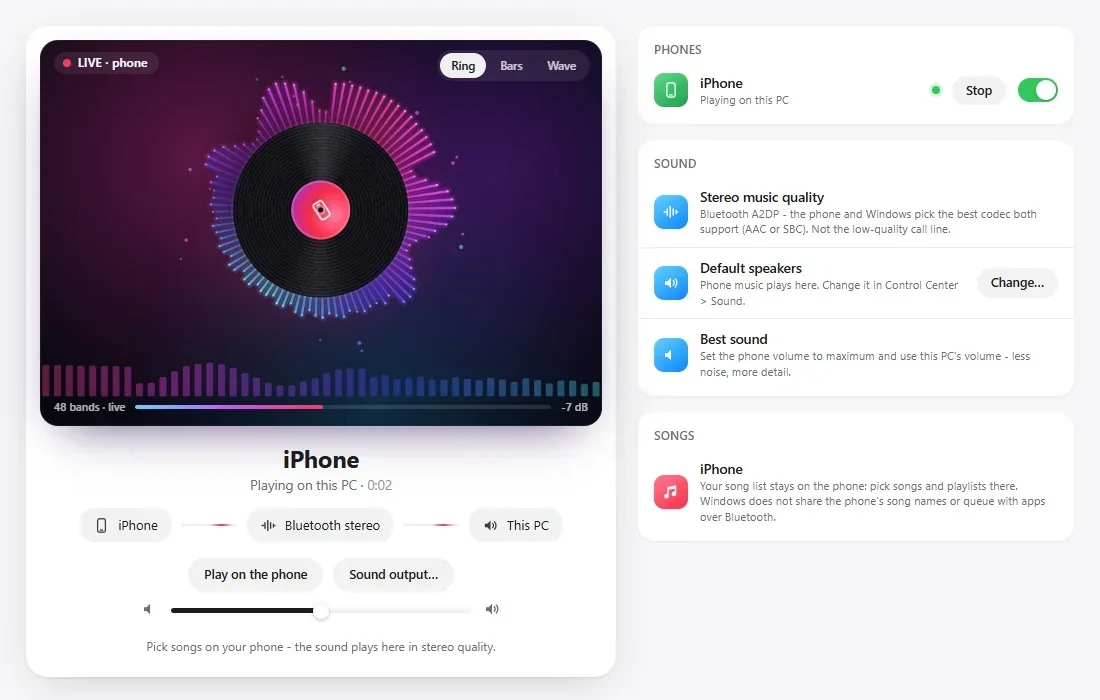
The Phone tab in GlassDock Music draws a visualiser from the real sound: a ring of bars around a spinning record, classic bars, or a soft wave. With an iPhone you also get the song's name and working play, pause and skip buttons on the PC. With Android the sound plays but the controls stay on the phone, because Android does not send that information over Bluetooth on its own.
The visualiser reacts to the actual sound
The visualiser reacts to the actual sound.
Private
Your data
Where do my contacts and messages go?
Nowhere. Contacts, call history and messages travel from your phone to your PC over Bluetooth and are kept in a folder on that PC so they load quickly. They are not uploaded to MaMITs or to anyone else. There is no account and no cloud. Remove the phone in Settings to wipe that copy.
One more thing worth saying plainly. GlassDock does not use your microphone, except during a phone call that you answered or started on the PC. That is the call itself. When the call ends, so does the microphone.
Questions
Phone questions
Do I need to install an app on my phone?
No. GlassDock uses the Bluetooth features already built into Android phones and iPhones, the same ones a car uses for calls. You pair the phone once and allow contact and message sharing when the phone asks.
Does it work with iPhone?
Yes, for calls, contacts, recent calls, iPhone notifications on the PC, and music with song name and controls. Text messaging is limited by what an iPhone shares over Bluetooth, so please check that part with your own iPhone.
Does it need Wi-Fi or the internet?
No. Calls, contacts and messages use Bluetooth only. The phone and PC need to be within Bluetooth range, which usually means the same room.
Can I send WhatsApp messages with it?
No. Messages in GlassDock means SMS text messages from your phone number. For WhatsApp, use WhatsApp's own desktop app or website. You can pin it to the GlassDock dock.
Can I use my headset for calls?
Yes. Calls use whichever speaker and microphone your PC is set to, including a wired or Bluetooth headset. You can change the sound output from Control Center.
Can I connect two phones?
You can pair more than one, but GlassDock uses one phone at a time for calls, messages and music. Choose the active phone in Settings. Switching takes a moment and each phone's contacts are remembered.
Phone ko laptop se kaise connect kare bina app ke?
Laptop aur phone dono me Bluetooth on kijiye. GlassDock Settings me Bluetooth kholiye, phone ko pair kijiye, aur phone par contacts aur messages share karne ki permission de dijiye. Iske baad calls aapke laptop par aayenge. Phone me koi app install nahi karna hai.
Why does the phone ask to share contacts?
Because GlassDock shows caller names and your contact list. Without that permission, calls still work but you will see numbers instead of names.