Find it, preview it,arrange it. All from the keyboard.
Most of a working day is small hunts. Where is that app, which file was it, why are these two windows on top of each other. GlassDock gives each hunt a single key: the Windows key for apps, Alt + Space for everything else, Space to look inside a file, and one click to line your windows up.
How do I open apps and find files faster on Windows 11?
With GlassDock, press the Windows key to open App Grid, a full-screen grid of every installed app. Press Alt + Space for Quick Search, which finds apps, files and settings and answers sums. Select any file and press Space to preview it without opening an app. A Layouts button arranges two to four windows in one click.
Windows key
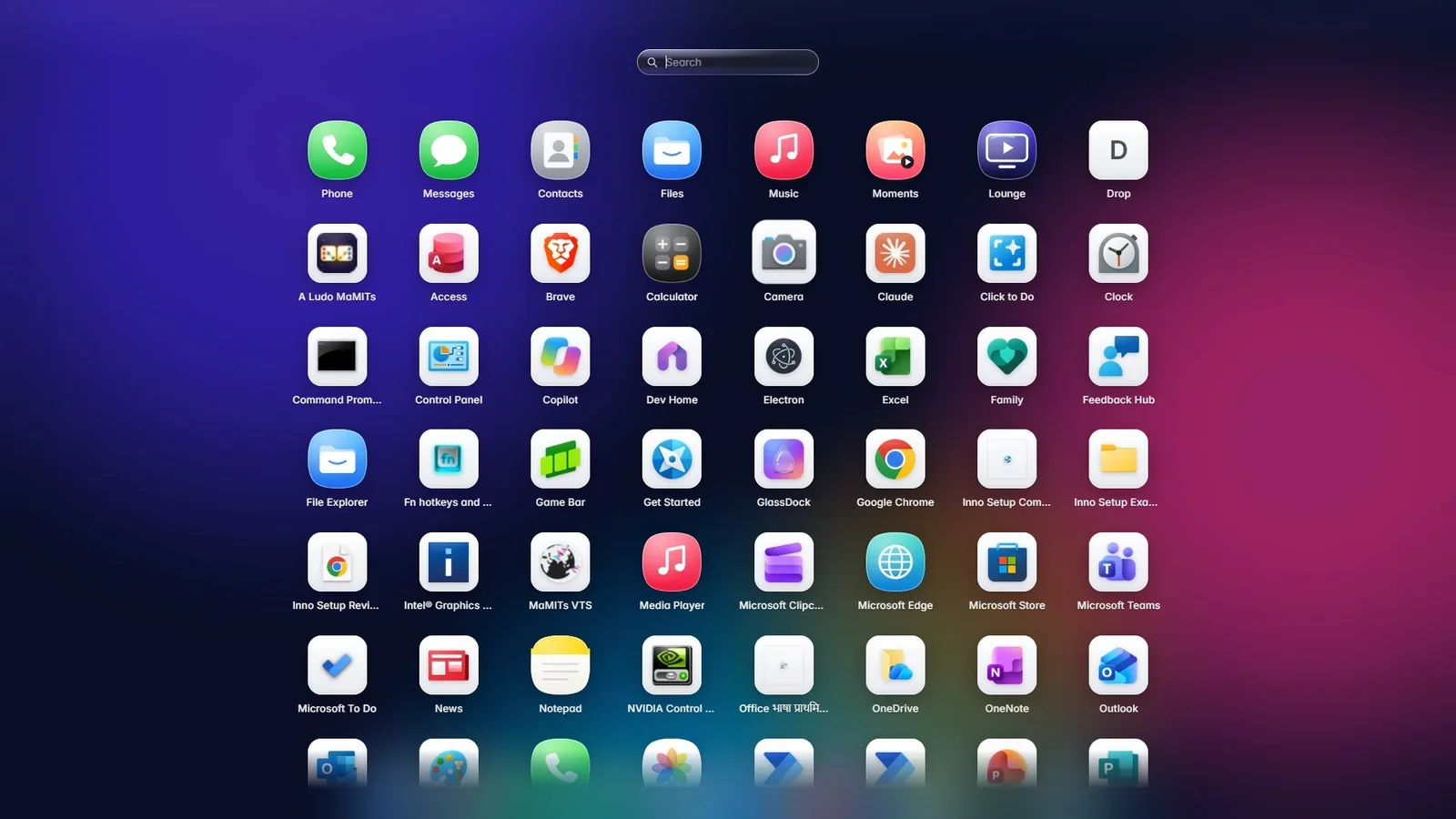
Every app on one screen
Tap the Windows key. The desktop dims and every app installed on the PC appears as a grid of large icons, with a search box on top. Type "ex" and Excel is first. Press Enter.
No pinned tiles to manage, no "All apps" list to scroll. If you use an app often, drag it from the grid onto the dock or the menu bar and it stays there. The small Windows tools you need twice a year, like Control Panel, sit together in their own section so they do not get in the way.
Opens on the Windows key (or F4)
Type to filter
Drag to the dock or menu bar to pin
Windows Tools kept in one group
App Grid
App Grid. Tap the Windows key.
Alt + Space
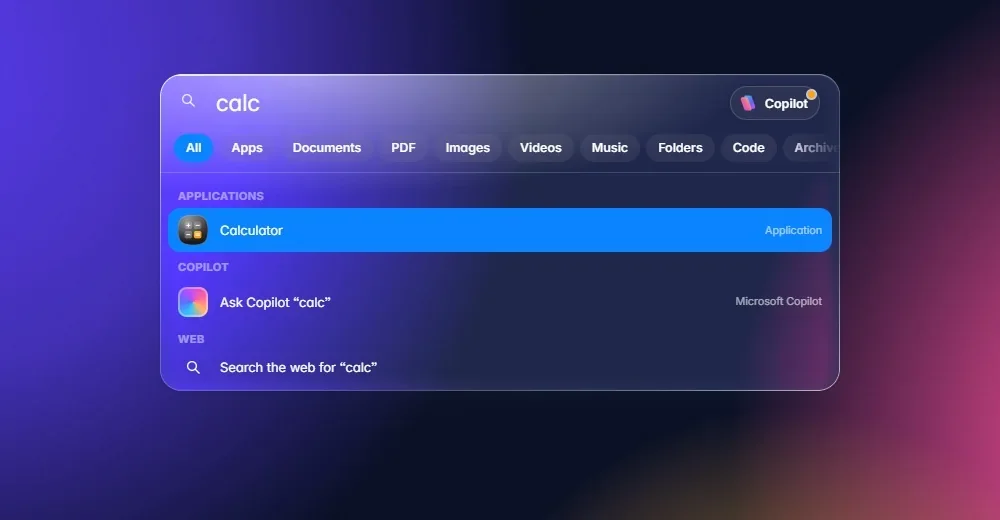
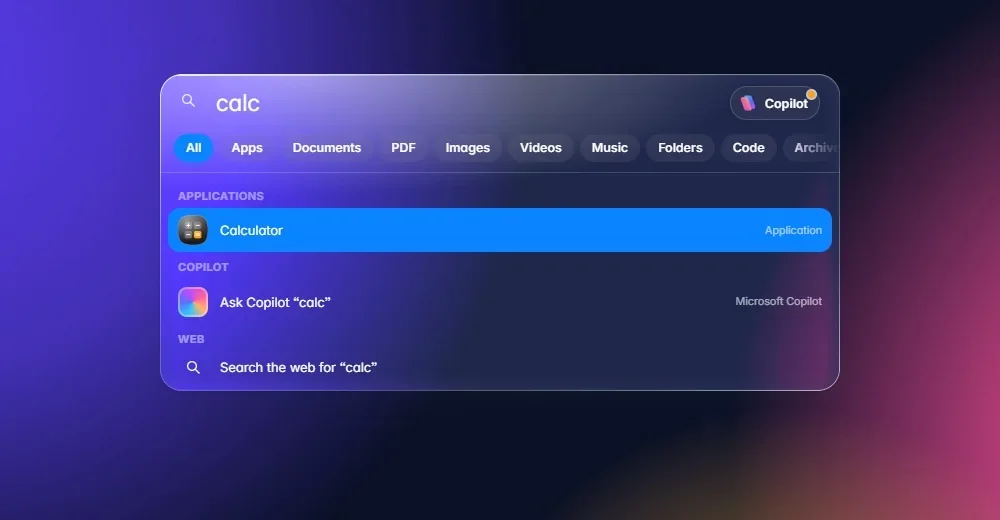
One box that finds apps, files and answers
Quick Search is a single search bar in the middle of the screen. It looks through your apps, your files and GlassDock's settings at the same time, and shows the best match first.
It also does the small sums you would otherwise open a calculator for. Type 1250*12 and the answer is there before you finish. Type 5 km in miles or a currency amount and it converts. Type a contact's name from your paired phone and you can call or message them from the result.
under the box you can narrow results to Apps, Documents, PDF, Images, Videos, Music, Folders and more. Choose Images and you get a grid of thumbnails, newest first. Handy when all you remember is "it was a screenshot from last week".
Apps, files, folders and settings in one list
Search inside files, if you turn it on
Sums, unit conversion and currency conversion
Actions: Lock, Dark mode, open a Settings page
Contacts from your phone: Call or Message
Web search as the last result
Quick Search
Narrow the search to one kind of file.
Space
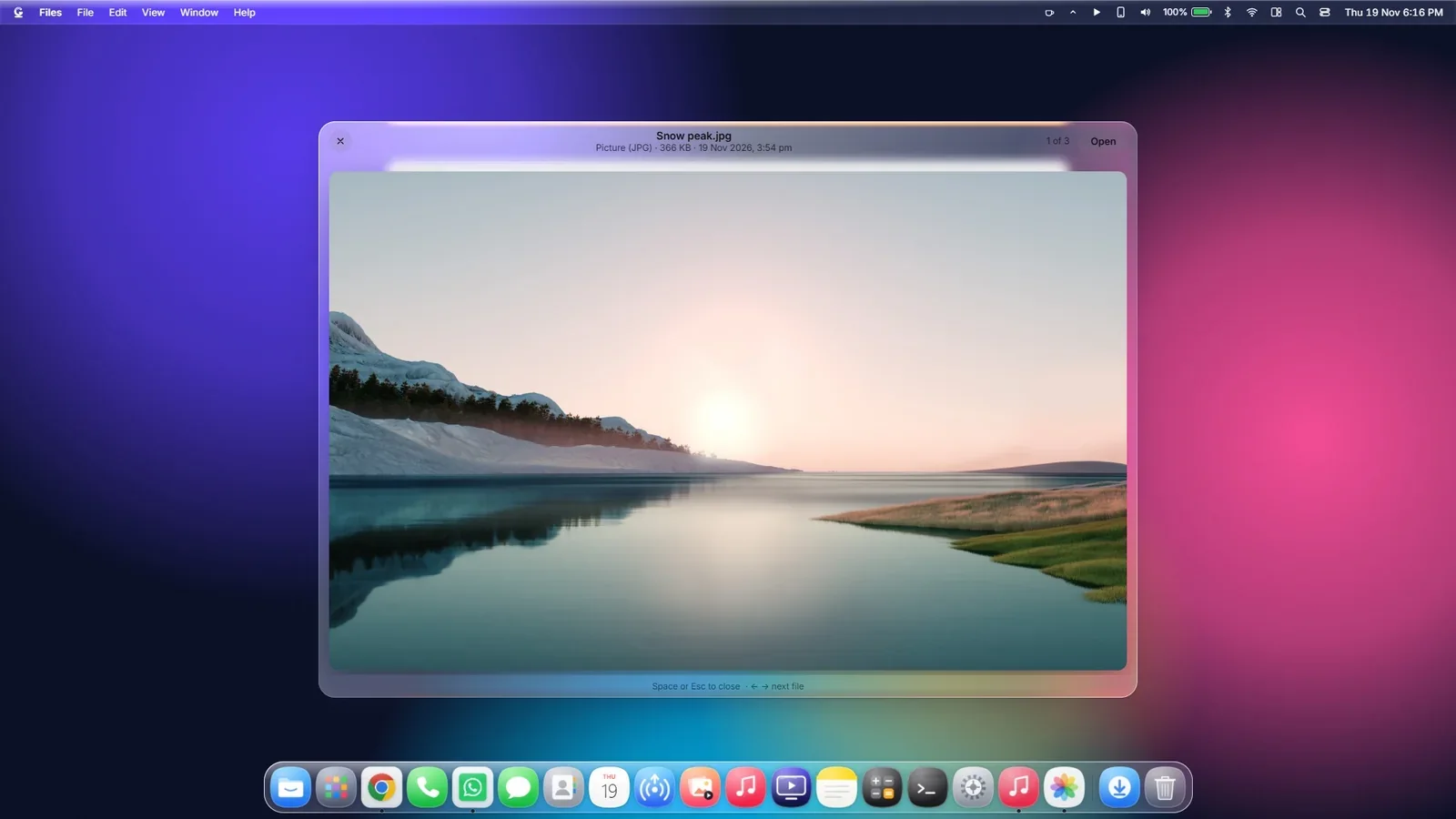
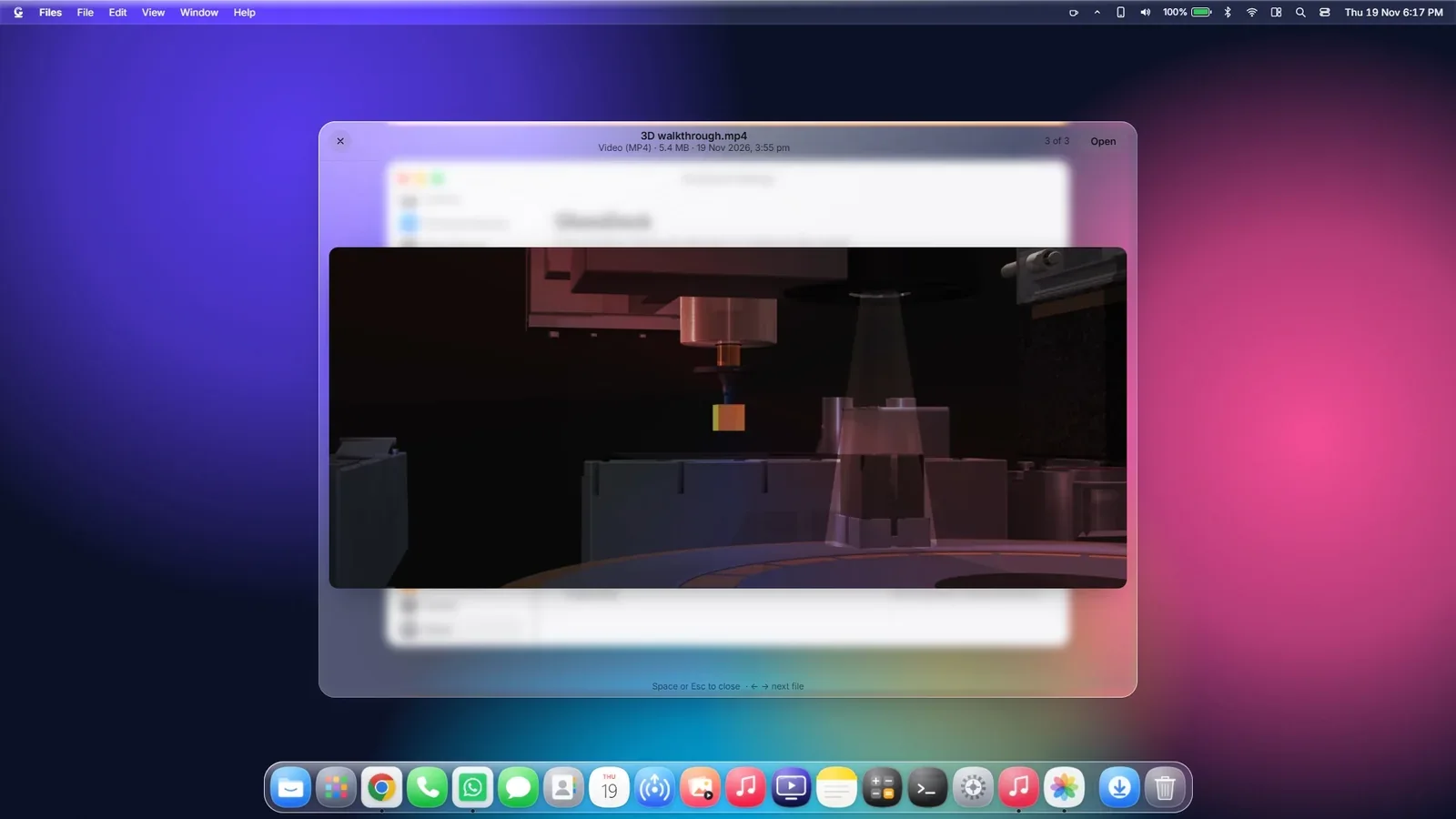
Press Space to see a file without opening it
Your Downloads folder has six PDFs called "scan". One of them is the electricity bill. Select the first, press Space. A preview opens over the desktop. Not it. Press the down arrow. Not it. Down again. There it is. Press Space or Esc to close.
Spacebar Preview works on the desktop and in File Explorer. Nothing to set up.
Photos and pictures
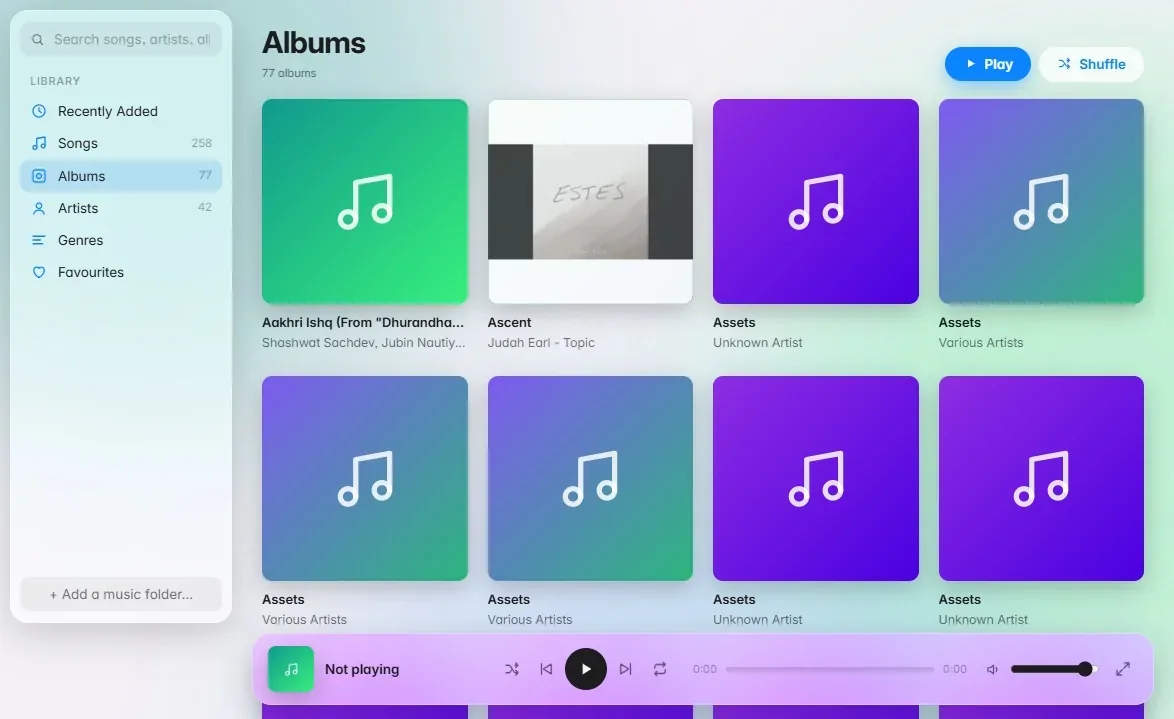
Videos and music, with playback
PDF documents
Text files and code
Any other file: its icon, size and details
If you are typing a file name, Space types a space as usual. The preview only opens when a file is selected and you are not in a text box.
Holiday-photos.jpg
IMG_4041.jpg
Playlist.mp3
Plan.pdf
Click a file, then press Space. Press Space again to close.
Select a file, press Space
Select a file, press Space.
One click
Put two, three or four apps in their places
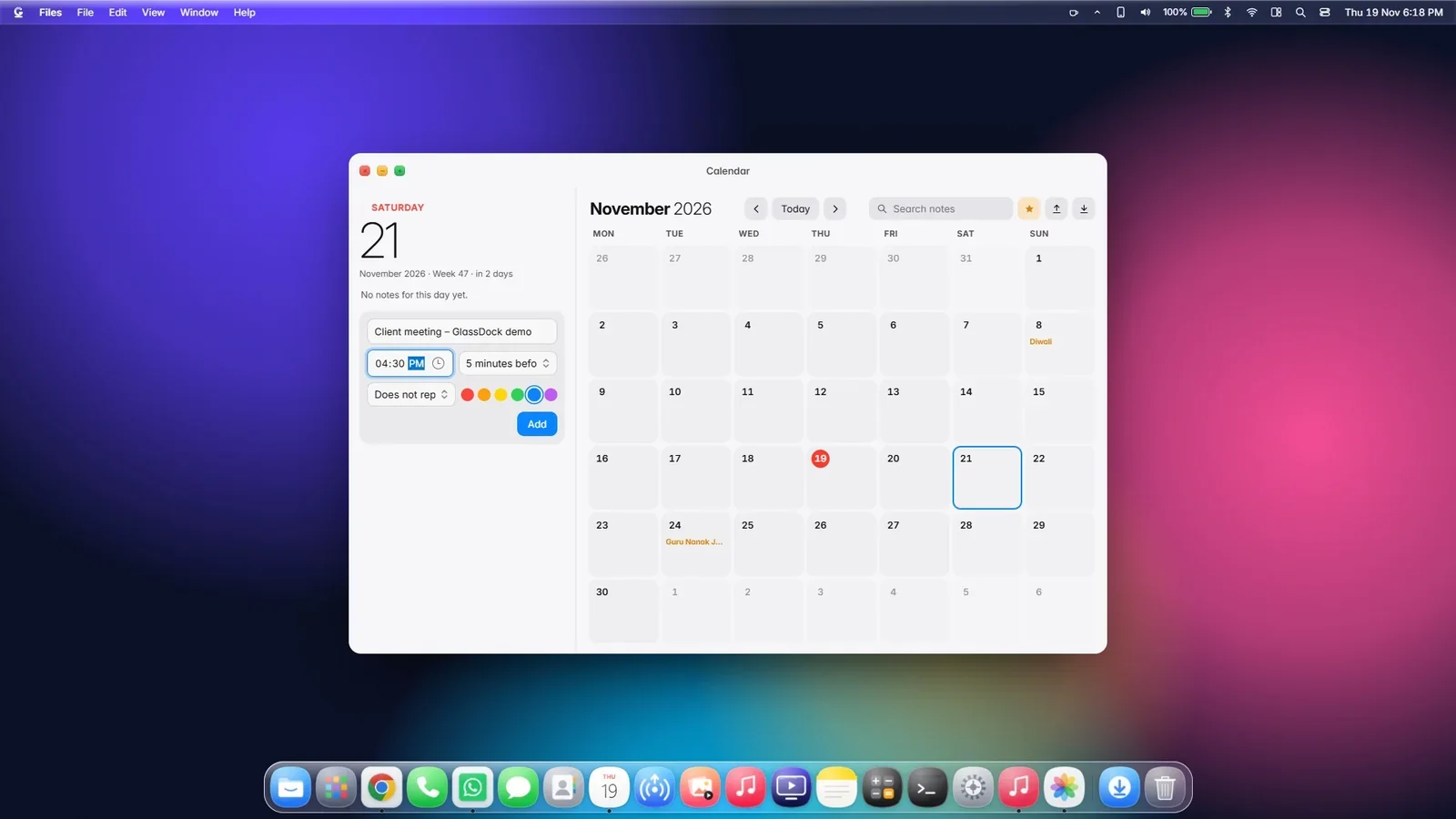
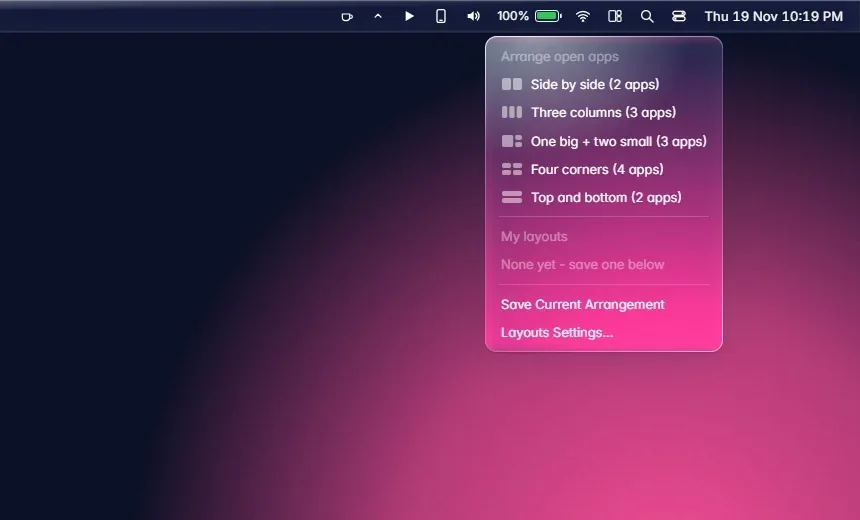
A browser on the left, notes on the right. Or email in a tall column with two smaller windows stacked beside it. Click the grid icon in the menu bar, pick a picture of the arrangement, and your open windows move into it with even gaps between them.
Then save it. If every morning starts with the same three apps in the same places, arrange them once, choose Save Current Arrangement and call it "Office". Tomorrow, one click opens those apps and puts each one back where it belongs.
Side by side
Three columns
One big, two small
Four corners
Top and bottom
Works with the windows you already have open
Saved layouts open any missing apps for you
Windows fit between the menu bar and the dock
Layouts
Pick an arrangement from the menu bar.
GlassDock Files
A file manager that keeps out of your way
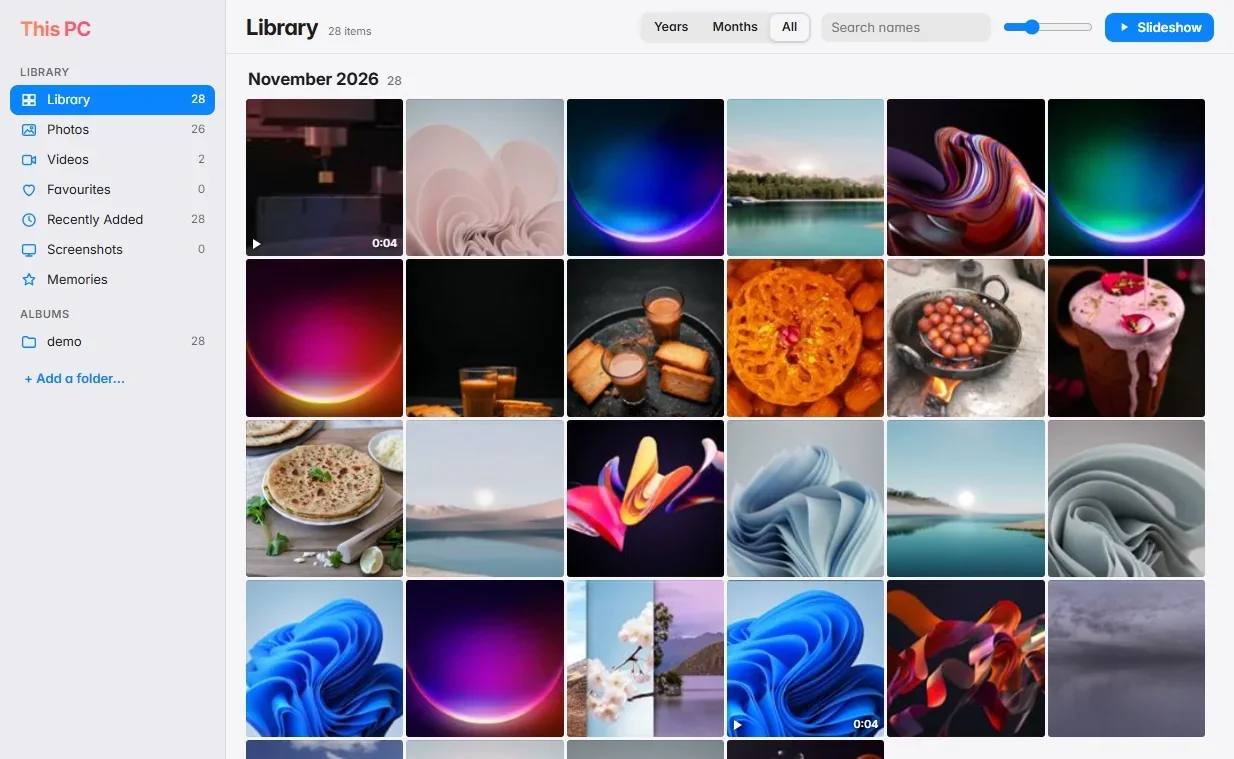
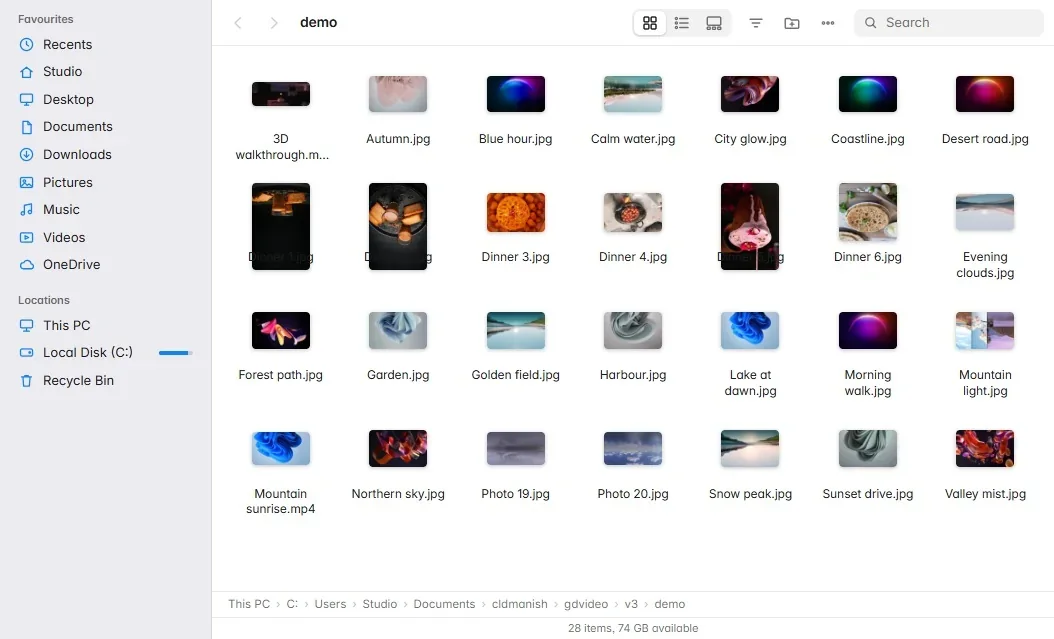
GlassDock Files opens when you open a folder. A sidebar holds Recents, your user folders, OneDrive, This PC, your drives and the Recycle Bin. The main area shows files as icons, a list or a gallery.
Plug in a pen drive and it appears in the sidebar at once, with an eject button beside it. This PC shows each drive as a tile with a bar for how full it is. Right-click for the everyday jobs: Duplicate, Compress, Extract, Properties, New Text Document, Open Terminal Here. Deleted something by mistake? Open Recycle Bin and choose Put Back.
Icon, list and gallery views
Pen drives appear live, with Eject
Compress to zip and extract
Recycle Bin with Put Back and Empty
Drag files in and out
Prefer File Explorer? One switch in Settings brings it back for folders
Files
This PC in GlassDock Files.
Small tools
Three helpers you will use without thinking
Clipboard history
Press Win + V to see the last things you copied, text and pictures both. Click one to paste it. Pin the ones you paste every day, like your address or a bank reference. Apps that mark a copy as private, such as password managers, are left out.
Quick note
A shortcut opens a small note. Type the phone number someone is reading out, close it, and it is saved.
Copilot panel
If you use Microsoft Copilot, you can ask it from a glass panel without opening a browser. It uses your own Microsoft sign-in. It is text only. GlassDock adds no microphone and no voice.
GlassDock keyboard shortcuts
Press
To
Windows key
Open App Grid
Alt + Space
Open Quick Search
Space (file selected)
Spacebar Preview
Win + Tab
Card view of all windows
Alt + Tab
Switch apps
Win + V
Clipboard history
Win + E
Open GlassDock Files
Hold Windows key
Show the shortcut sheet
Questions
Search and files questions
Can I preview files with the spacebar on Windows 11?
Yes, with GlassDock. Select a file on the desktop or in File Explorer and press Space. A preview opens for photos, videos, music, PDF, text and code. Arrow keys move to the next file and Space or Esc closes it.
What does Alt + Space do in GlassDock?
Alt + Space opens Quick Search, a search bar in the centre of the screen. It finds apps, files and settings, works out sums, converts units and currency, and can start a call or message to a contact from your paired phone.
Does the Windows key still open the Start menu?
While GlassDock runs, a tap of the Windows key opens App Grid instead of the Start menu. Shortcuts that use the Windows key with another key keep working. You can change this in Settings under Keyboard.
How do I save a window layout?
Arrange your windows the way you like, click the Layouts icon in the menu bar and choose Save Current Arrangement. Give it a name. Next time, pick it from the same menu and GlassDock opens those apps and places them.
Does Quick Search look inside my files?
It can. Searching inside files is a setting you turn on. The search happens on your PC. Nothing about your files is sent anywhere.
Can I still use File Explorer?
Yes. File Explorer stays installed. By default GlassDock Files opens folders, and a switch in Settings hands folders back to File Explorer if you prefer it.