Desktop widgets for Windows 11,and a look you choose yourself
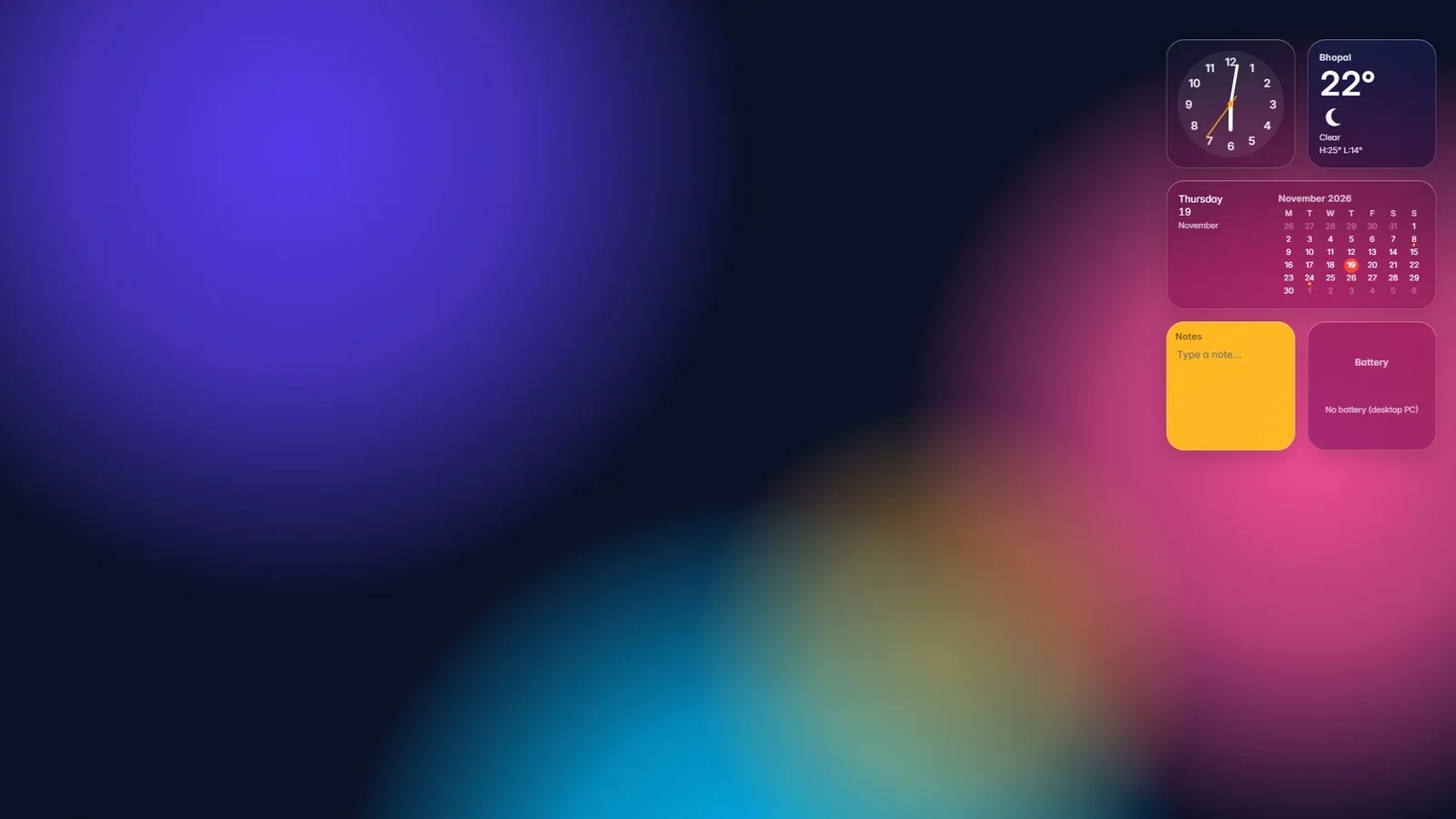
A desktop should tell you something when you glance at it. The time in Toronto. Whether it will rain. The three things you promised to finish today. GlassDock puts 22 widgets right on the Windows 11 desktop, then lets you set the wallpaper, the glass and the colours around them.
Yes, with GlassDock. It adds 22 widgets that sit directly on the Windows 11 desktop, including clock, weather, calendar, to-do, notes, battery, world clock and timer. Each comes in small, medium and large. Drag them where you like and they stay there, behind your app windows, visible whenever you show the desktop.
All 22
Every widget, and what it is good for
Time and plans
Getting things done
Outside
Your PC
Media and phone
Clock. A clean clock, large enough to read from the sofa.
World Clock. Other cities at a glance, for when your client is in another time zone.
Calendar. This month, with today marked. Click it to open the full calendar.
Up Next. Your next notes and reminders.
Countdown. Days left until a date that matters.
Timer. For tea, for focus, for the washing machine.
To-do. A short list you tick off.
Notes. A sticky note on glass.
Habits. Tick a habit each day and watch the streak grow.
Thought for the Day. One line to start with.
Weather. Today and the days ahead for your city.
Air Quality. Useful before a morning run.
Sunrise & Sunset. Today's times.
Moon. Tonight's phase.
Battery. Level and charging state.
Bluetooth Batteries. Earbuds, mouse, keyboard.
System. How busy the processor and memory are.
Disk Space. How full each drive is.
Now Playing. The current song, with controls.
Photo Frame. Pictures from a folder you choose.
Recent Calls. From your paired phone.
Messages. Latest texts from your paired phone.
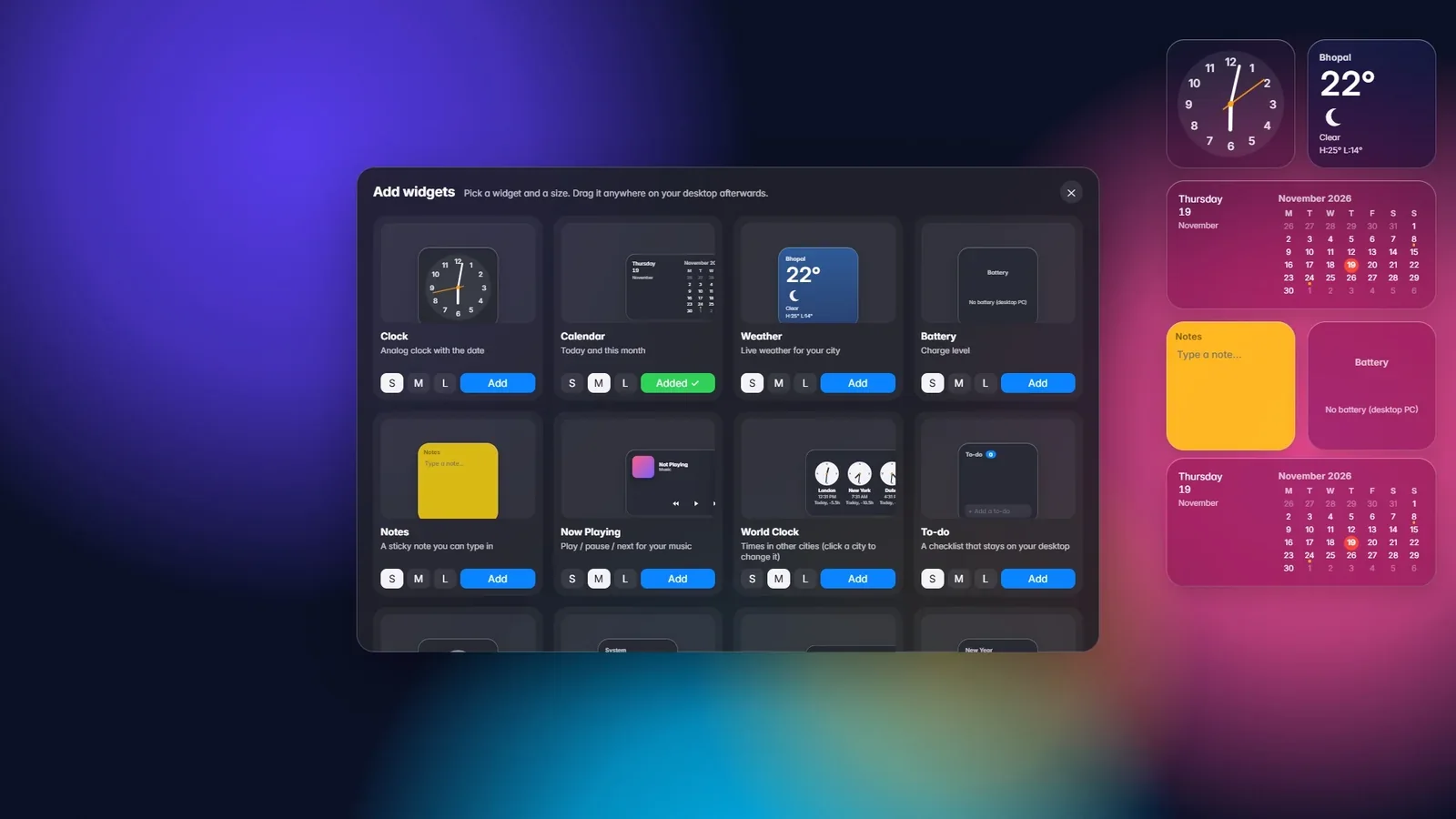
The widget gallery
The widget gallery. Pick a size and add.
How it works
Add, move and resize in seconds
Right-click the desktop and choose Edit Widgets, or open the gallery from Settings. Each widget shows a live preview in three sizes. Click Add and it finds an empty spot. Drag it where you want it. Widgets snap gently into line with each other, so the desktop looks arranged even if you place them in a hurry.
Right-click a widget to change its size or remove it. The weather widget lets you set your city. The photo frame asks for a folder. That is about all the setup there is.
Small, medium and large
Drag anywhere, with soft snapping
Sit behind app windows, on the desktop itself
Text switches between dark and light to stay readable on your wallpaper
Weather, air quality and sunrise times come from a public weather service, so those widgets need the internet. Only the city you chose is sent.
Bhopal
24°
Clear sky · sample
H 29° L 17°
Today
1
To-do
Send the invoice Call Riya at 5 Back up photos
Wallpapers
Drawn, live, or your own picture
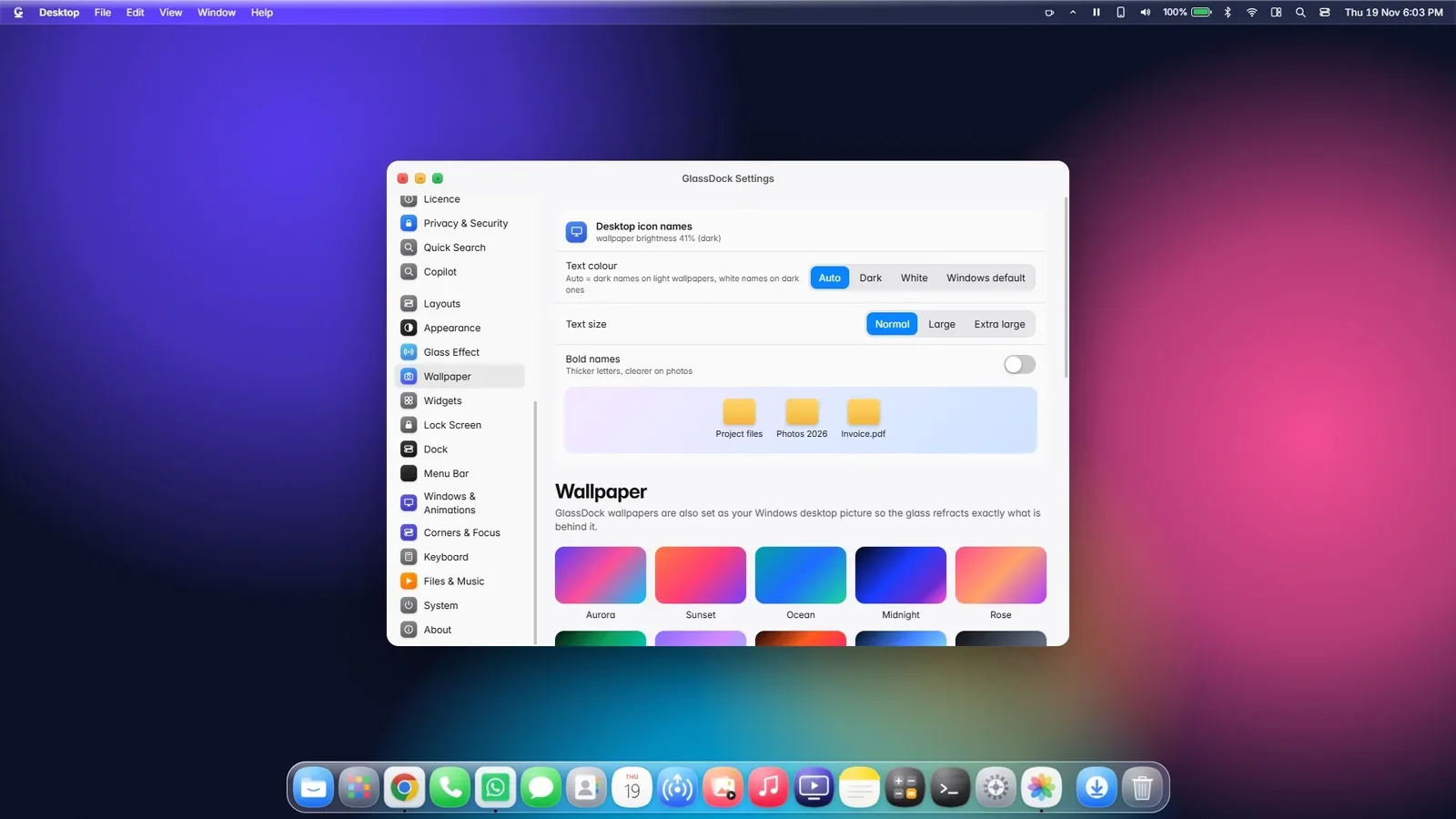
GlassDock ships with a set of drawn wallpapers in soft gradients: Aurora, Sunset, Ocean, Midnight, Rose, Forest, Lavender, Ember, Ice and Graphite.
If you like a little movement, pick a live wallpaper. They drift slowly, like light through glass, and they pause on battery so they do not eat into your charge. Or use your own photo, with the usual choices of fill, fit, stretch and centre. You can even have the wallpaper change with the time of day, lighter in the morning and darker at night.
10 drawn wallpapers, or keep your Windows wallpaper
Live wallpapers that pause on battery
Your own picture, with the last few remembered
Day and night switching
Desktop icon names turn black or white to stay readable
Choose a wallpaper in Settings
Choose a wallpaper in Settings.
Glass Effect
Real glass, as clear or as calm as you like
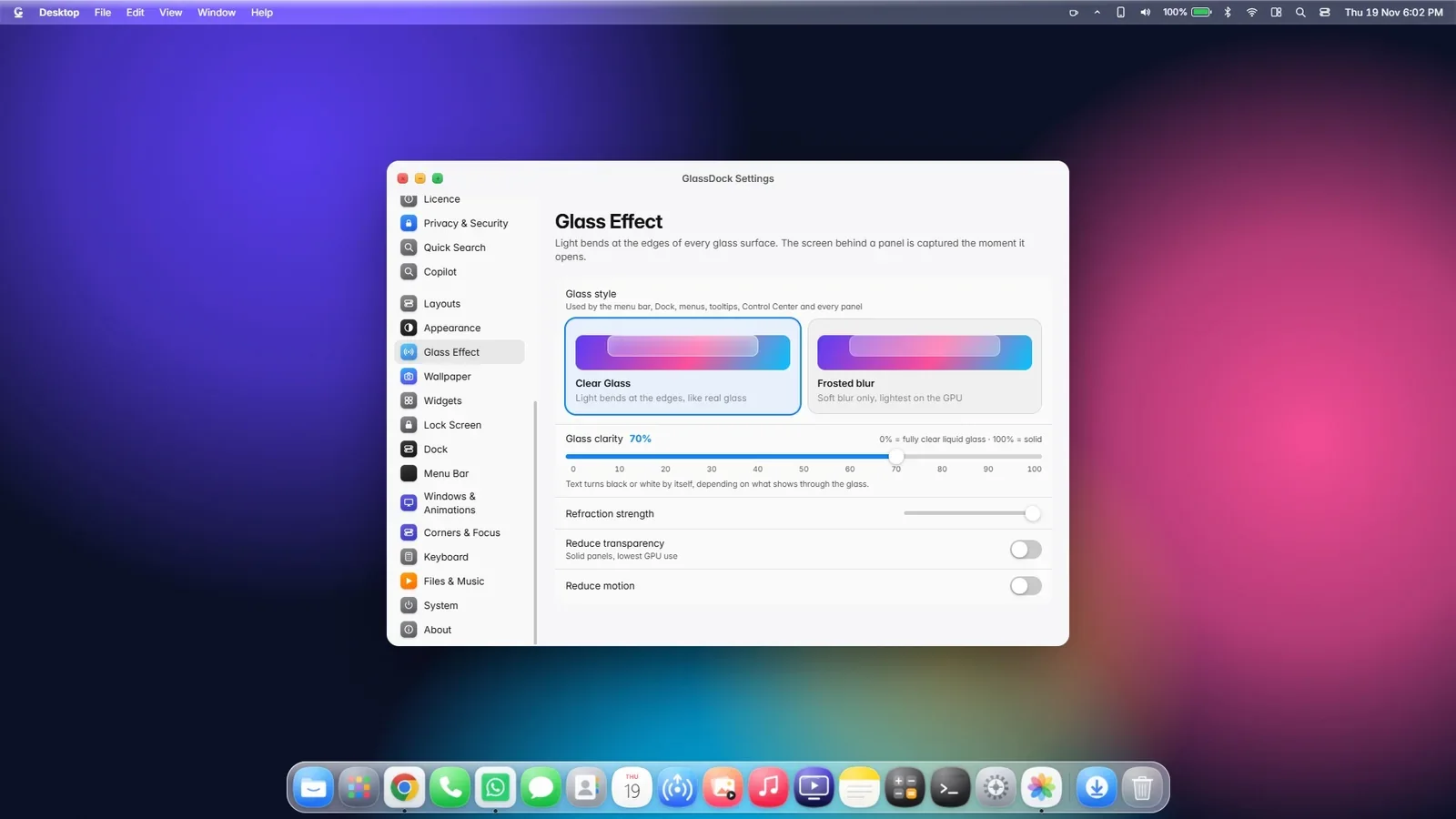
Look closely at the edge of a GlassDock panel. The wallpaper behind it bends slightly, the way things do through the rim of a drinking glass. That is not a flat blur. GlassDock works out how light would pass through each panel's shape.
How much of that you want is up to you. The clarity slider runs from clear, where the glass is nearly see-through, to solid, where panels are calm and plain. If your PC has a modest graphics chip, switch the style to frosted, which is lighter work. And text looks after itself: on a bright background it turns dark, on a dark background it turns light.
Glass style: Clear Glass or Frosted
Clarity: from clear to solid
Refraction: how strongly light bends at the edges
Reduce transparency: solid panels
Reduce motion: no animations
Set how clear the glass is
Set how clear the glass is.
Appearance
Light, dark and the small details
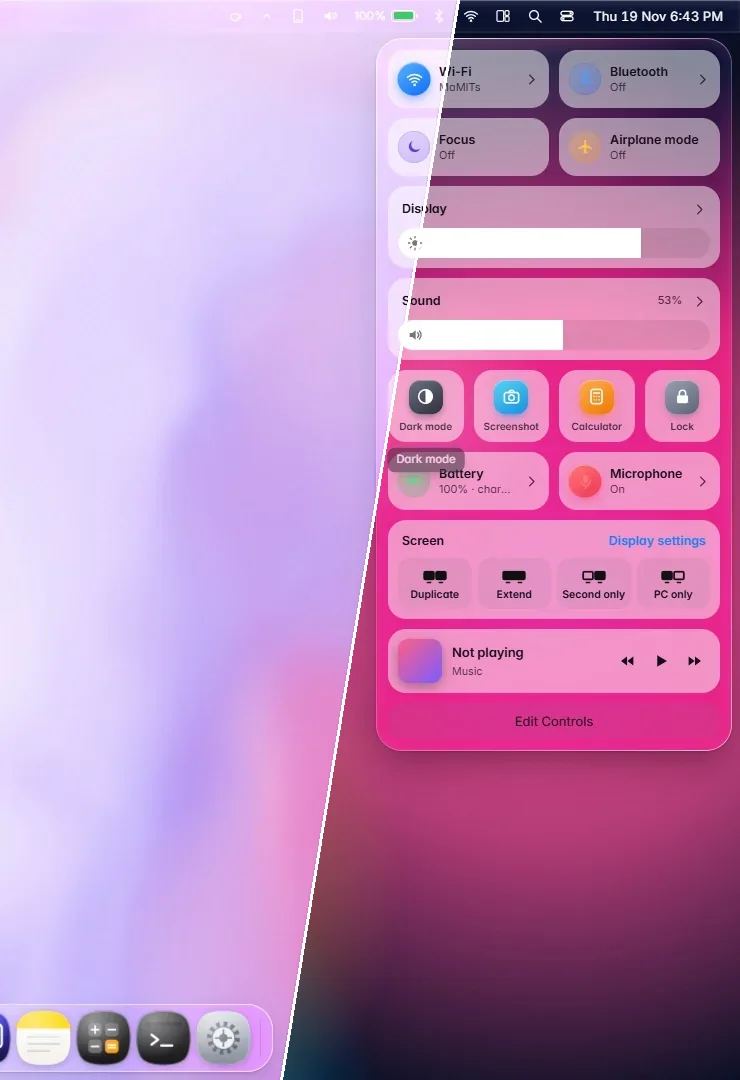
One click switches the whole desktop between light and dark: menu bar, dock, panels, widgets and wallpaper together. Pick an accent colour for highlights. Choose between the standard Windows font and a rounder one.
Then the details. An optional pointer set with a crisp black arrow. A lock screen that shows a large quiet clock when the PC sits idle. Frame rate options from 30 up to 120 for smooth motion, if your screen supports it.
Light and dark mode
Accent colour
Two fonts
Optional pointer set
Idle lock screen with clock
Frame rate from 30 to 120 (higher rates need a screen that supports them)
Are the widgets on the desktop or in a side panel?
On the desktop. GlassDock widgets sit directly on the wallpaper, behind your app windows, and stay visible whenever the desktop is. There is no panel to open first.
How many widgets does GlassDock have?
22: clock, world clock, calendar, up next, countdown, timer, to-do, notes, habits, thought for the day, weather, air quality, sunrise and sunset, moon, battery, Bluetooth batteries, system, disk space, now playing, photo frame, recent calls and messages.
Can I use my own wallpaper?
Yes. Choose any picture from your PC and set how it fits the screen. GlassDock can also simply follow whatever wallpaper you set in Windows.
Do live wallpapers drain the battery?
They use some power, which is why they pause automatically when a laptop is on battery. You can also choose a lower frame rate or use a still wallpaper.
What happens to my wallpaper when I quit GlassDock?
GlassDock remembers the wallpaper and pointer you had before and puts them back when you quit. If you set your own picture through GlassDock, that picture stays.
How do I customize the Windows 11 desktop without changing system files?
Use an app that runs on top of Windows. GlassDock adds its dock, widgets, wallpapers and glass panels as a layer and does not patch or replace Windows system files. Quit the app and the standard desktop returns.