











 Customise
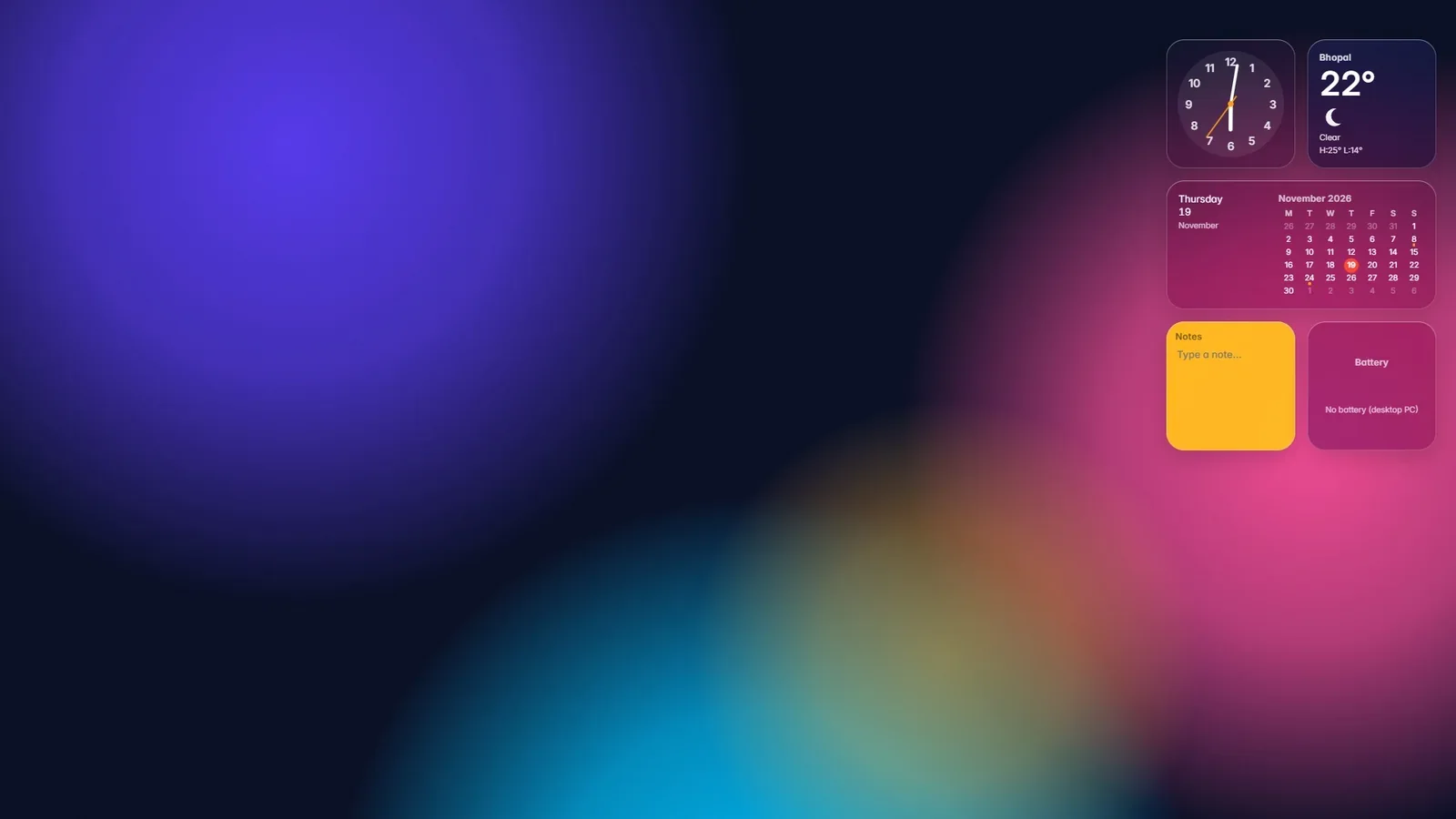
A new Windows 11 laptop looks like every other Windows 11 laptop. Same blue swirl, same centred icons, same white panels. It works, but it does not feel like yours yet.
The good news is that Windows lets you change more than most people realise, and nearly all of it lives in one place. This guide walks through twelve changes in the order we would make them on a fresh PC. The first ten use only what is already installed. The last two need an extra app, and we will say so clearly.
Set aside twenty minutes. You will not need to restart once.
Short answer
To customise Windows 11, open Settings and go to Personalisation. From there you can change the wallpaper, switch to dark mode, pick an accent colour, move the taskbar icons to the left, tidy the Start menu and set a lock screen picture. For a dock or widgets on the desktop itself, you need an add-on app such as GlassDock.
Before you start: one thing to check
Windows only lets you personalise if your copy is activated. Open Settings > System > Activation. If it says “Active”, carry on. If not, the Personalisation options will be greyed out until that is sorted.
The fastest way into everything below: right-click an empty part of the desktop and choose Personalise.
1. Change the wallpaper
It sounds obvious, but it changes the mood more than anything else on this list.
Go to Settings > Personalisation > Background. Under “Personalise your background” you can pick a single picture, a solid colour, or a slideshow that rotates through a folder of your photos. For a slideshow, choose the folder and how often it should change. Thirty minutes is a nice pace. Every minute gets tiring.
A small tip: pick a wallpaper that is calm on the left side. That is where your desktop icons sit, and names are hard to read over a busy picture.
2. Switch to dark mode (or a mix)
Go to Settings > Personalisation > Colours and find “Choose your mode”. You get three choices.
- Light. White panels, dark text.
- Dark. Dark panels, light text. Easier on the eyes at night.
- Custom. Lets you set Windows itself (taskbar, Start) to dark while apps stay light, or the other way round.
Many people settle on Custom with a dark taskbar and light apps. Documents still look like paper, but the frame around them recedes.
3. Pick an accent colour
On the same Colours page, scroll to Accent colour. Windows can pull a colour from your wallpaper automatically, or you can choose one by hand.
Two switches underneath decide where it shows: on Start and the taskbar, and on window title bars and borders. Turning on title bars is worth trying. It makes the window you are working in stand out from the ones behind it. Note that the Start and taskbar switch only works in Dark or Custom mode.
4. Turn transparency on or off
Still on the Colours page, Transparency effects gives the taskbar and menus a slightly see-through, frosted look. On a slower PC, turning it off makes things feel a touch snappier. On a recent PC, leave it on. It is one of the nicer parts of Windows 11.
5. Move the taskbar icons back to the left
Windows 11 centres the Start button and icons. If twenty years of habit send your pointer to the bottom-left corner, you can put them back.
Go to Settings > Personalisation > Taskbar, open Taskbar behaviours, and set Taskbar alignment to Left.
While you are there:
- Under Taskbar items, switch off the buttons you never use, such as Task view or Widgets. The taskbar gets cleaner straight away.
- Tick Automatically hide the taskbar if you want every bit of screen height on a small laptop.
6. Tidy the Start menu
Go to Settings > Personalisation > Start.
- Choose More pins if you would rather see your apps than suggestions.
- Switch off the “recently added” and “most used” lists if they feel like clutter.
- Open Folders and add shortcuts such as Settings, Documents and Downloads beside the power button. This one saves real time.
Then open Start itself. Right-click any pinned app you do not use and choose Unpin. Drag the rest into an order that makes sense to you. Drag one app onto another to make a folder.
7. Set the lock screen
Settings > Personalisation > Lock screen controls the picture you see before you sign in. Choose your own photo or a slideshow. You can also pick one app, such as Calendar or Weather, to show a status line there.
8. Make text and the pointer easier to see
Customising is not only about looks. If you squint at the screen, fix that first.
- Text size: Settings > Accessibility > Text size. Drag the slider and press Apply. Only text grows. Layouts stay the same.
- Pointer: Settings > Accessibility > Mouse pointer and touch. Choose white, black, inverted or any colour you like, and make it bigger. A slightly larger black pointer is surprisingly pleasant on light backgrounds.
- Night light: Settings > System > Display > Night light warms the screen colours in the evening. Put it on a schedule from sunset to sunrise.
9. Use themes to save your combination
Once wallpaper, colours and pointer are how you like them, go to Settings > Personalisation > Themes and press Save. Give the theme a name. Now you can switch between, say, a bright “Work” look and a darker “Evening” look in one click. The Microsoft Store also has more themes if you want someone else’s ideas.
On the same page, Desktop icon settings lets you show or hide This PC, Recycle Bin and your user folder on the desktop.
10. Arrange windows with Snap and virtual desktops
How your windows sit is part of how your desktop feels.
- Snap layouts: hover over a window’s maximise button, or press Win + Z, and pick a layout. Windows offers to fill the other spaces with your open apps.
- Virtual desktops: press Win + Tab and choose New desktop. Keep work on one and personal things on another. Right-click a desktop there and choose Choose background to give each its own wallpaper, which makes it obvious where you are.
That is the end of what Windows offers on its own. For most people, steps 1 to 10 are plenty.
How do I customize Windows 11 beyond the built-in settings?
Here is where built-in options stop. Windows 11 does not let you move the taskbar to the side or top of the screen. Its widgets live in a board that slides out with Win + W, not on the desktop. And there is no dock.
If you want those, you need an extra app. Two that we can speak about honestly:
11. Add power tools with Microsoft PowerToys
PowerToys is a set of utilities from Microsoft itself, available in the Microsoft Store. It does not change how Windows looks, but it changes how it behaves. The ones most people like:
- FancyZones lets you draw your own window layouts, beyond the standard Snap ones.
- PowerToys Run is a quick launcher that opens with a shortcut and finds apps and files.
- Peek previews a selected file with a shortcut.
It is made by Microsoft, so it is a safe first step beyond the basics. The trade-off is that each tool is separate, with its own settings, and none of them touches the look of the desktop.
12. Add a dock, a menu bar and desktop widgets with GlassDock
This is our own app, so weigh our words accordingly.
GlassDock is for people who want the desktop itself to change. It adds a dock with magnifying icons and live window previews, a glass menu bar across the top for Wi-Fi, sound, battery and the clock, and 22 widgets that sit directly on the desktop. It also brings its own wallpapers, including live ones, and a glass effect whose clarity you set with a slider.
Two things we think matter when you judge any app like this, ours included:
- Does it leave cleanly? GlassDock runs on top of Windows. Quit it and your taskbar, wallpaper and pointer return as they were.
- Where does it come from? GlassDock is on the Microsoft Store, so it installs and uninstalls like any Store app.
It runs on Windows 11 only. If you want to see what is possible, have a look at the desktop widgets and wallpapers in GlassDock or the dock for Windows 11.
Mid-article card: Widgets on the desktop, not in a side panel. See all 22 GlassDock widgets → /windows-11-widgets/
A sensible order to do it all
If you only have five minutes: wallpaper, dark mode, accent colour. That gets you most of the way.
If you have twenty: add the taskbar and Start tidy-up, then save a theme.
If you want the desktop to look and work differently, try PowerToys for behaviour and GlassDock for the look, one at a time, so you know which change you like.
Things to avoid
A few words of caution from people who have broken a desktop or two.
- Be careful with tools that patch system files. Some older customisation methods replace Windows files to force new looks. A Windows update can undo them or leave things half-working. Prefer apps that run on top of Windows and can be quit.
- Do not stack several shell tweaks at once. Two apps both trying to manage the taskbar will fight.
- Create a restore point before experimenting. Search for “Create a restore point” in Start. It takes a minute and gives you a way back.
Closing CTA
Heading: Want the dock and the widgets too?
Body: See GlassDock on your own Windows 11 PC.
Button: Get it on Microsoft Store
Editor notes:
– Add real screenshots of the Windows Settings pages for steps 2, 3, 5, 6 and 10. File pattern: windows-11-settings-personalisation-colours.webp and so on, with alt text describing the setting shown.
– Check menu names against the current Windows 11 build before publishing. Microsoft renames things. US-English Windows shows “Personalization” and “Colors”.
– PowerToys tool names (FancyZones, PowerToys Run, Peek) should be re-checked against the current PowerToys release.
Frequently asked questions
How do I customise Windows 11 with its own settings?
Open Settings and go to Personalisation. Wallpaper, dark mode, accent colours, taskbar alignment, the Start menu, the lock screen and themes are all built in. Microsoft PowerToys, a separate download from Microsoft, adds custom window layouts and a quick launcher.
Can I move the Windows 11 taskbar to the top or side?
Not with Windows’ own settings. Windows 11 keeps the taskbar at the bottom and only lets you align icons to the left or centre. A dock app such as GlassDock can place a dock on the bottom, left, right or top instead.
Can I put widgets on the Windows 11 desktop?
Windows 11’s own widgets open in a board with Win + W and do not sit on the desktop. To place widgets like a clock, weather or to-do list on the desktop itself, you need an add-on app. GlassDock includes 22.
Does customising Windows 11 slow it down?
The built-in settings do not. Add-on apps vary. Look for ones that are light when idle and let you turn off animation or live wallpapers. If your PC feels slower after installing something, quit it and compare.
Is it safe to customise Windows 11?
Yes, if you stay with Windows’ own settings and with apps that do not modify system files. Apps from the Microsoft Store that can be quit and uninstalled normally are the lowest-risk choice.
Windows 11 ko kaise customize kare?
Desktop par right-click karke Personalise kholiye. Wahan se wallpaper, dark mode, accent colour, taskbar aur Start menu badal sakte hain. Dock aur desktop widgets ke liye GlassDock jaisa app Microsoft Store se install karna hoga.

 Send link to my PC