















 Files
Everyone has done it. You take a photo of a document, then email it to yourself, then open the email on the PC, then download the attachment, then wonder why it is called “image0.jpeg” and where it went.
There are better ways. This guide covers six, from the ones already on your devices to dedicated tools, with an honest note on where each one trips up. Pick the one that fits how often you do this and how big your files are.
Short answer
The easiest ways to send files from a phone to a Windows PC without a cable are: Quick Share for Android, a cloud drive such as OneDrive or Google Drive, sending the file to yourself in a chat app, Bluetooth for small files, Windows Phone Link for recent photos, and GlassDock Drop, which works over Wi-Fi with Android and iPhone.
Before you choose: three questions
- How big is it? One photo and a 4 GB wedding video are different problems.
- Does quality matter? Some methods shrink photos and videos without telling you.
- Are both devices on the same Wi-Fi? The fastest methods need that. If you are on mobile data in a cafe, the cloud may be your only route.
Keep your answers in mind as you read.
1. Send it to yourself in a chat app or email
The method everyone already knows. In WhatsApp you can message yourself, then open WhatsApp on the PC and download the file. Email works the same way.
Good for: one photo or a small PDF, right now, without setting anything up.
The catch: chat apps often compress photos and videos unless you send them as a “document” or choose the high-quality option. Email has attachment size limits. And your files end up scattered across chats.
Tip: in WhatsApp, attach the photo as a Document instead of from the Gallery. It then arrives at full quality with its original name.
2. Use a cloud drive
OneDrive comes with Windows. Google Drive is on most Android phones. iPhone users have iCloud Photos, which can be reached from a Windows PC too.
How: upload the file from the phone’s cloud app, or turn on automatic photo backup. Then open the same service on the PC and the file is there.
Good for: files you want on every device, automatic photo backup, working when phone and PC are in different places.
The catch: everything goes up to the internet and comes back down. That is slow for big videos and uses mobile data if you are not on Wi-Fi. Storage is limited, and it fills up faster than you expect.
3. Quick Share (Android)
Quick Share is Android’s built-in way to send files to nearby devices. Google offers a Quick Share app for Windows as well, and some laptop makers include their own version.
How, in outline: install Quick Share on the PC from Google’s official page, sign in or set who can see the PC, then on the phone tap Share, choose Quick Share and pick the PC.
Good for: Android users who move files often. It is fast on the same Wi-Fi and keeps full quality.
The catch: it is for Android. iPhones do not have Quick Share. And it is one more app to install and keep running on the PC.
4. Windows Phone Link
Phone Link, built into Windows 11, connects to your phone through Microsoft’s companion app. On Android it can show your recent photos on the PC so you can drag them out, and on some phones it supports dragging files across.
Good for: grabbing a photo you took a minute ago.
The catch: it needs the companion app and a Microsoft account, and what it can do varies with the phone. It is designed around recent photos more than moving folders of files.
5. Bluetooth file transfer
The old way still exists. On Windows, open Settings > Bluetooth & devices > Devices, find Send or receive files via Bluetooth, and choose Receive files. Then send the file from an Android phone using Share > Bluetooth.
Good for: a couple of small files when there is no Wi-Fi at all.
The catch: it is slow. A single photo is fine. A video will test your patience. iPhones do not send files this way.
6. GlassDock Drop
This is ours, so here are the facts and the limits together.
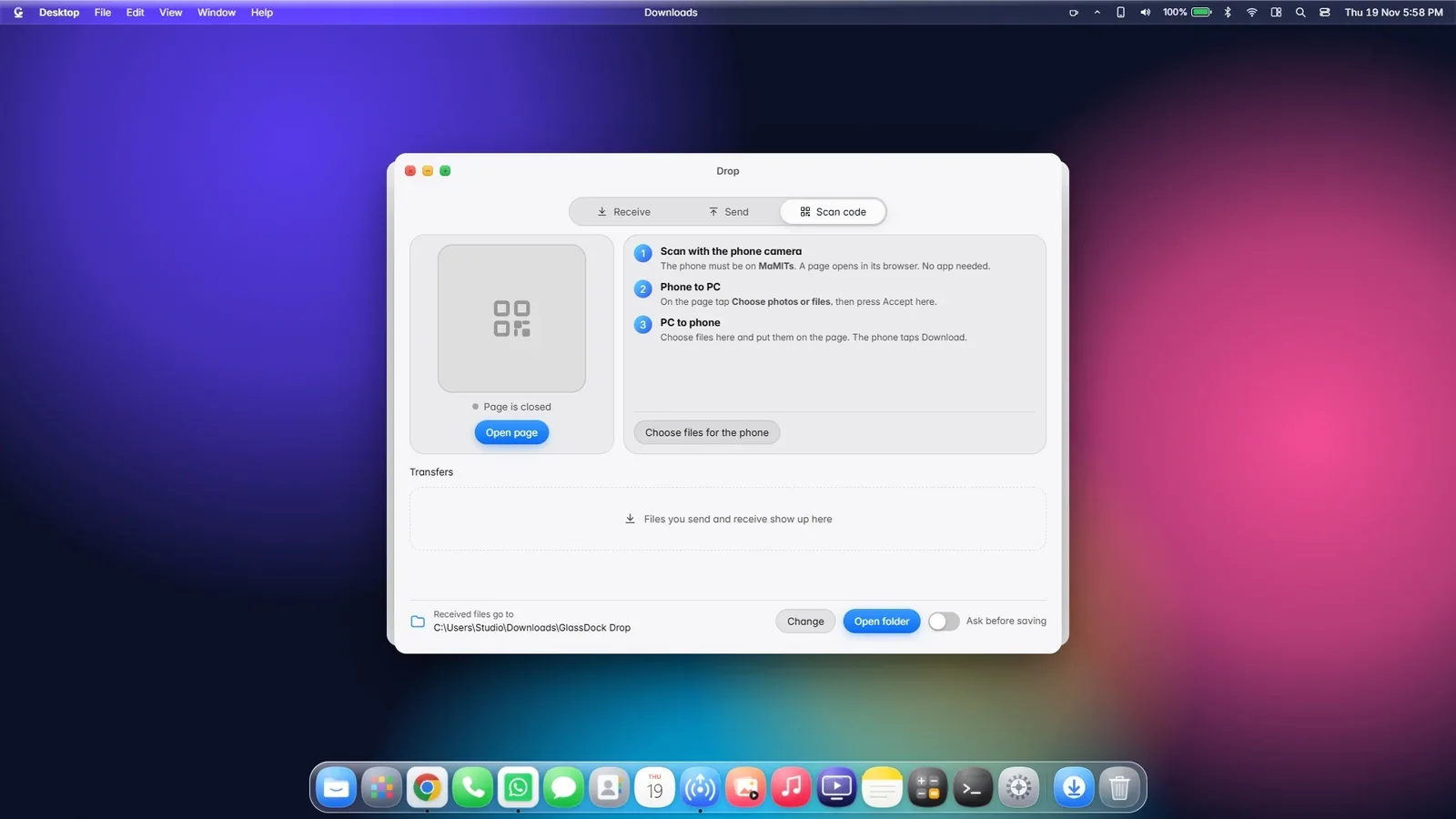
GlassDock is a desktop app for Windows 11, and Drop is its file sharing window. It moves files directly between phone and PC over your Wi-Fi network. Two things make it different from the options above.
It speaks Quick Share. When Drop is switched to visible, an Android phone sees your PC in its normal Quick Share list. You do not install a separate Quick Share app on the PC. You can also send from the PC to nearby Android phones.
It has a route for iPhone. For phones without Quick Share, Drop shows a QR code. Scan it with the phone’s camera and a simple page opens in the browser. Choose files to send to the PC, or download files the PC has offered. No app on the phone.
Sending from Android:
- On the PC, open Drop and set it to visible.
- On the phone, open the file and tap Share > Quick Share.
- Tap your PC’s name.
- On the PC, check the code matches and click Accept.
- The file lands in Downloads, in the GlassDock Drop folder.
Sending from iPhone:
- On the PC, open Drop and choose the Scan code tab.
- Scan the QR code with the iPhone camera and open the link.
- Choose your photos or files on the page and send.
- Click Accept on the PC.
Good for: people with both kinds of phone at home, full-quality photos and videos, and anyone who does this several times a week.
The catches:
- Phone and PC must be on the same Wi-Fi network. Some office and guest networks stop devices from seeing each other.
- The QR page is a simple local page, so use it on Wi-Fi you trust, not public networks.
- GlassDock is for Windows 11, and it includes far more than Drop. If file transfer is all you need and you only use Android, Quick Share alone may be enough.
Mid-article card: See how Drop works, with the safety settings explained → /phone-to-pc-file-transfer/
All six, side by side
| Method | Android | iPhone | Needs same Wi-Fi | Full quality | Best for |
|---|---|---|---|---|---|
| Chat app or email to yourself | Yes | Yes | No | Often not | One quick file |
| Cloud drive | Yes | Yes | No | Yes | Files you want everywhere |
| Quick Share | Yes | No | Yes, for speed | Yes | Regular Android transfers |
| Phone Link | Yes | Limited | Depends | Yes | Recent photos |
| Bluetooth | Yes | No | No | Yes | Tiny files, no Wi-Fi |
| GlassDock Drop | Yes | Yes, by QR page | Yes | Yes | Mixed phones, frequent transfers |
How do I keep the original quality?
If a photo looks soft or a video looks blocky after transfer, the method compressed it. To keep the original:
- Use a direct method (Quick Share, Drop, Bluetooth) or a cloud drive.
- In chat apps, send as a Document, not as a photo.
- On iPhone, photos may be in HEIC format. Windows can open these with an extension from the Microsoft Store, or you can set the iPhone to share in the most compatible format.
How do I transfer a very large video?
For anything over a couple of gigabytes:
- Same Wi-Fi available: a direct Wi-Fi method is fastest, because the file does not travel to the internet and back.
- No shared Wi-Fi: upload to a cloud drive overnight while the phone is charging.
- Truly huge, and you are in a hurry: this is the one time the cable still wins. There is no shame in it.
Staying safe when sharing wirelessly
- Only make your PC visible to nearby devices when you need to, or limit it to your own devices.
- Do not accept files you were not expecting. A good sharing tool always asks first.
- On public Wi-Fi, use the cloud instead of local sharing.
- Delete files from “sent to myself” chats once they are on the PC, especially IDs and bank documents.
Closing CTA
Heading: Send the next file without hunting for a cable
Body: Open Drop, send one photo, and watch it land on your PC.
Button: Get it on Microsoft Store
Editor notes:
– Do not publish before Drop has been tested with a real Android phone and a real iPhone (PLAN.md section 9, point 3). If the steps differ, correct section 6.
– Re-check on publishing day: the Quick Share for Windows setup, what Phone Link offers for files, and the Windows Bluetooth menu path. Keep wording general where it is general.
– The table’s “Limited” for Phone Link on iPhone reflects that its iPhone features are narrower than on Android. Verify, or change the cell to “Check Microsoft’s page”.
Frequently asked questions
What is the fastest way to send files from phone to PC without a cable?
A direct Wi-Fi method on the same network, such as Quick Share on Android or GlassDock Drop. The file goes straight from phone to PC without being uploaded to the internet first, so large files move much faster than through a cloud drive.
How do I send photos from an iPhone to a Windows PC wirelessly?
Use iCloud Photos, a cloud drive such as OneDrive or Google Drive, or a tool with a browser-based transfer. GlassDock Drop shows a QR code that the iPhone scans to open a transfer page, with no app to install.
Can I transfer files over Wi-Fi without the internet?
Yes. Direct methods only need both devices on the same Wi-Fi network. The router does not need a working internet connection, because the files never leave your local network.
Why do my photos lose quality when I send them to my PC?
Chat apps and some email apps compress images and video to save data. Send them as a document or file, or use a direct transfer method or a cloud drive to keep the original.
Is Bluetooth good for sending files to a PC?
Only for small ones. Bluetooth is much slower than Wi-Fi. It is handy for a photo or a contact when no network is available, but not for videos.
Mobile se laptop me file kaise bheje bina cable ke?
Agar phone aur laptop ek hi Wi-Fi par hain to Android me Quick Share sabse aasaan hai. iPhone ke liye cloud drive ya GlassDock Drop ka QR code use kijiye. Ek chhoti file ke liye WhatsApp par khud ko Document ki tarah bhej sakte hain.

 Send link to my PC