Your favourite apps in a row. Open windows one hover away. Icons that rise to meet the pointer and settle back when it leaves. The GlassDock dock replaces the crowded taskbar with something you will enjoy reaching for.
Yes. GlassDock adds a dock to Windows 11. It holds your pinned apps and every open window, magnifies icons under the pointer, shows live previews of an app's windows when you hover, and can sit on the bottom, left, right or top of the screen. The Windows taskbar hides while GlassDock runs and returns when you quit.
In use
Six things you will notice in the first five minutes
1
It grows under your hand
Slide the pointer along the dock and the icons swell, biggest in the middle, like a wave passing under them. It is not decoration. A larger target is easier to hit, and you always know which icon you are about to click. You set the resting size and how much the icons grow, or turn magnification off.
2
Open apps get a dot
Pinned apps stay on the left in the order you chose. Anything running shows a small dot beneath it. Apps you opened but have not pinned appear at the end and leave when you close them.
3
Hover to see the windows
Three Word documents open, and you need the one called "Invoice final v3". Rest the pointer on the Word icon for half a second. A glass card appears with a small live picture of each window. Click the right one. Click the × on a preview to close that window without bringing it forward.
4
Drag things around
Drag an icon sideways to reorder. Drag it up and off the dock to remove it. Open App Grid, pick up an app and drop it on the dock to keep it there.
5
Right-click for more
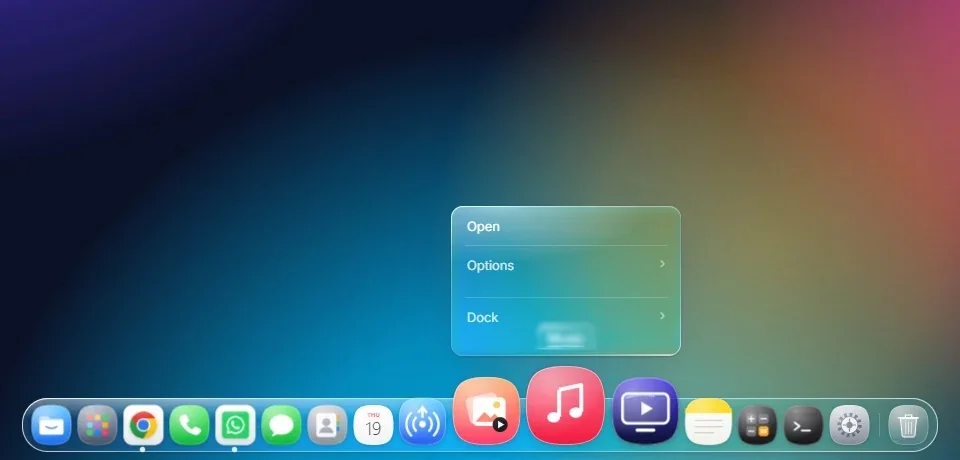
Right-click an icon for its list of windows, Keep in Dock, Open at Login, Show in Files and Quit. Right-click an empty part of the dock to change its position, size and hiding.
6
The end of the dock
The right-hand end holds a Downloads stack with your newest downloads, and the Recycle Bin. While something is printing, a printer icon joins them and leaves when the job is done.
Right-click for windows, options and Quit
Right-click for windows, options and Quit.
Where it lives
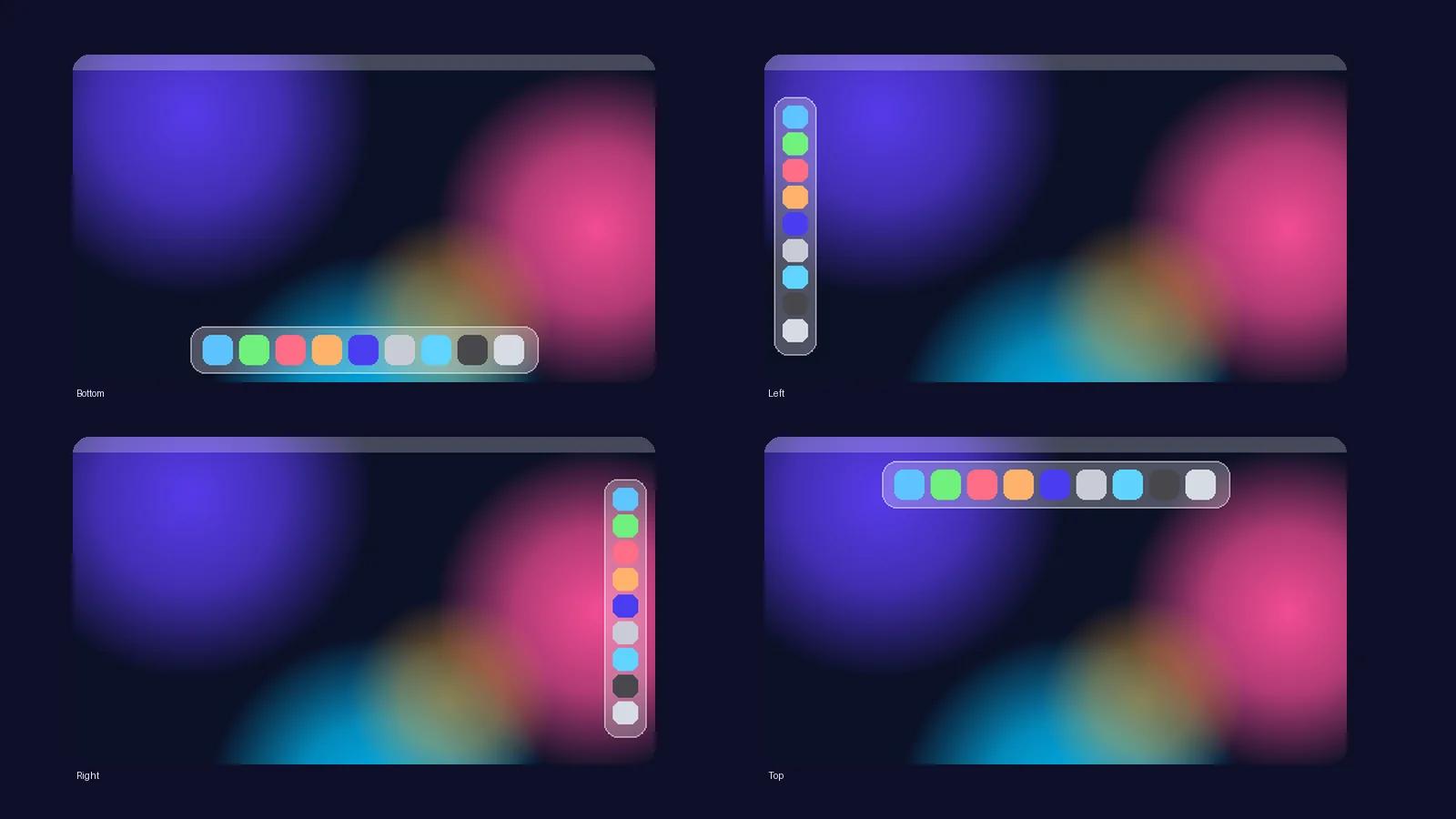
Bottom, left, right or top
Wide monitor? A dock on the left gives you more height for documents. Small laptop? Let the dock hide and you get the whole screen. With auto hide on, the dock slips away after a few seconds (you choose 1, 3, 5 or 10) and slides back when the pointer rests on that edge. Maximised windows always fit neatly between the menu bar and the dock, so nothing sits underneath.
Four positions: bottom, left, right, top
Auto hide with your choice of delay
The dock shrinks its icons to fit when you have many apps open
Windows you maximise never go under the dock
Position
Choose an edge in Settings or from the dock's right-click menu.
The top edge
A menu bar for the things you check all day
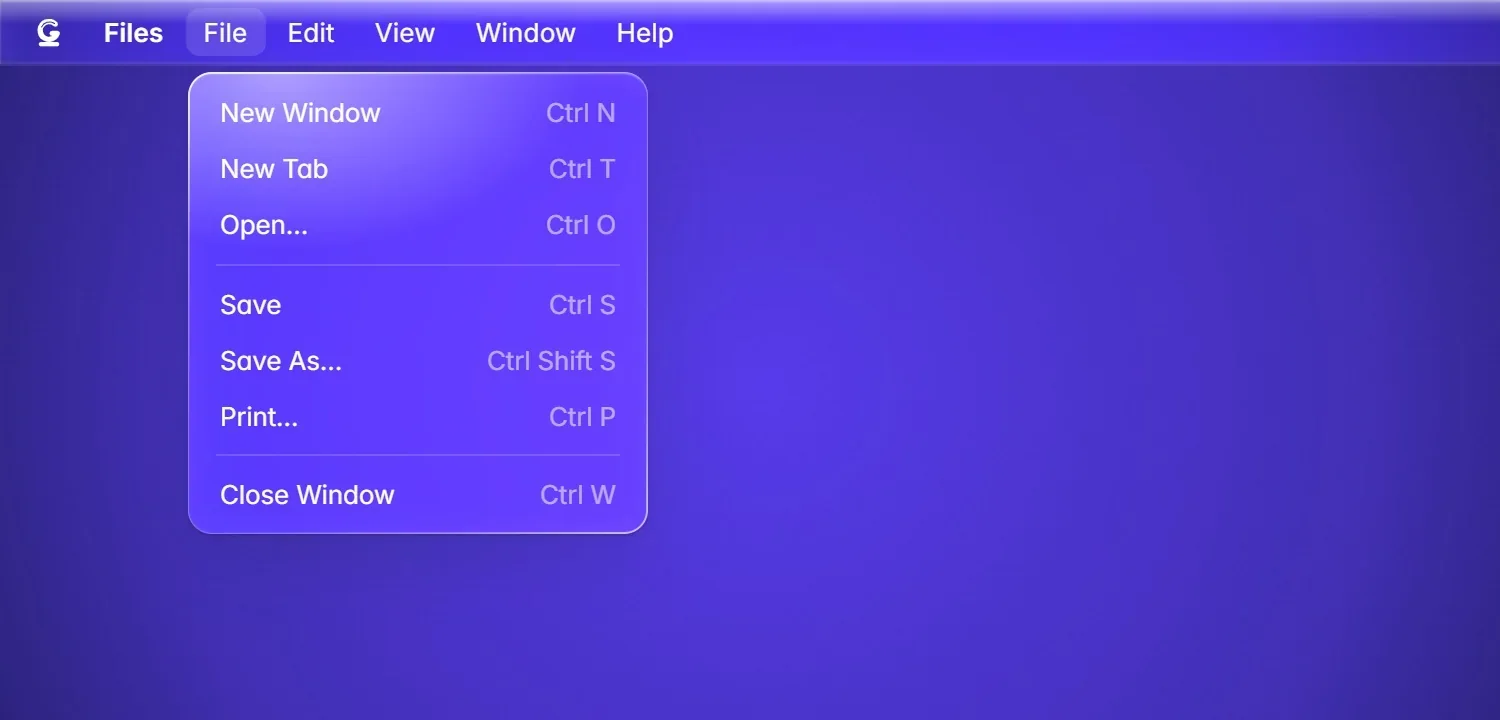
The menu bar is a thin strip of glass across the top of the screen. On the left it shows the name of the app in front and its menus, so File, Edit and View are always in the same place whichever app you are in. On the right is everything you glance at: Wi-Fi, Bluetooth, sound, battery, the date and time.
One click on Wi-Fi opens the list of networks. One click on Bluetooth shows your devices and their battery levels. No digging through settings pages.
Logo menu: About This PC, Settings, Microsoft Store, Force Quit, Sleep, Restart, Shut Down, Lock.
App menus: File, Edit, View, Window, Help for the app in front.
Your shortcuts: pin apps, folders, files or websites by name in the middle of the bar.
Layouts: a small grid icon to arrange your windows in one click.
Status: now playing, phone, keyboard language, Bluetooth, battery, Wi-Fi.
Privacy dots: orange when an app is using the microphone, green for the camera.
Search and Control Center, then the clock.
Apps that live in the Windows tray are still there. An arrow in the menu bar brings up the Windows list of background icons.
Menu Bar
Click Wi-Fi and the list is right there.
One panel
Brightness, sound and Wi-Fi without opening Settings
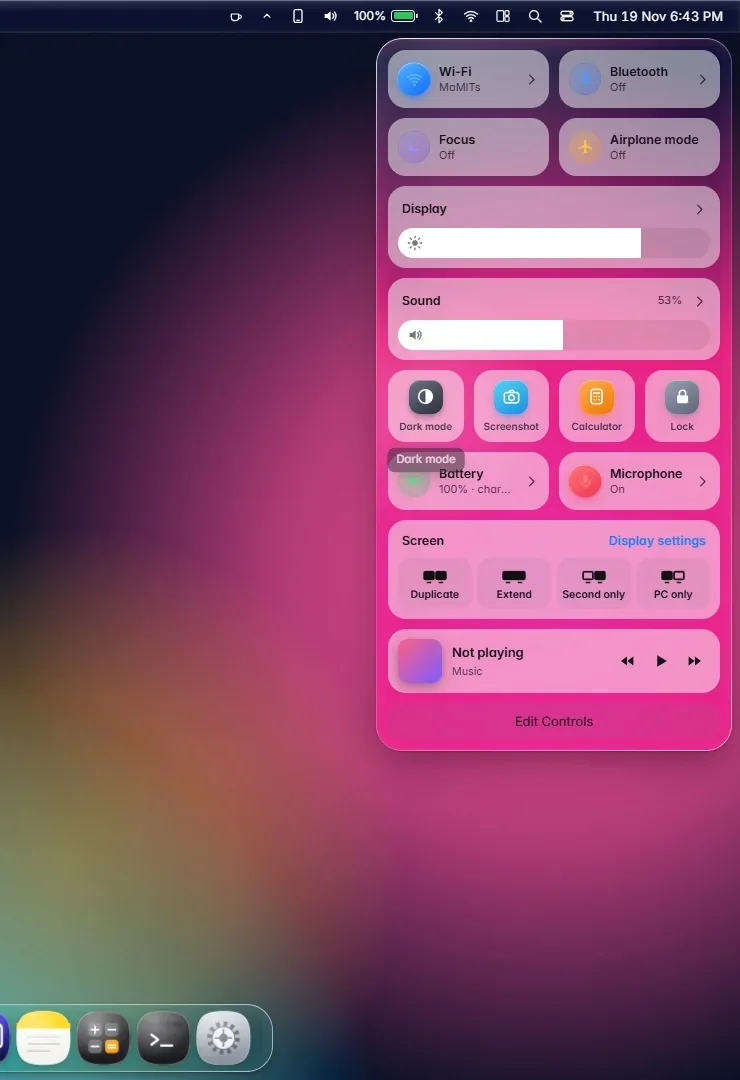
It is 11 pm, the screen is too bright and the laptop is too loud. Click the Control Center icon. Drag brightness down, drag volume down, tap dark mode. Three seconds, and you never left what you were doing.
Each tile opens into more detail when you need it. The Wi-Fi tile lists networks and takes a password. The Bluetooth tile shows devices and batteries. The Sound tile lets you pick the speaker or headset and set the volume of each app on its own.
Tiles for Wi-Fi, Bluetooth, Focus, Airplane mode, brightness, sound, dark mode, screenshot, battery, screen projection, now playing and more
Edit Controls: add tiles, remove them, drag them into your order
Per-app volume and output device in the Sound panel
Power mode in the Battery panel
Control Center
Control Center. Arrange the tiles your way.
The rest of the desktop
Notifications, cards and corners
1
Notification Center
Click the clock. A panel slides in with a month calendar, what is coming up next, the song that is playing and your recent notifications. Click a notification and its app opens. Swipe one away or clear them all.
2
Card view
Press Win + Tab. Every open window becomes a live rounded card, laid out so you can see all of them. Your virtual desktops run along the top. Click a card to switch, or flick it away to close it.
3
Hot corners and snapping
Push the pointer into a corner of the screen to trigger an action you chose, such as card view or showing the desktop. Drag a window to an edge and a glass outline shows where it will snap: half, quarter or full.
4
Desktop right-click
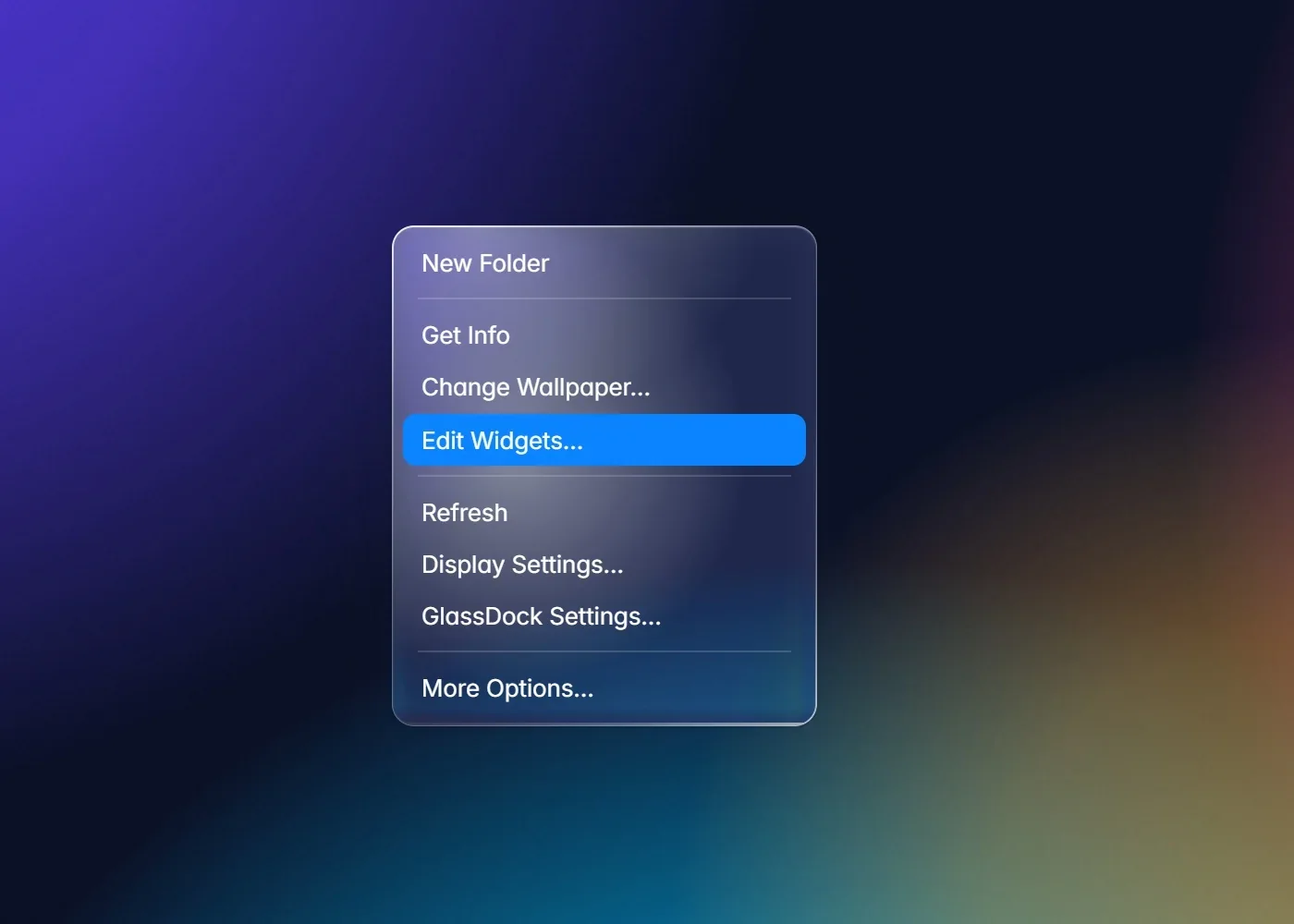
Right-click an empty part of the desktop for a short glass menu: New Folder, Change Wallpaper, Edit Widgets, Display Settings. "More Options" opens the usual Windows menu.
Right-click the desktop
Right-click the desktop.
Windows taskbar or GlassDock dock?
The taskbar is fine. Plenty of people never think about it. Here is what changes if you switch, so you can judge for yourself.
Windows 11 taskbar
GlassDock dock
Position
Bottom
Bottom, left, right or top
Icon size on hover
Fixed
Magnifies, adjustable
Window previews
Yes, on hover
Yes, live, with close buttons
Status icons
In the corner tray
In a menu bar across the top
Quick controls
Quick settings flyout
Control Center with tiles you arrange
Look
Windows style
Glass, with clarity you set
Going back
n/a
Quit GlassDock and the taskbar returns
Questions
Dock questions
Does the Windows taskbar disappear?
While GlassDock runs, the Windows taskbar is hidden and the dock takes its place. Nothing is deleted. Quit GlassDock and the taskbar comes back exactly as it was. You can also keep the taskbar visible with a setting if you prefer both.
Can I put the dock on the left or right side?
Yes. The dock can sit on the bottom, left, right or top of the screen. Change it in Settings, or right-click an empty part of the dock and pick a position.
Can the dock hide itself?
Yes. Turn on auto hide and the dock slides away after 1, 3, 5 or 10 seconds. Rest the pointer on that edge of the screen and it returns. Apps then get the full height of the screen.
How do I add an app to the dock?
Open the app, right-click its dock icon and choose Keep in Dock. Or open App Grid with the Windows key and drag the app onto the dock.
Does the dock show on my second monitor?
The dock and menu bar appear on your main screen. Other screens keep the standard Windows taskbar.
What happens when I play a full-screen game or video?
GlassDock steps out of the way. The dock and menu bar hide while an app is full screen and return when it is not.
Laptop me dock kaise lagaye?
Install GlassDock from the Microsoft Store on a Windows 11 laptop and start it. The dock appears at the bottom on its own, with your open apps already in it. Right-click any app icon and choose Keep in Dock to pin it.