














 Phone & PC
You are on the laptop with headphones on, both hands on the keyboard. The phone starts buzzing somewhere under a pile of papers. By the time you find it, it has stopped.
Your PC has a microphone, speakers and Bluetooth. Your phone has Bluetooth. A car can take your calls with exactly that much, so your PC can as well. This guide covers three ways to do it on Windows 11, what each one needs, and where each one stops.
Short answer
To take phone calls on a Windows PC, pair your phone with the PC over Bluetooth and use software that supports Bluetooth calling. Windows’ own Phone Link does this with a companion app and a Microsoft account. GlassDock does it over standard Bluetooth with nothing installed on the phone. Internet calling apps work too, but only for calls inside that app.
First, what “a call on your PC” really means
It helps to know what is going on, because it explains the limits.
Your phone still makes the call. The mobile network, your SIM and your number are all on the phone. What changes is where the sound goes. Over Bluetooth, the phone hands the audio to your PC, the same way it hands it to a car or a headset. The PC becomes the earpiece and the microphone, and gets buttons for answer, decline and hang up.
Three things follow from that:
- The phone has to be nearby, within Bluetooth range. Usually the same room.
- The phone needs signal. No signal, no call, whatever the PC does.
- You do not need Wi-Fi or the internet for the call itself.
What you need
- A PC with Windows 11 and Bluetooth. Nearly every laptop has it. Some desktop PCs need a small USB Bluetooth adapter.
- A working microphone and speakers, or a headset. A headset sounds better for the person at the other end.
- An Android phone or an iPhone.
Way 1: Phone Link (built into Windows)
Windows 11 includes an app called Phone Link. It can show your phone’s notifications and messages and handle calls.
How it works, in outline:
- Open Phone Link from the Start menu on your PC.
- Choose Android or iPhone and follow the pairing steps. This usually involves scanning a QR code with the phone.
- On the phone, you set up Microsoft’s companion app, Link to Windows, and sign in with a Microsoft account. Some Android phones come with it already installed.
- Allow the permissions it asks for, and pair over Bluetooth when prompted.
- Calls can now be made and answered from the Calls tab in Phone Link.
Good: it is built in and from Microsoft. On Android it does a lot beyond calls.
Know before you start: it relies on a companion app on the phone and a Microsoft account, and what you get differs between Android and iPhone and between phone makers. If you like it, you can stop reading here. It is a perfectly good answer.
Microsoft adjusts Phone Link fairly often, so follow the steps the app shows you if they differ from ours.
Way 2: Internet calling apps
WhatsApp, Microsoft Teams, Zoom, Google Meet and others have Windows apps or websites that make voice and video calls.
Good: no Bluetooth pairing, works even when the phone is in another city, usually good sound.
The limit: these are calls inside that app, over the internet. If someone dials your mobile number the normal way, these apps cannot answer it. Your phone will still ring on its own.
So this covers “I want to call people from my PC”, not “I want my phone’s calls on my PC”.
Way 3: GlassDock, over Bluetooth, with no app on the phone
This is the one we make, so here is exactly what it does and does not do.
GlassDock is a desktop app for Windows 11. Among other things, it connects to your phone using the standard Bluetooth calling connection that phones already have for cars and headsets. Because it uses what is built into the phone, there is nothing to install on the phone and no account to create.
Steps:
- Install GlassDock on your Windows 11 PC from the Microsoft Store and open it.
- Turn on Bluetooth on both the PC and the phone.
- In GlassDock, open Settings > Bluetooth and add your phone. It appears in the list of nearby devices.
- Confirm the pairing code on both screens.
- When the phone asks whether to share contacts (and messages, on Android), allow it. This is how caller names appear.
- GlassDock asks what this phone may do on the PC. Tick calls and messages.
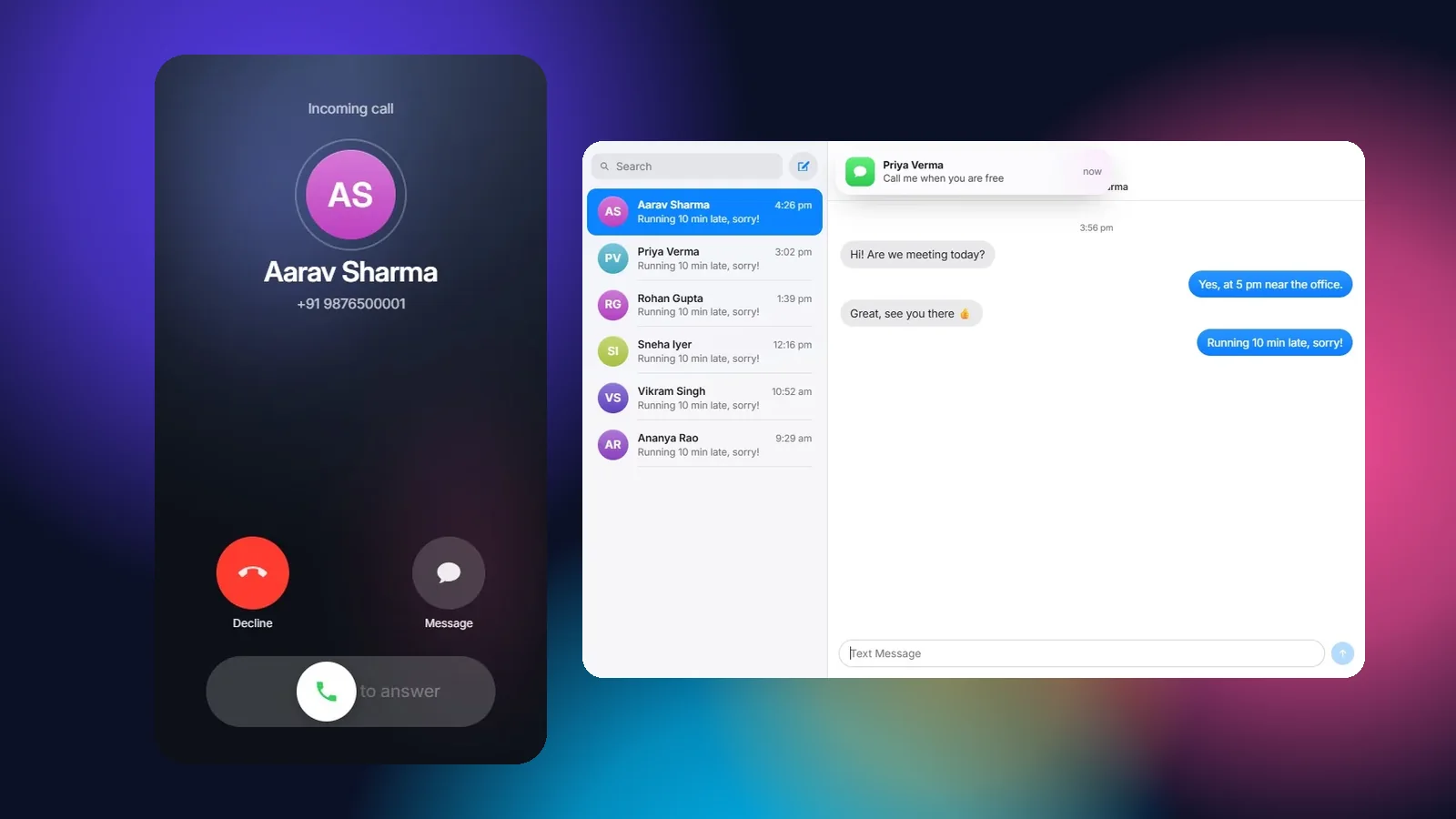
- Ask a friend to ring you. A call card appears on the PC. Slide to answer.
During a call you can:
- Mute and unmute
- Open a keypad for menu options
- Move the call back to the phone if you need to walk away
- Hang up with a click
To make a call: open Phone from the dock and dial, pick someone from Recents or Contacts, or press Alt + Space, type a name and choose Call.
What else comes with it:
- Your phone’s contacts and recent calls on the PC.
- On Android, reading and sending text messages from the PC.
- On iPhone, the phone’s notifications shown on the PC.
The limits, plainly:
- It works with one phone at a time.
- It handles normal phone calls and SMS. Not WhatsApp calls or chats.
- Text messaging on iPhone is limited by what the iPhone shares over Bluetooth.
- GlassDock is a whole desktop app with a dock, widgets and more. If calls are the only thing you want, weigh that up.
Mid-article card: Calls, messages and contacts on your PC, with an honest Android and iPhone table → /connect-phone-to-pc/
Which way should you use?
| You want | Use |
|---|---|
| A built-in option and you do not mind a companion app and Microsoft account | Phone Link |
| To call colleagues or family inside WhatsApp, Teams or similar | That app’s Windows version |
| Your normal phone calls on the PC with nothing installed on the phone | GlassDock |
| The best call quality whichever you choose | A headset on the PC |
Getting good call quality
A few habits make PC calls sound better than phone calls.
- Use a headset if you can. Laptop microphones pick up typing and fans.
- Check the sound output before the call. In Windows, click the speaker icon and make sure the right device is selected.
- Keep the phone close. A wall or two between phone and PC is enough to make Bluetooth audio stutter.
- Other Bluetooth devices can interfere. If audio breaks up, try turning off one you are not using.
If it does not work
- The phone does not appear when pairing. Open the Bluetooth screen on the phone and keep it open. Many phones are only discoverable while that screen is showing.
- Paired, but no calls arrive on the PC. On the phone, open the Bluetooth settings for the PC’s entry and check that phone calls are allowed for that device.
- Names do not show, only numbers. Contact sharing was not allowed. Turn it on in the same place.
- The other person cannot hear you. Windows may be using the wrong microphone. Check Settings > System > Sound > Input.
- Still stuck. Remove the pairing on both sides and pair again. It fixes more than it should.
A note on privacy
Whichever way you choose, ask where your contacts and messages end up. With a Bluetooth-only method they travel from the phone to the PC and stay there. GlassDock keeps them in a folder on your PC and does not upload them. It also has no voice assistant. The microphone is used only while you are on a call.
Closing CTA
Heading: Let the next call come to your screen
Body: Pair your phone with GlassDock and take the next call on your PC.
Button: Get it on Microsoft Store
Editor notes:
– Re-check the Phone Link steps on the publishing day. Microsoft changes the setup flow and the companion app requirements from time to time. Keep the wording general (“usually”, “in outline”) as written.
– Confirm with the developer that iPhone calling with voice on the PC works end to end before publishing the FAQ answer about iPhone (PLAN.md section 9, point 2).
– All call screenshots must use demo contacts.
Frequently asked questions
Can I answer phone calls on my Windows 11 PC?
Yes. Pair your phone with the PC over Bluetooth and use software that supports Bluetooth calls, such as Windows’ Phone Link or GlassDock. Calls then ring on the PC and use its microphone and speakers.
Do I need to install an app on my phone?
It depends on the method. Phone Link uses Microsoft’s Link to Windows companion app on the phone. GlassDock uses the phone’s built-in Bluetooth calling support and needs nothing installed on the phone.
Can I take iPhone calls on a Windows PC?
Yes. An iPhone can pass calls to a Windows PC over Bluetooth. Both Phone Link and GlassDock support iPhone calling. Features beyond calls, such as text messages, are more limited on iPhone than on Android.
Do PC calls use the internet?
No. Calls passed from your phone over Bluetooth use the phone’s mobile network as usual. Internet calling apps such as WhatsApp are different. Those use your data or Wi-Fi.
Why is the sound choppy?
Usually distance or interference. Keep the phone within a few metres of the PC, and try a headset. If you use many Bluetooth devices at once, turn off one you do not need.
Laptop se call kaise kare?
Phone ko laptop se Bluetooth par pair kijiye. Phone Link ya GlassDock jaisa software use kijiye jo Bluetooth calling support karta hai. Uske baad aap laptop se number dial kar sakte hain aur aane wale calls laptop par utha sakte hain.

 Send link to my PC